Can you transfer MEGA to Filen without downloading?
Yes. RiceDrive lets you transfer files from MEGA to Filen through an online cloud transfer task, without downloading them to your own computer and uploading them again. Connect both accounts, select MEGA files and a Filen destination folder, adjust optional settings, and click Start. The task then continues in the background.
- 5 main stages: Connect MEGA → Connect Filen → Choose files and folder → Configure → Start and verify.
- Optional automation: Daily or weekly transfer schedules.
- Free starting point: RiceDrive offers 10GB of monthly transfer traffic.
Why Transfer MEGA to Filen?
MEGA and Filen both provide cloud storage, but you might want to change services, maintain a separate copy, organize data across providers, or move older files into a new account. A cloud-to-cloud workflow is especially attractive when your MEGA contains large folders and your computer has limited free storage.
Filen emphasizes zero-knowledge, client-side end-to-end encryption in its own applications. Its security model is relevant if privacy is a priority, but the way a third-party migration service accesses and processes your data is a separate consideration. Review the authorization and security implications before migrating sensitive content. See Filen's encryption overview for details.
What You Need Before Starting
- An accessible MEGA account containing the files to move.
- A Filen account with enough available storage.
- A RiceDrive account; sign in using your email address and verification code.
- Permission to authorize access to each cloud account, plus any account-specific security verification.
For large migrations, test a small folder first. Keep the originals until you have checked the destination.
How to Transfer MEGA to Filen with RiceDrive: Step by Step
Step 1: Log In and Connect MEGA
Go to RiceDrive.com. Log in with your email and verification code. Add a cloud drive, choose MEGA, enter your MEGA account and password in the connection form, and click Connect. Wait for the successful connection message. You can view the account on the My Drives page.

Step 2: Connect Your Filen Account
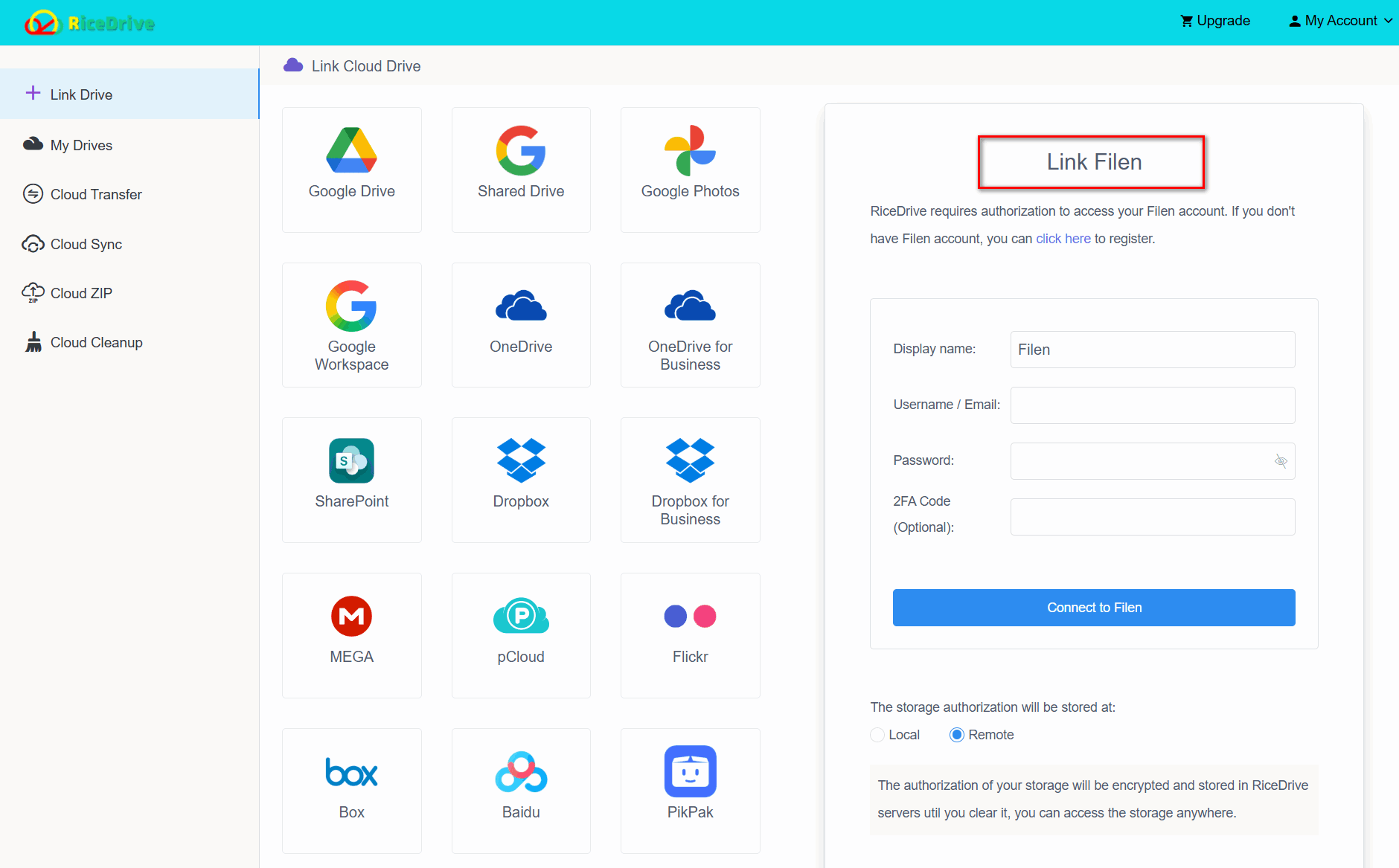
In RiceDrive, add another cloud account and select Filen. Enter your Filen account credentials, then click Connect. Wait for the success confirmation. Make sure both MEGA and Filen appear among your connected drives before proceeding.
Step 3: Create the MEGA to Filen Transfer Task
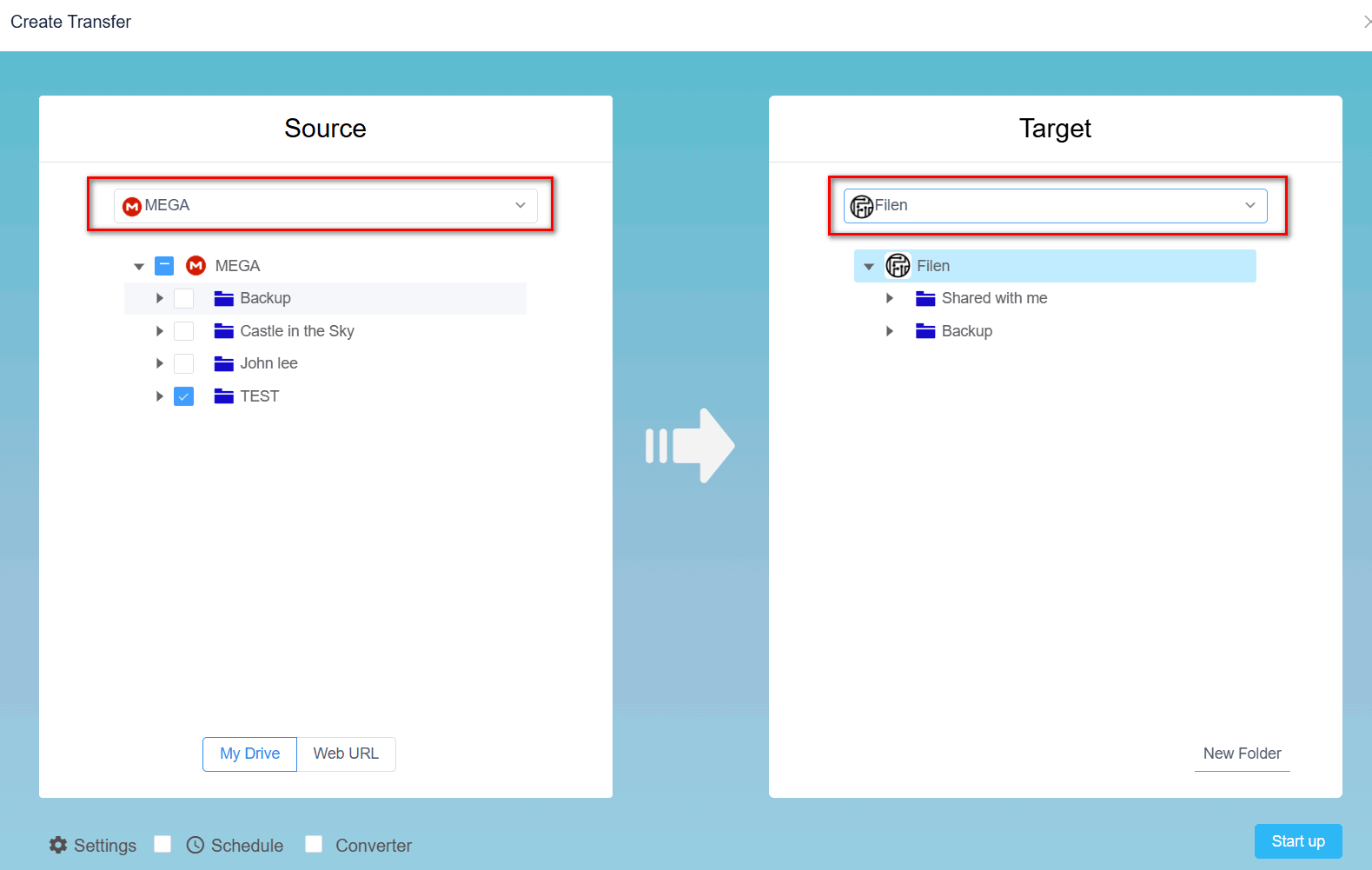
Open the cloud transfer workflow. In the source panel, browse MEGA and select the file or folder you want to transfer. In the destination panel, choose a folder in Filen where the MEGA files will be saved. Double-check the direction: MEGA is the source and Filen is the destination.
Step 4: Review Filters and Scheduling
Under task settings, you can configure filter conditions and choose how to handle files that already exist in the Filen destination. The schedule panel also lets you set up a daily or weekly plan. These options are useful for repeated transfers, although you can leave scheduling off for a one-time migration.
Step 5: Start the Task and Verify the Result
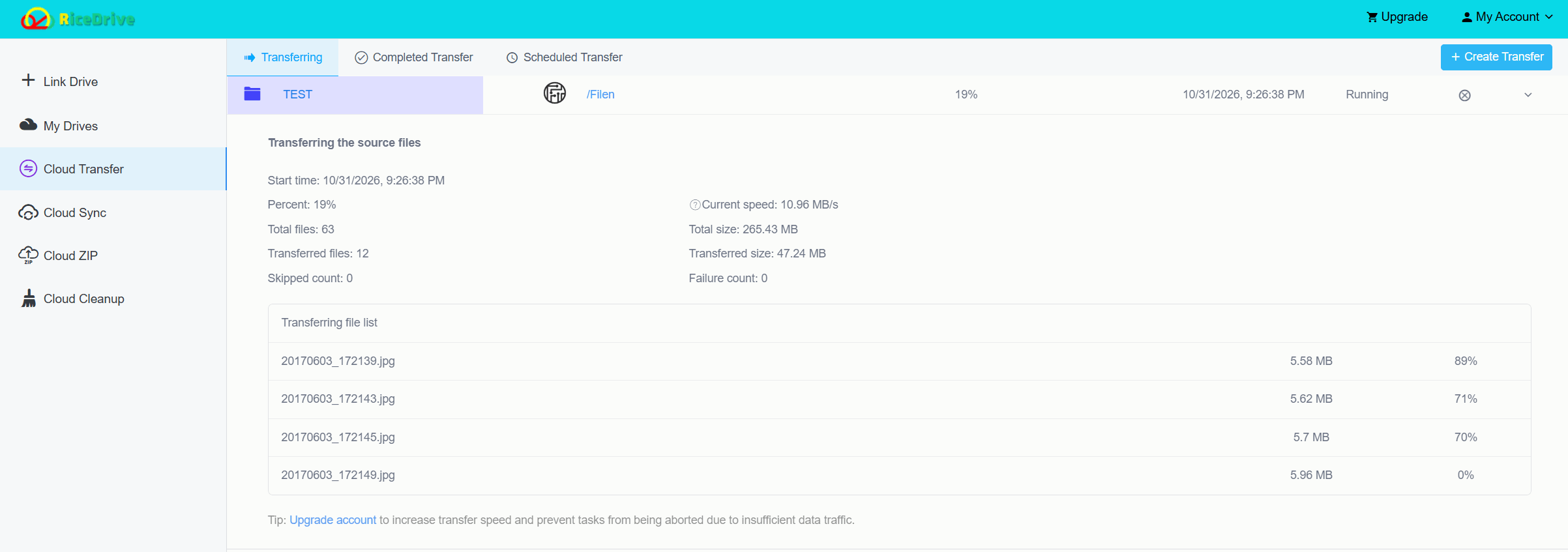
Click Start to create and run the transfer. The task runs online, and you can close the web page while RiceDrive continues processing it in the background. After completion, open the task log to check whether all selected files transferred successfully. Finally, open Filen and confirm that the destination folder contains the expected files.
Alternative: Download from MEGA and Upload to Filen
You can also move a small number of files without RiceDrive. Sign in to MEGA, download the chosen files or folders to your computer, then open Filen and upload them into the desired folder. This method gives you a local intermediate copy but consumes disk space and uses your network connection for both download and upload.
For a few documents, manual transfer may be perfectly reasonable. For larger folders or recurring tasks, RiceDrive avoids the manual download-and-upload workflow.
RiceDrive vs Manual Transfer: Which Is Better?
| Feature | RiceDrive | Manual Download & Upload |
|---|---|---|
| Download files to your computer | No manual download | Required |
| Background cloud task | Yes | No |
| Daily or weekly scheduling | Available | Not built in |
| Destination-file handling and filters | Configurable in task settings | Handled manually |
| Best use case | Large folders and recurring transfers | A few small files |
Important Limits and Safety Checks
- Check Filen storage: The destination must have room for the files you select. Confirm the current allowance in your Filen account rather than assuming a fixed free-tier amount.
- Consider provider limits: MEGA transfer allowances and account restrictions can affect how much data can be moved; test large files before launching a bulk task.
- File metadata and sharing: Do not assume original share links, permissions, or every metadata field will carry over between providers.
- Security: A migration service may need access to content to transfer it into Filen. Filen's end-to-end encryption for its own storage does not, by itself, establish an end-to-end encrypted path through RiceDrive.
- Verify before deleting: Compare folder names, file counts, and several representative files. Keep your MEGA originals until you trust the migrated copy.
Troubleshooting MEGA-to-Filen Transfers
MEGA or Filen Won't Connect
Recheck the account credentials, any required sign-in verification, and the connection status on My Drives. If authorization fails, follow the current account prompts rather than retrying blindly.
The Transfer Is Slow or Stops
Check the RiceDrive task log for failed items, provider restrictions or available space issues. Try a smaller folder to narrow down the cause.
Some Files Are Missing
Confirm which MEGA folders were selected, check filter settings and existing-file behavior, and compare the Filen destination with the task log.
Frequently Asked Questions
Final Thoughts
If you only need to move a handful of files, the manual MEGA-to-Filen route can work well. If your goal is to transfer MEGA to Filen without downloading, RiceDrive offers a browser-based approach with source and destination selection, optional filters, scheduled tasks, background processing, and transfer logs. Connect both accounts, create the task, start it, and verify the result.
🚀 Ready to transfer files from MEGA to Filen?
Start Free Cloud Transfer →10GB free monthly traffic • No manual downloading • Background transfer