Can you transfer or back up Google Drive to another cloud without downloading?
Yes. RiceDrive lets you transfer Google Drive files to supported cloud storage accounts online, without first downloading them to your computer. In 2026, it supports 40+ cloud platforms and protocols, including OneDrive, Dropbox, Box, MEGA, pCloud, Amazon S3, FTP and SFTP. Start with 10GB of free monthly traffic.
- 5 core steps: Connect Drive → Connect destination → Select files → Configure options → Start.
- For recurring protection: use scheduled cloud sync or copy tasks where supported.
- Before migrating: check storage capacity, file formats, permissions and provider limits.
Why Connect Google Drive to RiceDrive?
Google Drive is convenient for Google Workspace collaboration, file sharing and everyday document storage. Moving files to a different provider, though, often means downloading folders to a computer and then uploading the same data again. This can be slow when you have large archives, thousands of files or limited local storage.
RiceDrive is a web-based multi-cloud management service built to simplify transfers between supported providers. Connect your storage accounts, choose a source and a destination, and run a background transfer task. You can also use scheduling, file filters, and incremental behavior in supported workflows.
For example, a team may move finished projects from Drive to a lower-cost archive bucket, or an individual may keep copies of important folders in both Google Drive and OneDrive.
What Can You Do with Google Drive on RiceDrive?
Common Google Drive Transfer & Backup Scenarios
1. Google Drive to OneDrive or Dropbox
Useful when switching collaboration tools or keeping an additional copy in another popular cloud. Choose Google Drive as the source and OneDrive or Dropbox as the destination.
2. Google Drive to Box or MEGA
Move a selected folder to Box for another organization's workflow or to MEGA for a separate storage account. Test file access and sharing behavior after the copy.
3. Google Drive to S3, Wasabi or Backblaze B2
For archives and backup-style storage, S3-compatible destinations can be useful. Compare storage and retrieval charges with your expected usage before transferring a large library.
4. One Google Drive account to another
Consolidate personal accounts or copy selected folders to a second Google account. Google-native files and access permissions may need special handling, so check results before removing the source.
5. Google Drive to FTP or SFTP
Copy project files to a server or NAS endpoint reachable over FTP or SFTP. Ensure the endpoint is reachable and has sufficient space.
How to Transfer Google Drive Files with RiceDrive
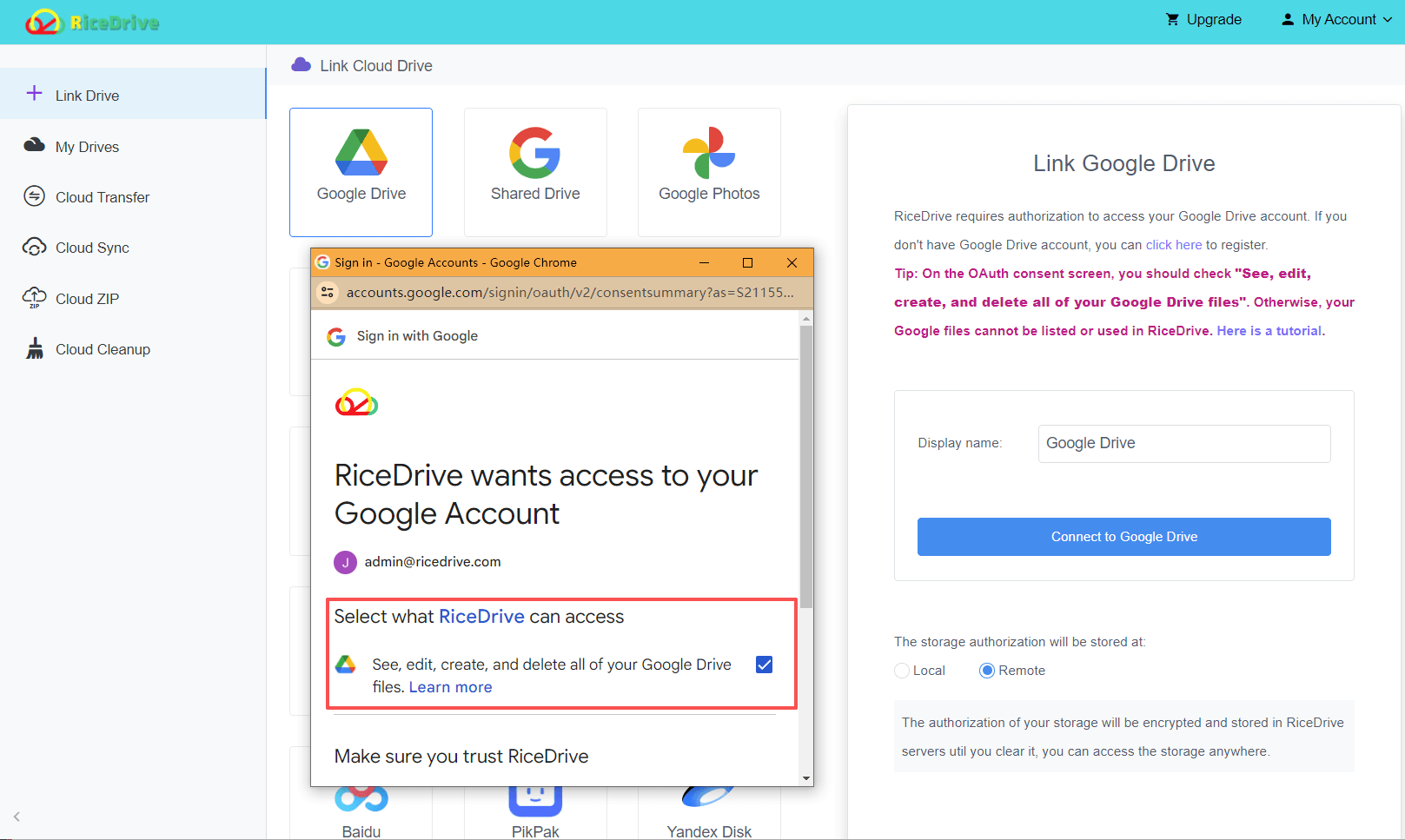
Step 1: Connect Google Drive
Visit RiceDrive, sign in and open Link Drive. Choose Google Drive, sign in with Google and review the authorization request.
Step 2: Add Your Destination Cloud
Connect OneDrive, Dropbox, Box, MEGA, pCloud, S3, Yandex or another supported platform. The connection steps depend on the provider.
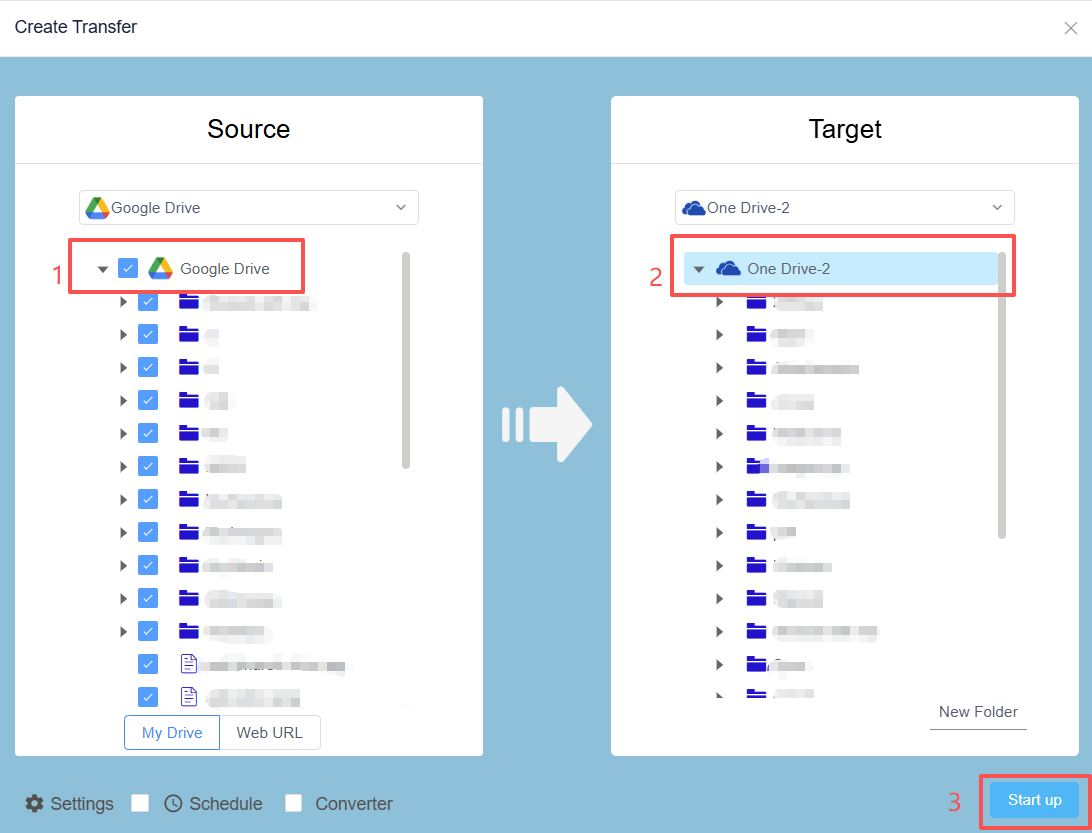
Step 3: Create a Cloud Transfer Task
Open Cloud Transfer. Select a Google Drive folder as the source and a folder in the destination cloud as the target.
Step 4: Adjust Optional Settings
Review filters, task scheduling, incremental mode and how existing destination files should be handled, where those settings are available.
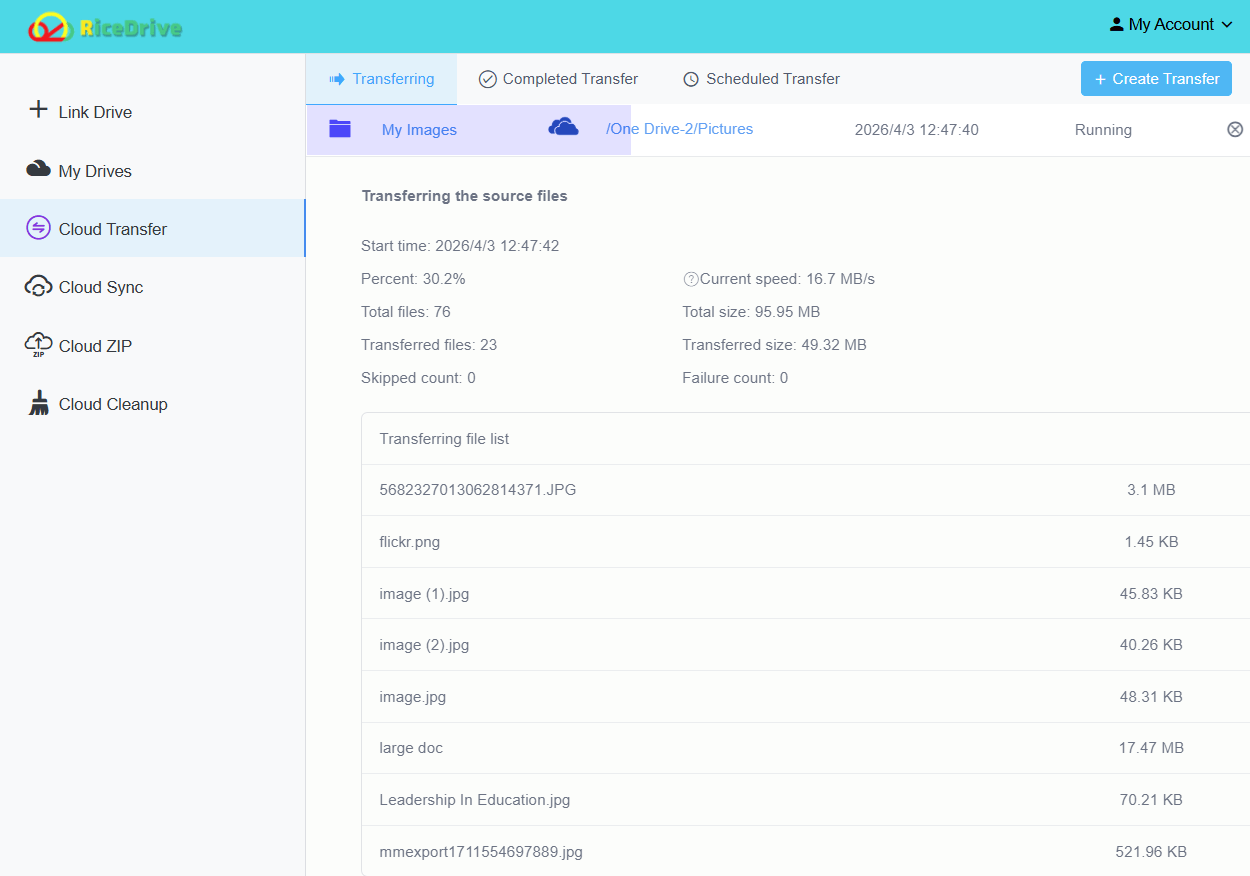
Step 5: Start, Monitor and Verify
Start the transfer and let it run online. Check the task status and logs, then compare important files and folders at the destination. Keep original data until verification is complete.
Google Drive Limits & Important Checks
Google's API policies, account restrictions and destination-provider limits can affect large migrations. Google Workspace documentation describes an upload-and-copy limit of 750GB per user within 24 hours for data written into Google Drive. This is not a universal daily cap on every download or outgoing transfer. Actual throughput depends on file count, API responses and the destination provider.
- Google-native formats: Docs, Sheets and Slides need supported export or conversion handling when sent to non-Google storage. Do not assume they remain editable Google-native documents.
- Sharing and permissions: Google sharing links, comments and permissions may not transfer across providers.
- Destination capacity: Check the receiving account's available space and per-file limits.
- Quota and rate limits: Very large tasks or many small files may experience provider throttling; review errors in the logs.
Before a major migration, run a small test including an ordinary file, a large file and a Google Docs/Sheets file, then confirm the destination behaves as expected.
RiceDrive vs Manual Download vs Google Takeout
| Method | Local download | Recurring tasks | Best for |
|---|---|---|---|
| RiceDrive | No manual download | Yes, supported workflows | Cloud-to-cloud transfer or ongoing copies |
| Browser download & upload | Yes | No | Small, occasional migrations |
| Google Takeout | Typically export and download | Not a live two-way sync | One-time personal data export |
The manual method can be adequate for a few folders. Google Takeout helps export account data, but it is not a direct replacement for an ongoing cloud sync workflow.
Frequently Asked Questions
Final Thoughts
If you need to move a few documents, downloading and uploading them manually may be sufficient. For larger collections or repeated Google Drive copies, RiceDrive offers a more convenient browser-based workflow across supported cloud platforms.
Start with a small test, check file-format compatibility and destination limits, and keep your originals until the transfer has been verified.
🚀 Ready to transfer Google Drive to another cloud?
Start Free Google Drive Transfer →10GB free monthly traffic • Online transfers • No manual re-upload