Can you transfer or back up Yandex Disk to another cloud without downloading?
Yes. RiceDrive can copy files from Yandex Disk to supported cloud storage accounts online, without first downloading them to your computer. In 2026, RiceDrive supports 40+ storage platforms and protocols, including Google Drive, OneDrive, Dropbox, MEGA, Box, pCloud, Amazon S3, FTP and SFTP. The free plan provides 10GB of monthly transfer traffic.
- 5 core steps: Connect Yandex Disk → Connect destination → Select files → Review options → Start.
- Recurring copies: Use scheduled transfers or cloud sync for supported workflows.
- Important: Verify destination space, file permissions and completed transfers before deleting anything.
Why Connect Yandex Disk to RiceDrive?
Yandex Disk is a cloud storage service used for documents, photos, videos and everyday file sharing. But moving an entire folder collection to another provider can become inconvenient when the usual workflow requires downloading files to a computer and uploading them again.
RiceDrive provides a web-based way to connect Yandex Disk with other supported cloud services. Instead of transferring data manually through your computer, you choose a source, a destination and a task. Background processing helps with large collections, while optional schedules, filters and incremental processing can simplify repeat jobs.
For example, you might want to consolidate storage accounts, maintain an off-platform backup, share a project with colleagues who use another provider, or move archives to object storage.
What Can You Do with Yandex Disk on RiceDrive?
Common Yandex Disk Transfer & Backup Scenarios
1. Yandex Disk to Google Drive
Move documents and project folders into a Google Workspace workflow or create a separate copy in Google Drive. After transfer, check files and sharing settings because Yandex sharing links are not automatically Google Drive links.
2. Yandex Disk to OneDrive or Dropbox
Consolidate cloud accounts or move working folders to services that integrate with your preferred devices and collaboration tools. Select only the folders you need rather than migrating the entire account immediately.
3. Yandex Disk to MEGA, Box or pCloud
Keep an additional copy with another storage provider. Confirm file access and folder structure in the destination before removing your source files.
4. Yandex Disk to Amazon S3, Wasabi or Backblaze B2
Transfer older project files into object storage for archival or backup workflows. Check storage classes, retrieval costs and any destination-specific configuration before migrating large volumes.
5. Yandex Disk to FTP or SFTP
Send selected files to a server or NAS exposed through a supported FTP or SFTP endpoint. Verify that the destination can be reached and has enough available storage.
How to Transfer Yandex Disk Files with RiceDrive
Step 1: Connect Yandex Disk
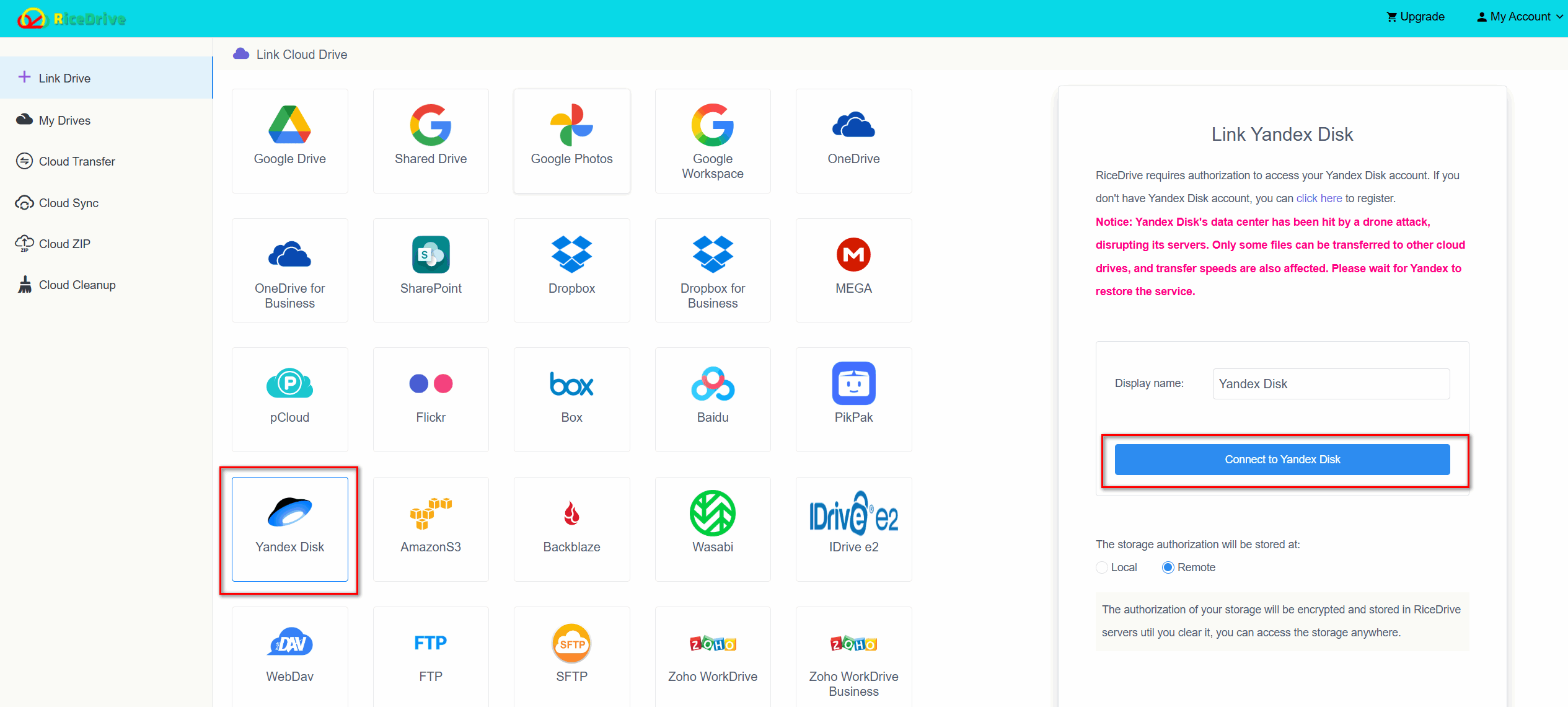
Visit RiceDrive and sign in. Open Link Drive, select Yandex Disk, and follow the connection and account authorization steps shown by RiceDrive.
Step 2: Connect Your Destination
Add Google Drive, OneDrive, Dropbox, Box, MEGA, S3 or another supported destination account. Each provider may have a different authorization process.
Step 3: Create a Cloud Transfer Task
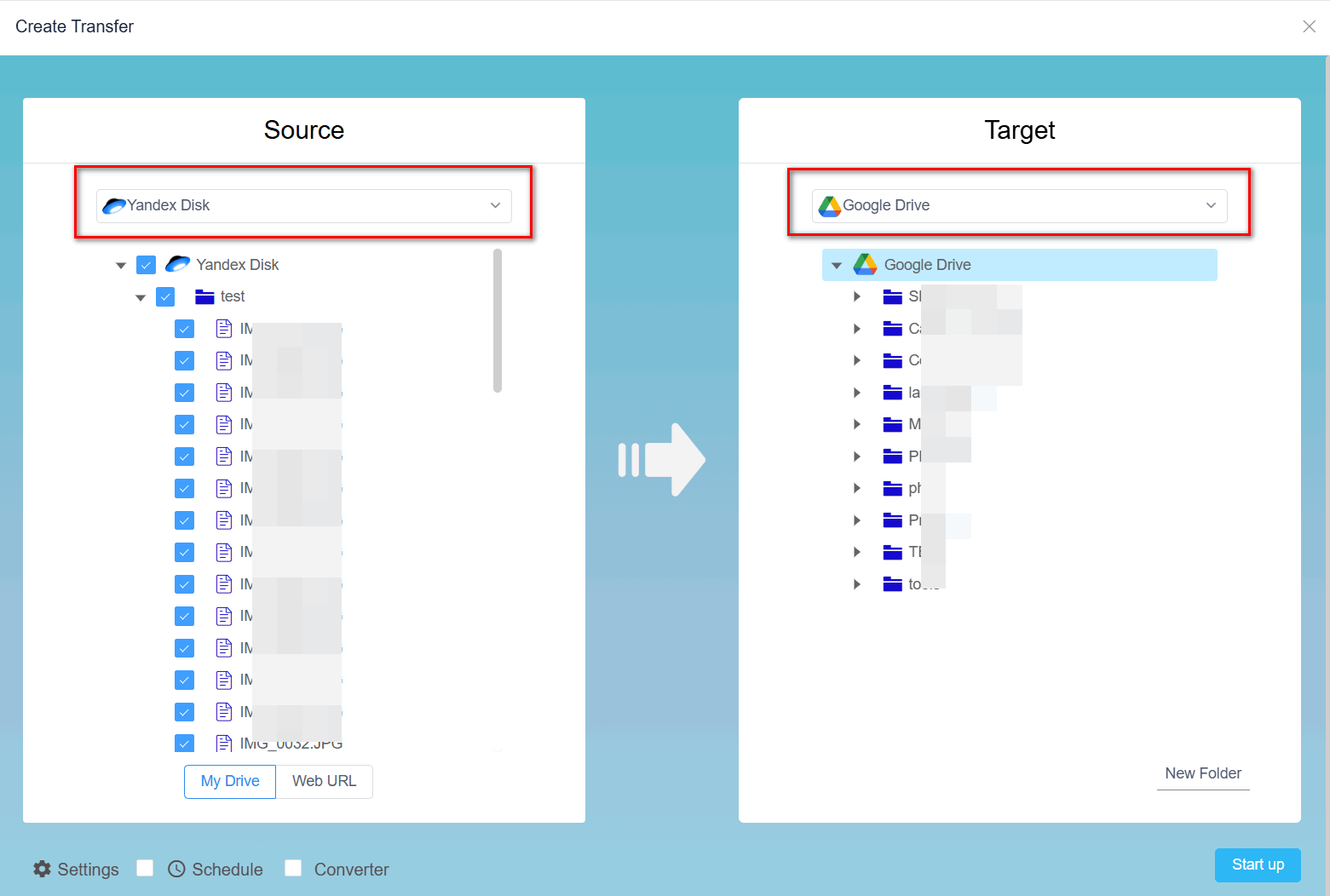
Open Cloud Transfer. Choose folders or files in Yandex Disk as the source, and select a destination folder in the other cloud.
Step 4: Review Transfer Settings
Where available, set file filters, existing-file handling, scheduling or incremental behavior. For a first migration, a small test folder is a sensible starting point.
Step 5: Start and Verify
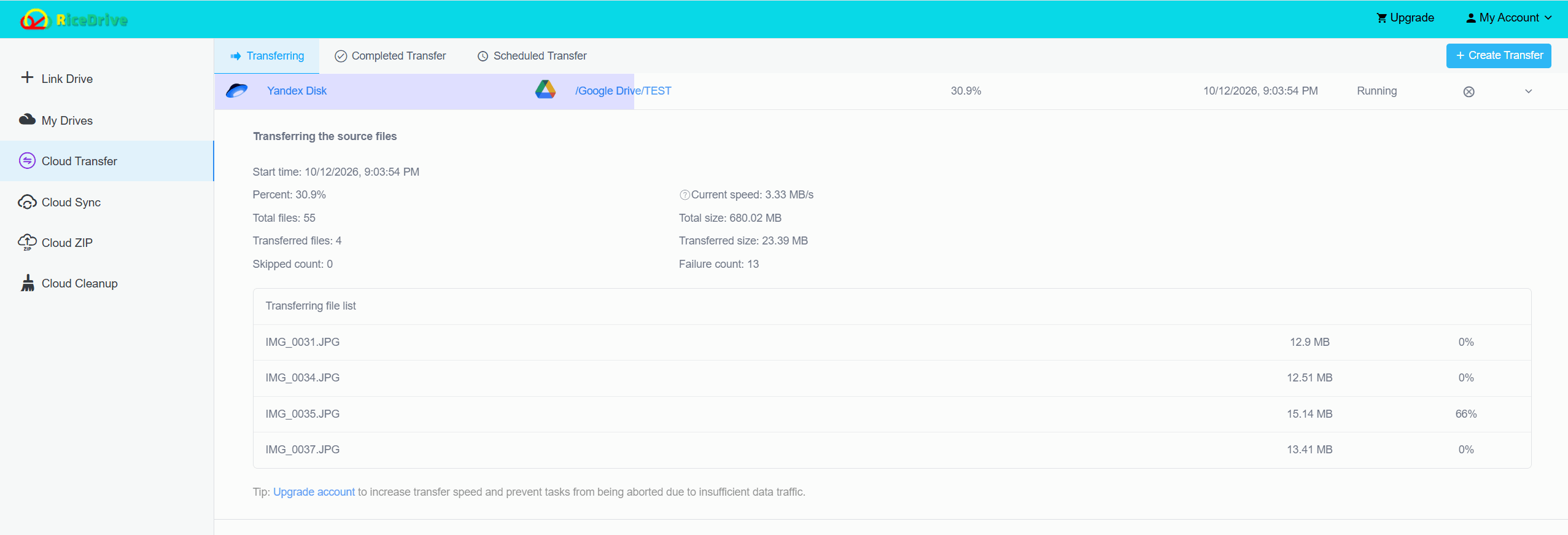
Start the transfer and monitor it in RiceDrive. Review task logs and check the destination for expected filenames, folder hierarchy and large files. Keep the Yandex Disk originals until the copy has been verified.
Yandex Disk Limits & Important Checks
Cloud migrations depend on the source account, destination provider, file count and API availability. Rather than assume that every file or metadata field will transfer identically, verify the following before moving an entire account:
- Storage and file size: Ensure the destination has sufficient capacity and supports your largest files.
- Shared links and permissions: Access rights, comments and links created in Yandex Disk may not carry over to a different provider.
- Folders and filenames: Destination services can apply different restrictions to paths, names and special characters.
- Throttling and errors: Provider API limits or network conditions may slow tasks; review logs and retry failed items as needed.
- Backup vs sync: Choose task settings carefully. A sync configured to propagate deletions is not equivalent to a versioned backup.
Before a large migration, test a small folder containing documents, photos, and one large file. Verify downloaded previews or open the files in the target cloud to confirm usability.
RiceDrive vs Manual Download & Upload
| Method | Local download | Recurring tasks | Best for |
|---|---|---|---|
| RiceDrive | No manual download | Supported workflows | Cloud-to-cloud transfer and repeat copies |
| Browser download & upload | Yes | No | Small, occasional transfers |
| Desktop sync clients | Usually uses local storage or caching | Depends on configuration | Users already managing both clouds locally |
For a handful of files, downloading from Yandex Disk and uploading to another cloud may be sufficient. For larger collections, a direct online task avoids consuming local disk space for a full intermediate copy.
Frequently Asked Questions
Final Thoughts
If you need to move a few files, a manual download-and-upload method can work. But when transferring many folders or setting up repeat off-platform copies, RiceDrive offers a more convenient browser-based workflow between Yandex Disk and supported destinations.
Start with a test transfer, check permissions and provider limits, and keep the original data until you have verified the results.
🚀 Ready to transfer Yandex Disk to another cloud?
Start Free Yandex Disk Transfer →10GB free monthly traffic • Online transfer • No manual re-upload