Can you transfer or back up OneDrive to another cloud without downloading?
Yes. RiceDrive lets you copy OneDrive files to supported cloud storage accounts online without first downloading them to your computer. In 2026, RiceDrive supports 40+ cloud platforms and protocols, including Google Drive, Dropbox, MEGA, Box, pCloud, Amazon S3, FTP and SFTP. The free plan includes 10GB of monthly transfer traffic.
- 5 steps: Connect OneDrive → Connect a destination → Select folders → Configure options → Start.
- For recurring copies: use scheduled transfer or cloud sync where supported.
- Before migrating: check destination capacity, Microsoft 365 file types and sharing permissions.
Why Connect OneDrive to RiceDrive?
Microsoft OneDrive is convenient for Windows, Microsoft 365 and Office collaboration. But moving your folders to another cloud provider often means downloading files to a local device and uploading them again. That approach becomes cumbersome for large archives, thousands of documents and computers with limited storage.
RiceDrive is a browser-based cloud-to-cloud transfer service. After you authorize your OneDrive account and a supported destination, you can create online tasks for selected files or folders. Transfers continue on RiceDrive's servers even after you close the browser. Depending on the workflow, you can also use schedules, file filters and incremental processing.
Common reasons to copy OneDrive data include changing cloud providers, creating a secondary copy outside Microsoft, consolidating accounts and archiving completed projects in object storage. Remember that a synchronized mirror is not necessarily a versioned backup: choose your task settings carefully.
What Can You Do with OneDrive on RiceDrive?
Common OneDrive Transfer & Backup Scenarios
1. OneDrive to Google Drive
Move Microsoft Office files and project folders into a Google Workspace-based workflow, or keep a second copy in Google Drive. Review permissions after transfer: OneDrive sharing links do not automatically turn into Google Drive sharing links.
2. OneDrive to Dropbox or Box
Copy team deliverables, images and documents into a Dropbox or Box account. Choose a specific target folder and check how file names, collaborators and sharing policies behave in the destination.
3. OneDrive to MEGA or pCloud
Use another storage provider for personal archives or an independent copy. Before transferring everything, check the destination's remaining space, per-file restrictions and any transfer quotas.
4. OneDrive to Amazon S3, Wasabi or Backblaze B2
Move completed projects to object storage for archival or backup-style workflows. Compare storage, retrieval and operation costs before sending a large library, and confirm the target bucket configuration.
5. OneDrive to OneDrive or FTP/SFTP
Copy files between two OneDrive accounts or place selected folders on a server through a supported FTP or SFTP connection. Confirm the account type and destination access first.
How to Transfer OneDrive Files with RiceDrive
Step 1: Connect OneDrive
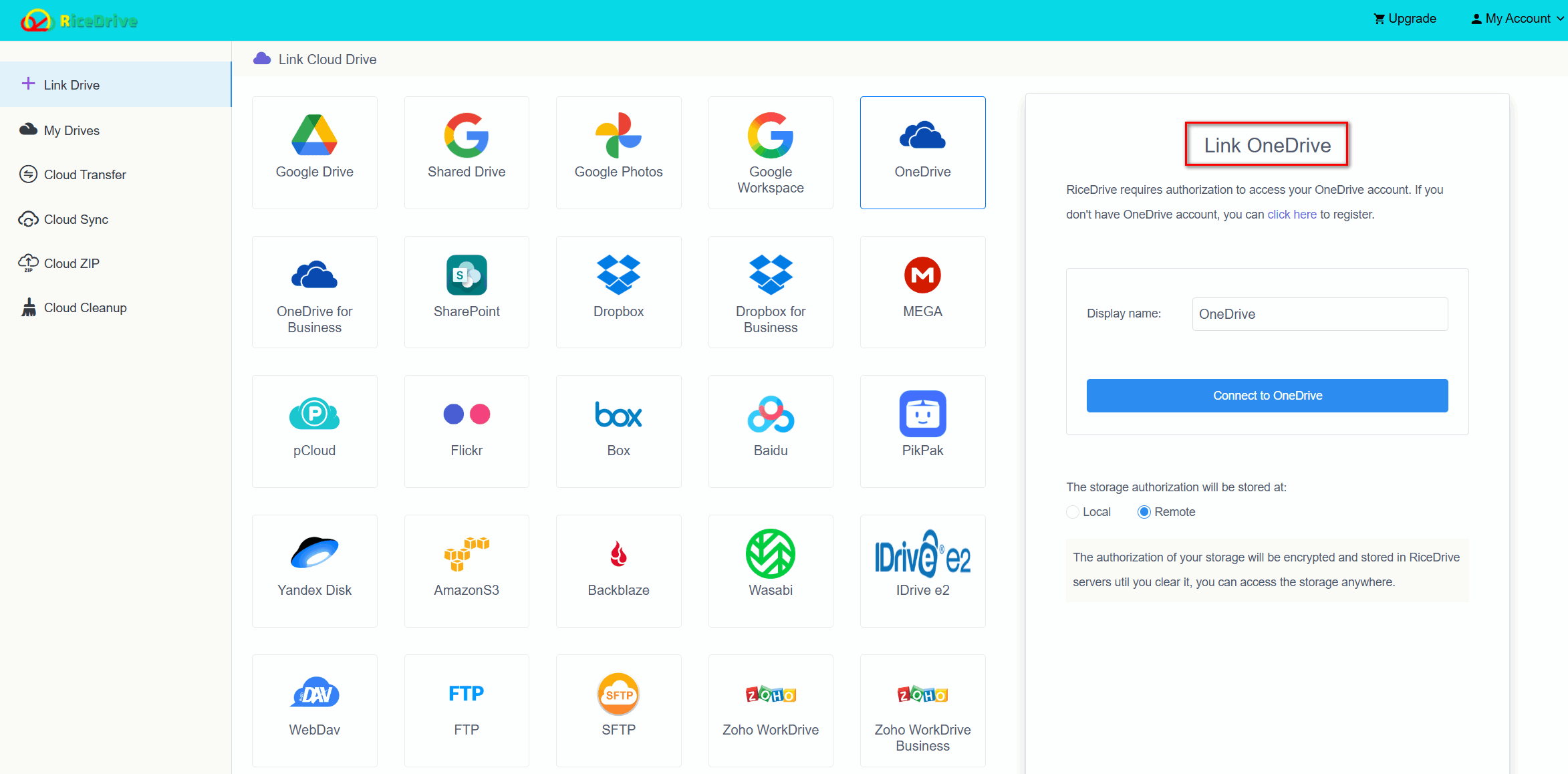
Visit RiceDrive and sign in with your email verification code. Open Link Drive, select OneDrive, then sign in to your Microsoft account and review the requested permissions. Work or school accounts may require administrator approval.
Step 2: Add Your Destination Cloud
Connect Google Drive, Dropbox, Box, MEGA, pCloud, Amazon S3 or another supported destination. Each provider may use a different authorization or credential process.
Step 3: Create a Cloud Transfer Task
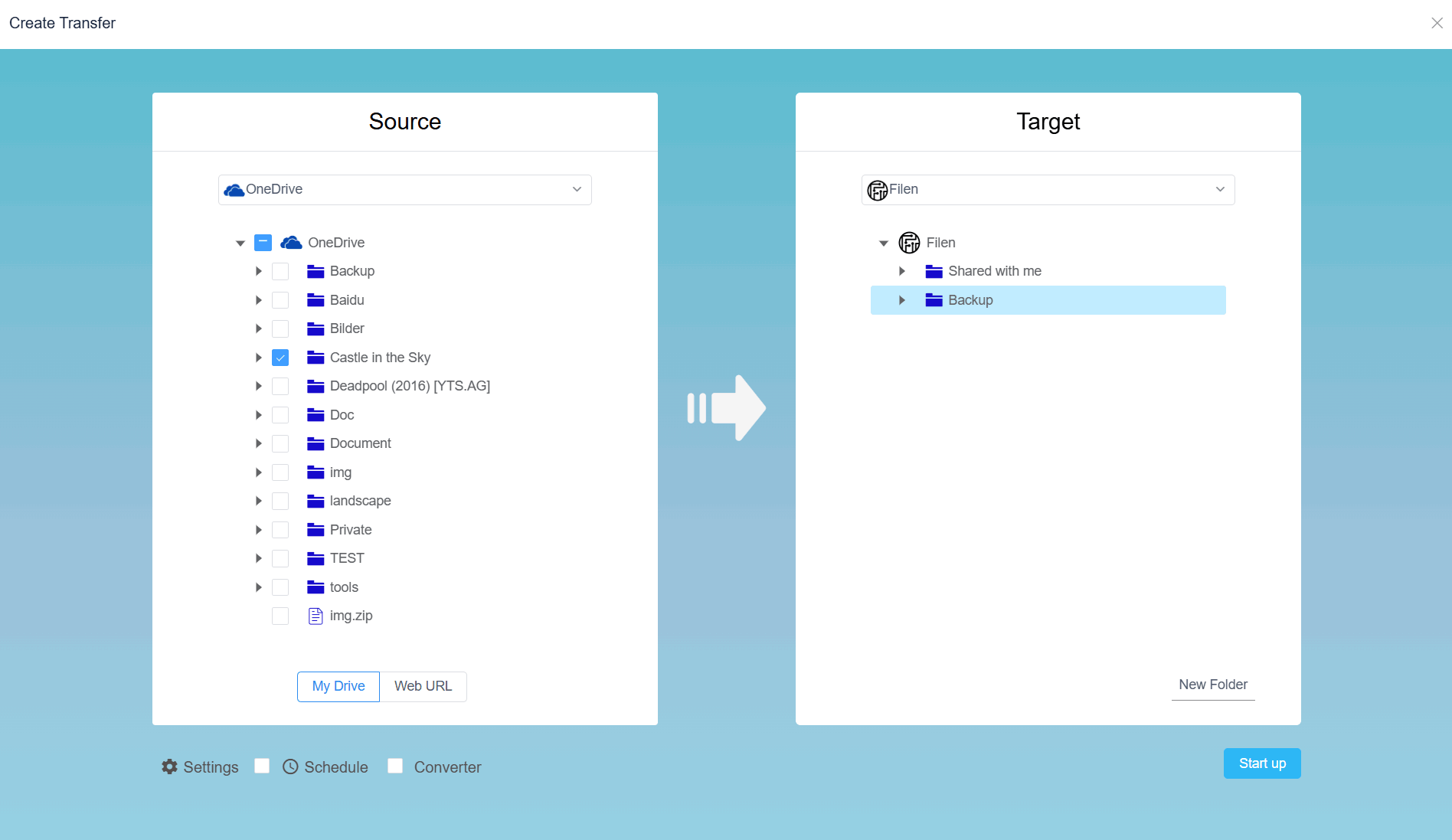
Open Cloud Transfer, choose OneDrive as the source, select your files or folders, and choose the destination folder in the other cloud. For your first task, begin with a small test folder.
Step 4: Review Transfer Settings
Configure available file filters, existing-file handling, scheduling and incremental options. For repeated backups, check whether deletions or overwrites can propagate to the destination.
Step 5: Start, Monitor and Verify
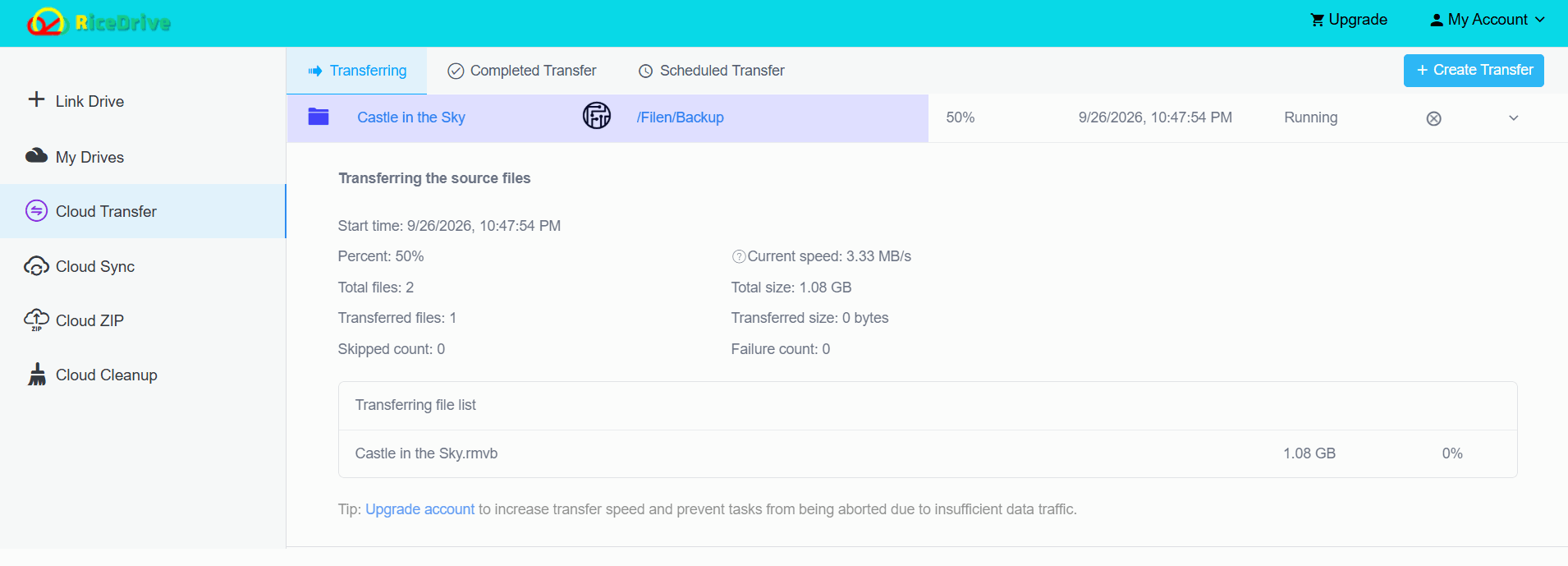
Start the transfer and let RiceDrive process it online. Review task status and logs, then compare important files, folder structure and sizes at the destination. Keep the OneDrive originals until verification is complete.
OneDrive Limits & Important Checks
Microsoft's OneDrive and SharePoint documentation currently specifies a 250 GB maximum per individual file for supported OneDrive upload, download and sync operations. This is not a guarantee that every destination supports files of the same size. The actual migration also depends on Microsoft API behavior, the receiving cloud and the number of files involved.
- Files and storage: Check the destination's quota and maximum individual-file size before moving large archives or videos.
- Sharing and permissions: Microsoft sharing links, access rules, comments and version history may not transfer identically to another provider.
- OneNote notebooks: These require special handling; Microsoft notes that OneDrive's normal folder download flow cannot download OneNote notebooks as ordinary folders.
- Names and paths: Providers may have different rules for characters, path length and folder structures.
- Large libraries: Thousands of small files can cause throttling or failed items. Monitor task logs and retest when necessary.
For a critical migration, try a small folder with an Office document, an ordinary PDF, a large file and representative shared content, then verify the destination behavior before scaling up.
RiceDrive vs Manual Download & Upload
| Method | Local download | Recurring tasks | Best for |
|---|---|---|---|
| RiceDrive | No manual download | Supported workflows | Cloud-to-cloud transfer and repeat copies |
| Browser download & upload | Yes | No | A few small folders |
| OneDrive desktop sync client | Uses local storage or caching | Local sync, not cross-cloud backup | Managing OneDrive files on your own computer |
Manual transfer remains reasonable for a handful of documents. A browser-based cloud task is more practical when you need to copy large collections repeatedly or do not want to use local disk space for an intermediate copy.
Frequently Asked Questions
Final Thoughts
For a few small files, downloading from OneDrive and uploading to another cloud can be enough. For larger datasets, scheduled copies and multi-cloud workflows, RiceDrive offers a simpler browser-based option that does not require a manual local download-and-upload process.
Check file-format compatibility, sharing behavior and destination limits. Keep the original OneDrive files until the migration has been validated.
🚀 Ready to transfer or back up OneDrive to another cloud?
Start Free OneDrive Transfer →10GB free monthly traffic • Online transfers • No manual re-upload