Can you transfer and back up MEGA files to another cloud without downloading?
Yes. You can move or back up MEGA files directly to Google Drive, OneDrive, Dropbox, S3, and 40+ other clouds using a cloud-to-cloud transfer service like RiceDrive. Connect your MEGA account and destination cloud, select your folders, and run the transfer online in the background—no local download or manual re-upload required. RiceDrive includes 10GB of free monthly transfer traffic.
- 5 core steps: Connect MEGA → Connect destination → Select folders → Configure filters/schedule → Start & verify logs.
- For recurring backups: Use daily or weekly scheduled tasks with copy-only settings (avoid mirroring deletions).
- Check before starting: MEGA transfer quotas, destination free storage, and destination API/file-size limits.
Why Migrate or Back Up MEGA to Another Cloud?
MEGA is widely used for generous free storage and encrypted file sharing, but relying on a single cloud provider creates friction over time. You may need an independent copy in Google Drive, OneDrive, or object storage when collaborating with teams on other ecosystems, consolidating subscriptions, or building a 3-2-1 backup strategy.
The manual workaround—downloading gigabytes from MEGA to your computer and re-uploading them elsewhere—eats up local disk space, ties up home bandwidth, and fails easily if your laptop goes to sleep. A browser-based cloud transfer tool handles the movement server-to-server instead.
Keep one distinction in mind: a two-way sync that mirrors deletions is not a backup. If your goal is recovery planning, configure one-way copy or archive tasks so accidental deletions in MEGA do not wipe out your destination copy.
What Can You Do with MEGA on RiceDrive?
Common MEGA Transfer & Backup Scenarios
1. MEGA to Google Drive
Move finished media, archives, or project folders into Google Drive or Google Workspace for easier editing and sharing. Need a dedicated walkthrough? Follow our step-by-step MEGA to Google Drive transfer guide. Remember that MEGA public links do not convert into Google Drive links automatically.
2. MEGA to OneDrive or Dropbox
Keep working documents accessible alongside Microsoft 365 or Dropbox collaborators. Selecting only active project folders instead of your entire MEGA drive helps preserve both MEGA quota and transfer traffic.
3. MEGA to Box or pCloud
Maintain a secondary off-site copy with another consumer or enterprise provider. Double-check destination single-file size limits and forbidden filename characters before running large batches.
4. MEGA to Amazon S3, Wasabi, or Backblaze B2
Offload cold archives to object storage for lower long-term storage costs. Before pointing a transfer at an S3 bucket, review your bucket's storage class, API request pricing, and egress/retrieval fees.
5. MEGA to FTP, SFTP, or NAS
Send selected MEGA directories directly to a private server or remote NAS endpoint. Verify port access, credentials, and available disk space on the target server prior to starting.
How to Transfer MEGA Files Without Downloading (5 Steps)
Connect MEGA to RiceDrive
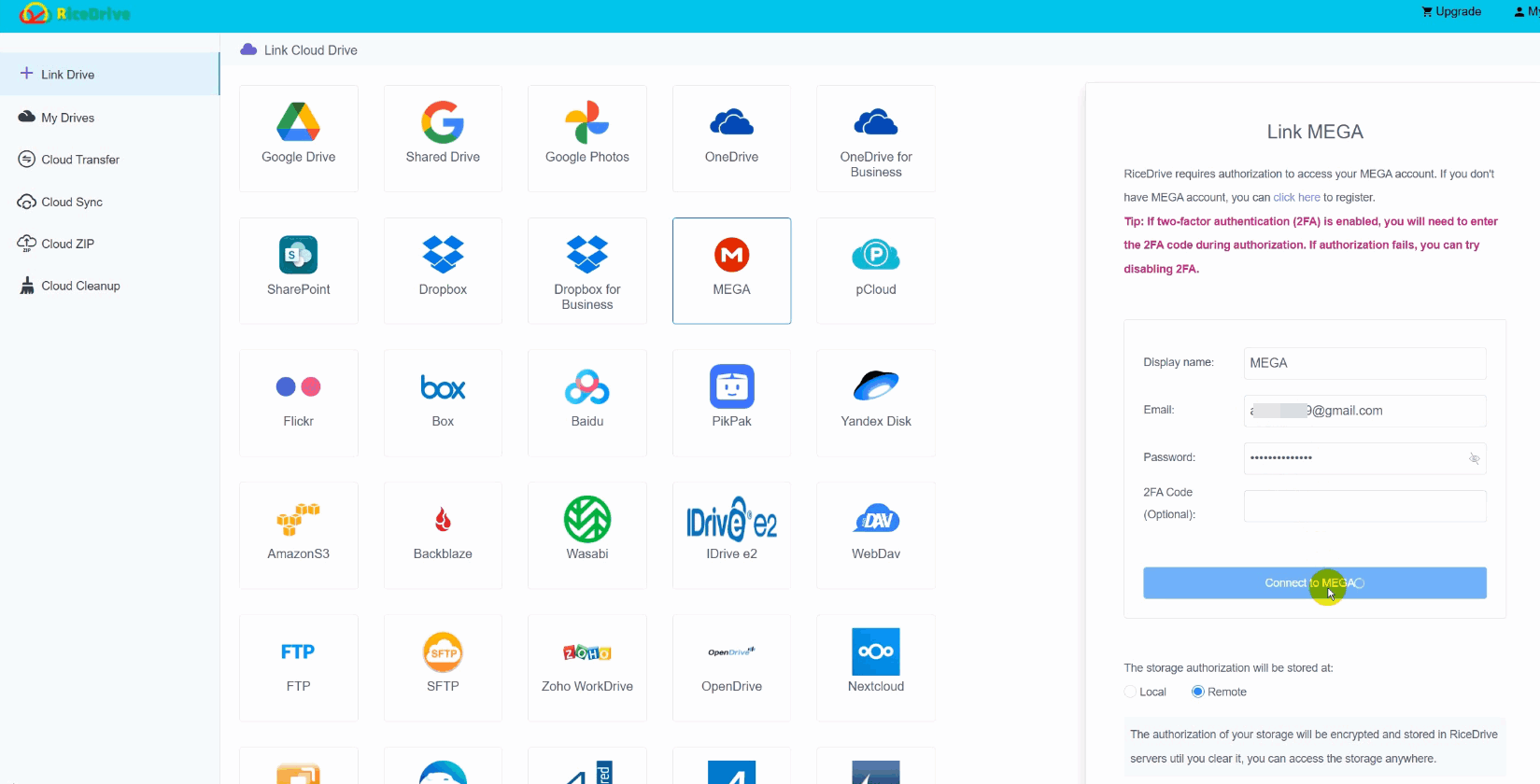
Sign in to RiceDrive, open Link Drive, select MEGA, and complete the account authentication flow. If two-factor authentication (2FA) is enabled on your MEGA account, enter your verification code when prompted.
Connect Your Destination Cloud
In Link Drive, add Google Drive, OneDrive, Dropbox, Box, pCloud, Amazon S3, or another supported storage service and complete its authorization prompt.
Select Source Folders and Target Path
Open Cloud Transfer. Choose the specific files or folders inside MEGA as your source, then pick (or create) the destination folder in your target cloud.

Configure Filters, Conflict Rules & Schedule
Set file filters, choose how to handle existing files (e.g., skip duplicates), and optionally enable a daily or weekly schedule for ongoing backups. For your first run, test with a small 500MB–1GB folder.
Start, Monitor Task Logs & Verify Files
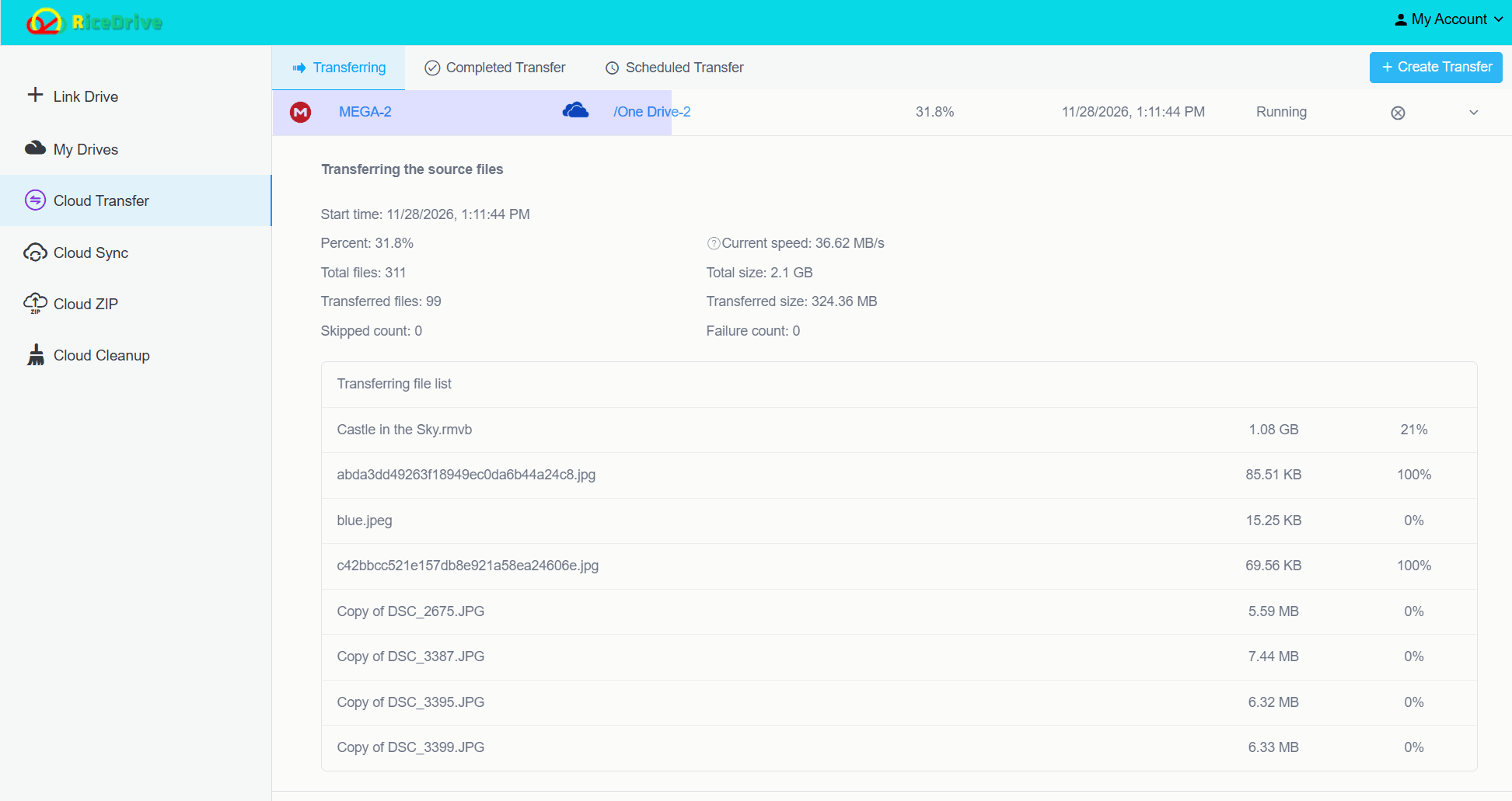
Click Start. RiceDrive runs the job in the cloud so you can close the tab. Once complete, inspect the Task Log for any skipped or quota-limited items, and verify folder counts and key files in the destination before deleting anything from MEGA.
MEGA Transfer Quotas, Speed & Security: What to Expect
Unlike standard OAuth drives, MEGA applies strict transfer allowances and client-side encryption rules. Knowing how these behave ahead of time prevents stalled jobs and surprises.
An online migration does not bypass MEGA's transfer limits—RiceDrive still has to read data from your MEGA account. Free MEGA accounts typically face a dynamic transfer allowance (often around 5GB per 6-hour rolling window, depending on IP load and account history).
How to handle large libraries smoothly: If a task hits MEGA's quota, affected files will pause or show up as failed in the RiceDrive task log. Instead of transferring 100GB in one massive job on a free account, split your folders into smaller batches, enable duplicate-skipping, or schedule recurring runs so remaining files pick up cleanly after MEGA resets your quota.
- Encryption & privacy in transit: MEGA uses end-to-end encryption at rest. During a cloud-to-cloud migration, data must be decrypted during the authorized transfer stream and re-encrypted in transit (HTTPS/TLS) to the destination cloud. RiceDrive does not permanently store copies of your files; for maximum privacy on one-time migrations, unlink your MEGA account from RiceDrive once verification is complete.
- What affects transfer speed: Real-world speed depends on three factors: your MEGA account tier/quota, file composition (thousands of tiny files take longer due to API request overhead than a few large archives), and destination limits (for example, Google Drive enforces a 750GB daily upload cap per user). Run a small test batch first to gauge your expected throughput.
- Destination storage & file-size limits: Confirm the target cloud has enough free space and supports your largest individual files (e.g., OneDrive and Box enforce distinct maximum file sizes depending on plan tier).
- Shared links & permissions: MEGA sharing links, decryption keys, and folder permissions do not carry over to another cloud provider. Plan to recreate access rules on the destination platform.
RiceDrive vs. Rclone vs. Manual Download & Upload
Depending on your technical comfort level and data volume, there are four main ways to move data out of MEGA:
| Method | Local Download | Setup & Ease | Background / Schedule | Best For |
|---|---|---|---|---|
| ✨ RiceDrive | ✓ None | Visual web UI (no install) | ✓ Cloud background & schedules | Fast cloud-to-cloud transfers & recurring backups (10GB free/mo) |
| CLI Tools (e.g., Rclone) | Streams via local PC or VPS | High (Command-line setup) | Requires cron / VPS uptime | Developers comfortable managing terminal configs & servers |
| Browser Download & Upload | Yes (Full local disk) | Easy, but tedious | No (Tab must stay open) | Small, one-off transfers under a few gigabytes |
| Desktop Sync Clients | Uses local storage / cache | Moderate (Install 2 apps) | Only while PC is awake | Users already syncing both MEGA and target cloud locally |
If you are comfortable configuring a Linux VPS and command-line flags, Rclone is a capable free option. If you want a visual interface with zero local bandwidth usage, built-in logs, and scheduled cloud execution, RiceDrive removes the setup overhead.
Frequently Asked Questions
Final Thoughts
For a handful of small documents, manually downloading from MEGA and re-uploading works fine. For multi-gigabyte libraries or automated off-site backups, a cloud-to-cloud workflow saves local disk space, preserves your bandwidth, and gives you clear logs to verify every file.
Start with one small test folder, watch for MEGA quota limits on free accounts, verify file counts in the destination cloud, and keep your MEGA originals until you confirm the copy is complete.
🚀 Ready to transfer MEGA files to another cloud?
Start Free MEGA Transfer →10GB free monthly traffic • Online transfers • No manual re-upload
Further reading: RiceDrive plans