Can you transfer or back up Dropbox to another cloud without downloading?
Yes. You can move or back up Dropbox files directly to Google Drive, OneDrive, MEGA, Box, pCloud, S3, and 40+ other clouds using RiceDrive—without downloading files to your computer first. Connect Dropbox and your destination cloud, pick your folders, and run the transfer in the cloud background. RiceDrive includes 10GB of free monthly transfer traffic.
- 5 core steps: Connect Dropbox → Connect destination → Select folders → Configure filters/schedule → Start & verify logs.
- For ongoing backups: Schedule daily or weekly one-way copies (avoid mirroring deletions).
- Check first: Export Dropbox Paper docs, verify destination file-size limits, and confirm shared-folder access.
Why Move or Back Up Dropbox to Another Cloud?
Dropbox remains popular for fast desktop syncing and team folders, but many individuals and teams outgrow a single-cloud setup. Free Dropbox Basic accounts cap storage at 2GB and 3 connected devices, while organizations standardizing on Google Workspace or Microsoft 365 often want to consolidate subscriptions into Google Drive or OneDrive.
Downloading tens or hundreds of gigabytes from Dropbox to your local drive and manually uploading them elsewhere burns local disk space, saturates your home Wi-Fi, and stalls whenever your laptop goes to sleep. A browser-based cloud transfer service moves folders directly between cloud APIs instead.
Even if you plan to keep using Dropbox, maintaining an independent copy in a second provider protects against accidental deletions, billing lockouts, or platform outages. Just remember: a two-way sync that mirrors deletions is not a backup—use one-way copy rules for recovery archives.
What Can You Do with Dropbox on RiceDrive?
Common Dropbox Transfer & Backup Scenarios
1. Dropbox to Google Drive
Move personal libraries or client deliverables into Google Drive or Google Workspace to take advantage of Google's 15GB free tier or team Docs collaboration. Remember that Dropbox shared links do not automatically convert into Google Drive links.
2. Dropbox to OneDrive
Consolidate files into your Microsoft 365 1TB OneDrive allowance, or schedule a recurring secondary backup of critical Dropbox work folders in OneDrive.
3. Dropbox to Box
Transfer project workspaces into Box for enterprise governance or client handoffs. Need a dedicated walkthrough? See our Dropbox to Box transfer guide.
4. Dropbox to MEGA or pCloud
Keep a secondary personal backup on a privacy-focused or lifetime storage provider. Confirm destination free space and test a large sample file first.
5. Dropbox to Amazon S3, Wasabi, or Backblaze B2
Archive completed video projects or compliance snapshots to low-cost object storage. Review bucket storage classes, API pricing, and egress fees before moving large datasets.
6. Dropbox to FTP, SFTP, or NAS
Push selected Dropbox folders directly to a private server or remote NAS endpoint without staging files on a workstation.
How to Transfer Dropbox Files Without Downloading (5 Steps)
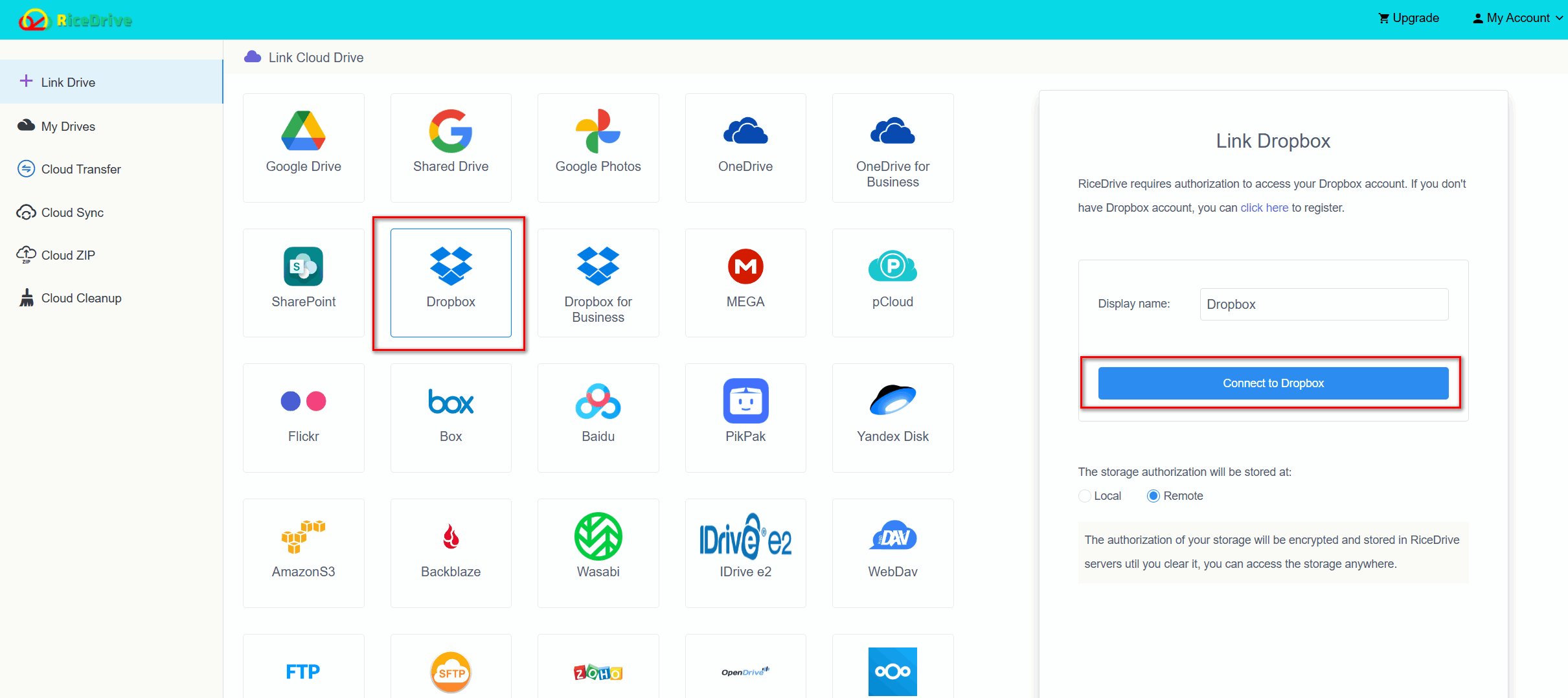
Connect Dropbox via OAuth
Open RiceDrive, sign in, open Link Drive, and select Dropbox. Sign in on Dropbox's official authorization screen and grant access.
Add Your Destination Cloud
Click Link Drive again to connect Google Drive, OneDrive, MEGA, Box, pCloud, Amazon S3, or another supported destination cloud.
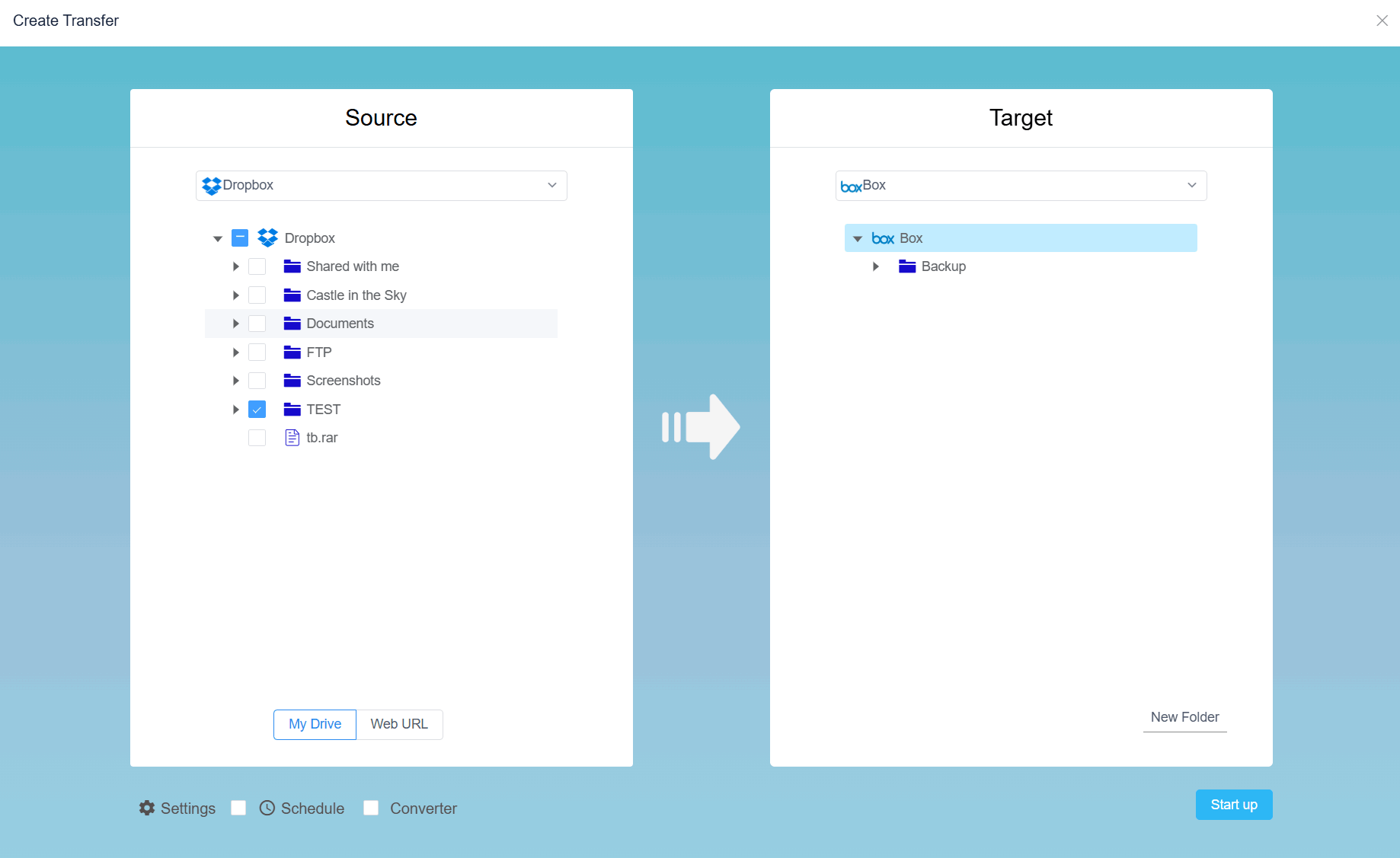
Select Dropbox Source Folders & Target Path
Go to Cloud Transfer. Select the Dropbox folders or individual files you want to copy, then choose (or create) the target directory in your destination cloud.
Configure Filters, Conflict Rules & Schedule
Set optional file filters, choose how to handle existing files (for example, skip duplicates), and enable a daily or weekly schedule if you want recurring Dropbox backups. For a first run, test with one small folder.
Start Online & Verify Your Task Logs
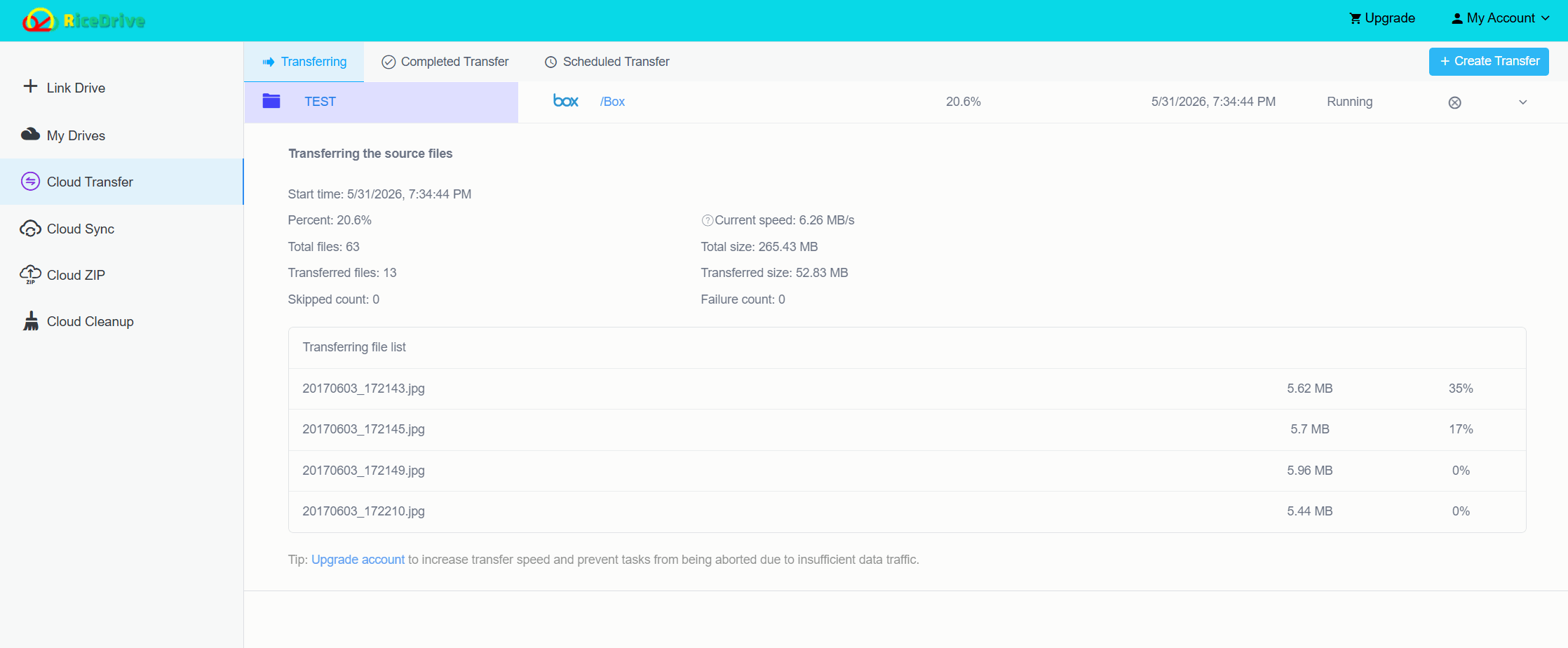
Click Start. RiceDrive executes the transfer in the cloud background so you can close the browser. Once finished, review the Task Log and verify folder counts and key files in the destination before deleting anything from Dropbox.
Dropbox Paper, File Limits & Migration Checks
Before moving a large personal or team Dropbox library, check these platform-specific details to avoid missing documents or unexpected errors:
.paper) & Cloud Docs
Dropbox Paper documents and web shortcuts (such as linked Google Docs or Office Online links inside Dropbox) are not standard local files. Copying raw .paper pointers to another cloud will not make them editable there. Before migrating, open critical Paper docs in Dropbox and export them as DOCX, PDF, or Markdown.
- Individual file-size limits (2TB vs. destination caps): Dropbox supports individual files up to 2TB, but destination providers may enforce stricter limits (for example, OneDrive caps single files at 250GB, and Box limits vary from 5GB to 150GB depending on plan). Check destination specs before moving massive video or disk-image archives.
- Online-only (Smart Sync) files: Because RiceDrive reads directly from Dropbox's cloud API rather than your local hard drive, files marked "Online-only" on your laptop still transfer normally—no need to download them locally first.
- Team Spaces & shared folders: Verify that your connected Dropbox account has direct read access to shared folders and Dropbox Business Team Spaces. Shared links, comments, and member permissions do not migrate across cloud providers and must be reconfigured in the destination.
- API rate limits on thousands of small files: Moving 50,000+ tiny files takes longer than moving a few large archives due to per-file API overhead. Enable duplicate-skipping and inspect the task log to retry any throttled items cleanly.
- Backup vs. mirror sync: A two-way or mirror sync propagates deletions. Use one-way transfer tasks when building an independent backup archive.
RiceDrive vs. Rclone vs. Manual Download & Upload
Compare the four main ways to move or back up Dropbox files to another cloud:
| Method | Local Download | Setup & Ease | Background / Schedule | Best For |
|---|---|---|---|---|
| ✨ RiceDrive | ✓ None | Visual web UI (no install) | ✓ Cloud background & schedules | Cloud-to-cloud migration & automated Dropbox backups (10GB free/mo) |
| CLI / GUI (Rclone / RcloneView) | Streams via local PC or VPS | Moderate to High | Requires PC or VPS uptime | Technical users comfortable configuring remotes & servers |
| Browser Download & Upload | Yes (Uses full local disk) | Easy, but slow | No (Tab must stay open) | Small, one-off transfers under a few gigabytes |
| Desktop Sync Clients | Uses local disk / cache | Moderate (Install 2 apps) | Only while PC is awake | Users already syncing both clouds locally |
For a few small documents, downloading via browser is fine. For multi-gigabyte Dropbox migrations, recurring off-site backups, or computers with limited SSD space, RiceDrive eliminates local bandwidth and storage bottlenecks.
Frequently Asked Questions
Final Thoughts
Whether you are leaving Dropbox's 2GB free limit behind, consolidating into Google Drive or OneDrive, or building a recurring off-site archive, running the transfer directly in the cloud saves hours of manual downloading and keeps your computer free.
Export any critical Dropbox Paper docs first, run a small test folder, check the task logs, and keep your Dropbox originals intact until your destination copy is verified.
🚀 Ready to transfer Dropbox files to another cloud?
Start Free Dropbox Transfer →10GB free monthly traffic • Online background transfers • No manual re-upload
Further reading: RiceDrive plans | Dropbox file size limits