Can you transfer Dropbox to Box without downloading files first?
Yes. RiceDrive can connect Dropbox and Box in one browser-based workflow, so you can select Dropbox files, choose a Box destination, and start an online transfer without first saving the files to your computer.
- 3-step core workflow: connect both clouds → select source and destination → start transfer.
- Destination limit matters: Box upload limits vary by plan, from 250 MB on Free Personal to 500 GB on Enterprise Advanced.
- Best use case: large folders or repeated migrations where manual download-and-upload would use local storage and bandwidth twice.
Dropbox and Box are both widely used cloud storage services, but moving data between them is not always as simple as dragging a folder from one website to another. The traditional approach is to download the files from Dropbox, keep a local copy, and then upload everything to Box.
That works for a few small files. For a larger migration, however, it can consume significant disk space, use your internet connection twice, and make it harder to track failed or skipped items. RiceDrive provides a more direct cloud-to-cloud option for users who want a visual workflow instead of scripts or command-line tools.
Why Transfer Dropbox Files to Box?
There is no single reason to move from Dropbox to Box. In practice, the migration is often driven by a change in company tools, collaboration policies, or where a team wants to keep its working documents.
- Company standardization: your organization may be moving collaboration and content management to Box.
- Team collaboration: projects may need to live in Box folders shared with employees, clients, or external partners.
- Account consolidation: you may want fewer cloud services to manage and pay for.
- Backup or transition: copying important Dropbox folders to Box can be part of a phased migration before the old account is retired.
Before You Start: Check These 4 Things
- 1. Box storage and plan limits. Make sure the destination has enough storage and that individual Dropbox files do not exceed the maximum upload size allowed by your Box plan.
- 2. File and folder names. Box supports names up to 255 characters and does not allow certain reserved characters such as / and \. Leading or trailing spaces can also cause problems.
- 3. Permissions. Connect the Dropbox account that can read the source files and a Box account that has permission to upload into the destination folder.
- 4. Test a small folder first. A test containing documents, images, a large file, and nested folders helps reveal naming, permission, or plan-limit issues before the full migration.
How to Transfer Dropbox to Box with RiceDrive
Step 1: Sign in to RiceDrive
Open RiceDrive in your browser and sign in. New users can use the available free transfer traffic to test a small migration before moving larger folders.

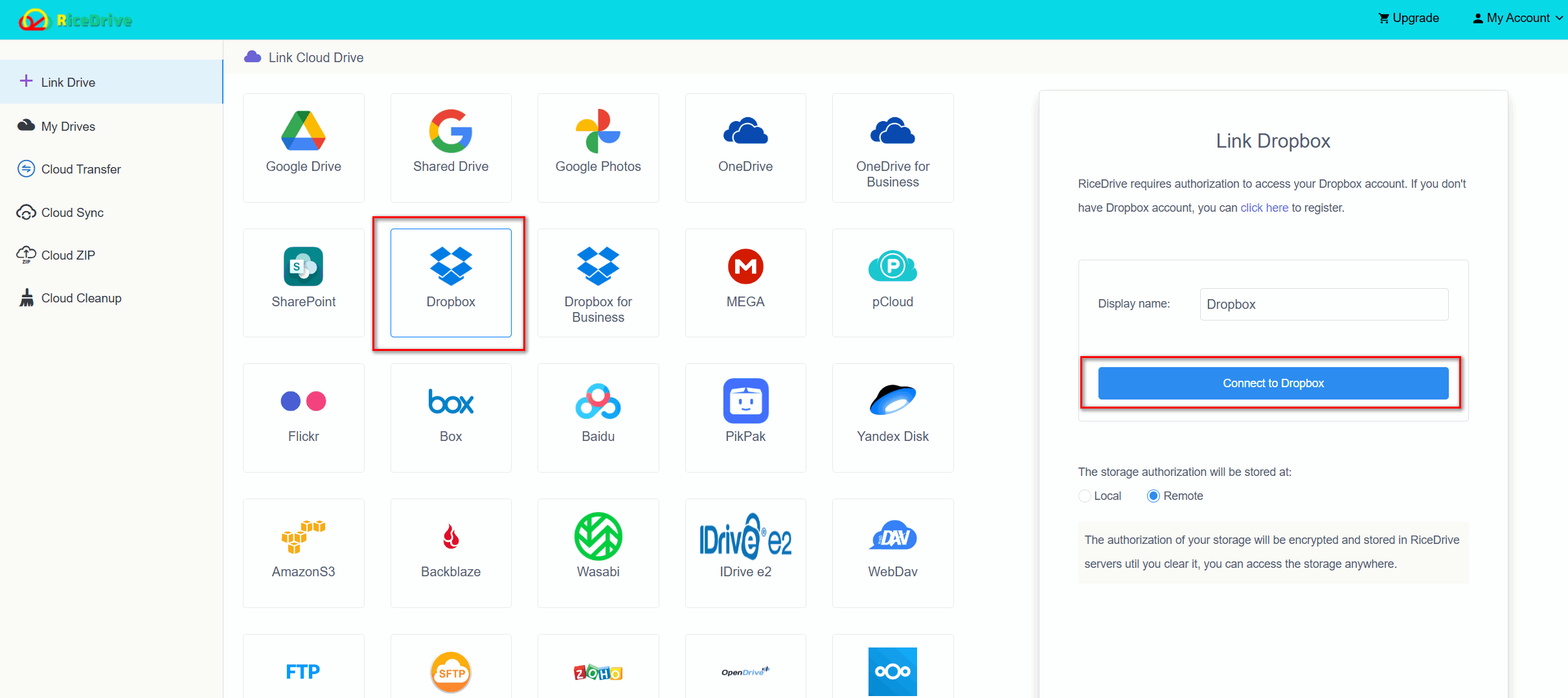
Step 2: Connect Dropbox
Open Link Drive, choose Dropbox, and authorize the Dropbox account that contains the files you want to move. Confirm that the expected folders are visible after the connection is added.
Step 3: Connect Box
Return to Link Drive, choose Box, and authorize the destination account. If you use several Box accounts, give the connection a clear name so you do not accidentally select the wrong destination.
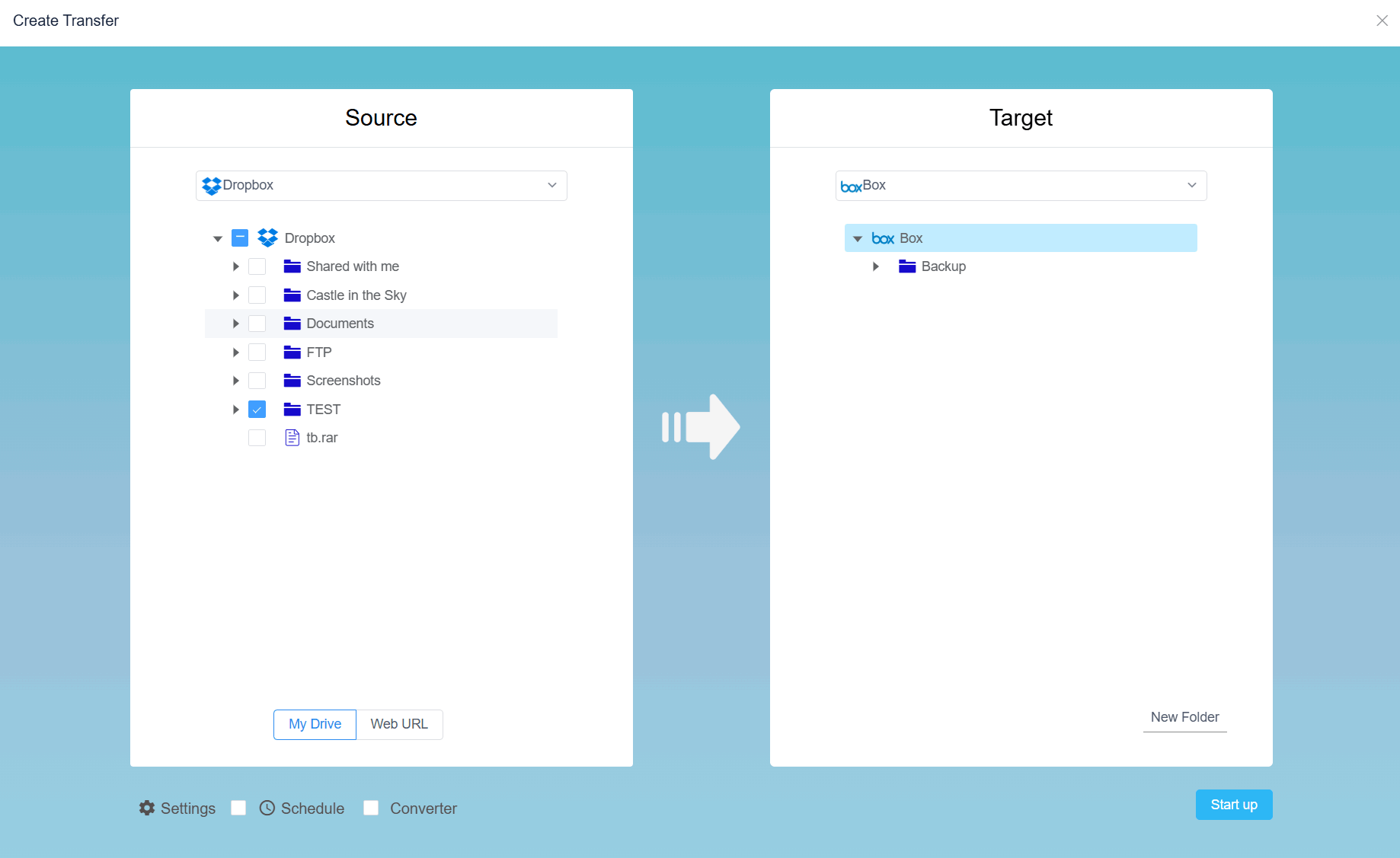
Step 4: Create a Cloud Transfer task
Open Cloud Transfer. Select Dropbox as the source, choose the files or folders to migrate, and then select the target folder in Box.
Step 5: Review task options
If available for your plan and connection, configure filters, duplicate-file handling, or a schedule. For an important migration, avoid aggressive overwrite settings until you have tested the workflow.
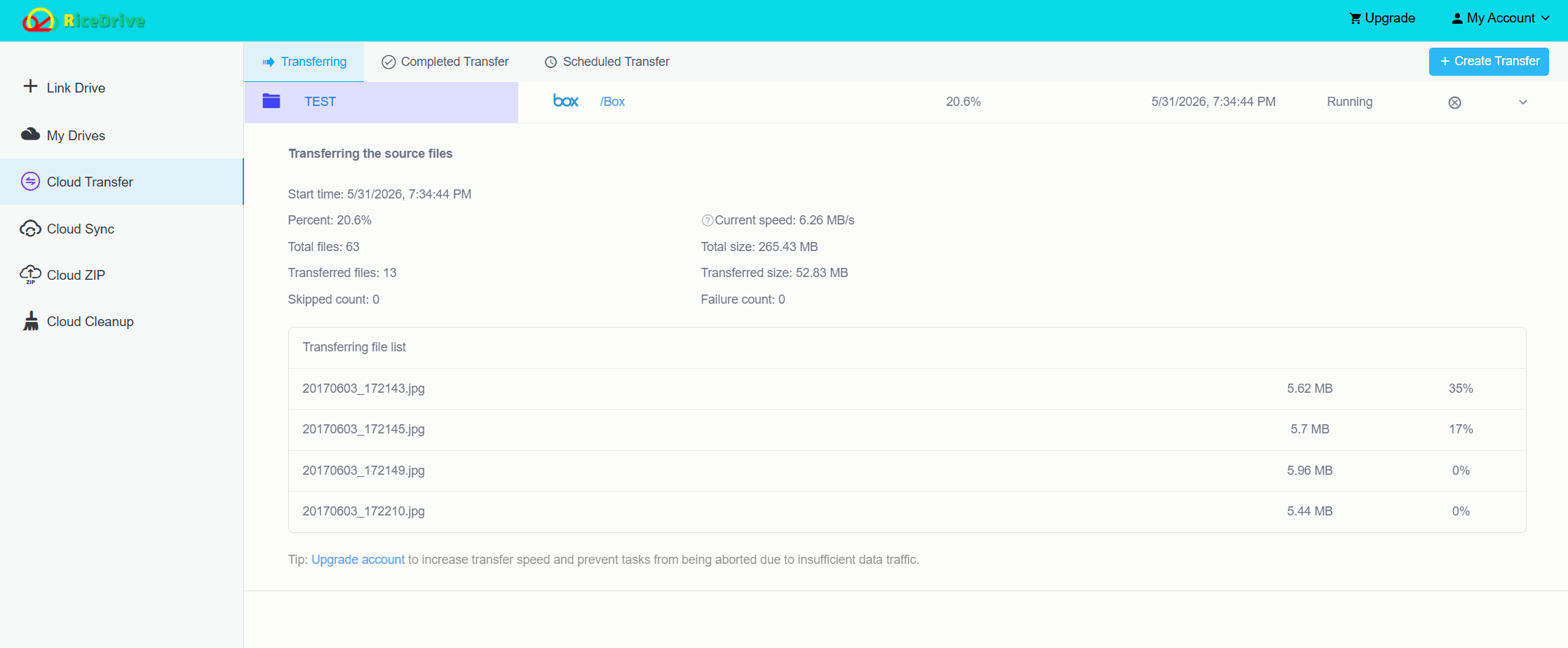
Step 6: Start the transfer and review the log
Start the task. The transfer runs online, so your computer does not need to store the migration locally. When the task finishes, review completed, skipped, and failed items instead of relying only on the overall status.
Step 7: Verify the files in Box
Open Box separately and check important folders, large files, recent documents, and nested directories. Open a sample of critical files before you consider the migration complete.
Alternative Method: Download from Dropbox and Upload to Box
For a small migration, the manual method is still reasonable and does not require a third-party transfer service.
- Sign in to Dropbox and download the required files or folders.
- Keep or extract the files on your computer.
- Sign in to Box and upload the files into the target folder.
- Wait for the upload to finish and compare the destination with Dropbox.
The main disadvantage is that your computer becomes the middleman. A 100 GB migration may require roughly 100 GB of local space and moves the data across your own connection twice: once from Dropbox to your computer and again from your computer to Box.
RiceDrive vs. Manual Dropbox-to-Box Transfer
| Feature | RiceDrive | Manual Download / Upload |
|---|---|---|
| Local download required | No | Yes |
| Local disk space for full migration | No | Yes |
| Cloud-to-cloud workflow | Yes | No |
| Background online task | Yes | Depends on your computer |
| Transfer logs | Yes | Limited |
| Best for | Larger or repeated migrations | A few small files |
Important Box Limits Before Migration
The destination service determines whether a file can be accepted. Dropbox supports files up to 2 TB, but a file that exists in Dropbox can still fail when copied to Box if it is larger than the upload limit of the Box destination account. Box currently publishes the following maximum single-file upload limits:
| Box Plan | Maximum Single File |
|---|---|
| Free Personal | 250 MB |
| Personal Pro | 5 GB |
| Starter | 2 GB |
| Business | 5 GB |
| Business Plus | 15 GB |
| Enterprise | 50 GB |
| Enterprise Plus | 150 GB |
| Enterprise Advanced | 500 GB |
Box also limits file and folder names to 255 characters. Reserved characters such as
< > : " / \ | ? *, leading or trailing spaces, and the special names . and
.. can cause upload failures. Check the current Box upload-limit documentation before a large migration.
Source: Box Support · Dropbox Help
Post-Migration Verification Checklist
- Compare the main source and destination folder structure.
- Review RiceDrive logs for skipped or failed files.
- Open several important documents, images, archives, and large files in Box.
- Check shared folders and recreate access permissions when necessary.
- Keep the Dropbox source until the migration has been verified by the relevant users.
Frequently Asked Questions
Conclusion: Move Dropbox to Box Without the Download-and-Upload Cycle
For a few small files, downloading from Dropbox and uploading to Box is perfectly acceptable. The process becomes less convenient as the number and size of files grow.
RiceDrive gives users a browser-based alternative: connect Dropbox and Box, choose the source and destination, start the transfer, and verify the results. Before a large migration, check the Box plan’s per-file limit, run a test folder, and keep the Dropbox source until the destination has been validated.
🚀 Ready to transfer Dropbox files to Box?
Start Free Cloud Transfer →10GB free traffic • No local download required • Review transfer logs after completion