In the digital era, photos, documents, videos, and work files are increasingly stored in cloud services like Google Drive, Dropbox, and OneDrive. Managing files across multiple cloud platforms often poses challenges, particularly in scenarios such as switching services, backing up data, migrating accounts, or organizing storage. This is where Cloud-to-Cloud (C2C) transfer becomes essential.
What Is Cloud to Cloud Transfer?
Cloud to Cloud Transfer (C2C) refers to the process of directly migrating or copying files between different cloud storage platforms—without the need to download files to your local device and re-upload them. For example, transferring files directly from Google Drive to Dropbox is considered a Cloud to Cloud transfer. Compared to traditional methods, this approach is more efficient, saves time, and reduces the use of local storage.
So, how can you transfer data between cloud drives? Are there any free solutions?
This article introduces five free and practical Cloud to Cloud transfer methods—from basic manual operations to modern automated tools—to help you find the best option for your specific needs.
Method 1: Traditional Upload and Download
This is the most basic and straightforward method of cloud migration: you manually download files from the source cloud drive to your local computer, and then upload them to the target cloud drive.
Best For
Small amounts of data
Temporary file transfers
Occasional use
Users who don’t want to rely on third-party tools or services
Pros
✅ Simple and straightforward — no additional tools required
✅ Works with virtually all cloud storage providers
✅ Transparent process with full control
Cons
❌ Tedious and time-consuming
❌ Dependent on internet speed — uploads and downloads can be slow
❌ Takes up local storage space
❌ Not suitable for large-scale or long-term migrations
Method 2: Synchronize Migration via Cloud Drive Clients
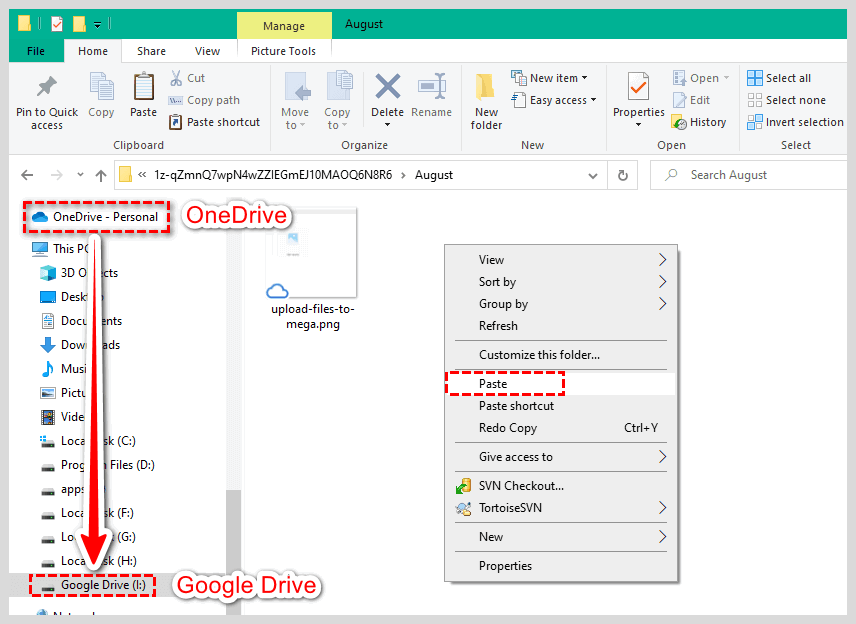
Most popular cloud storage services, such as Dropbox, OneDrive, and Google Drive, offer desktop clients. By installing the clients for both cloud drives on your local machine, the system will map them as local folders. You simply drag files from one cloud folder to another, and the system will automatically handle the upload and synchronization process.
Best For
Users who have two cloud drive clients installed
Users familiar with file management
Medium-scale data migration tasks
Pros
✅ Supports bulk drag-and-drop operations
✅ No need to log into web interfaces — easy to use
✅ Synchronization process is automated, reducing waiting time
✅ Maintains original folder structure
Cons
❌ Occupies local disk space
❌ Migration speed is limited by network speed and client synchronization performance
❌ Errors may occur when transferring large or numerous files
❌ Does not support advanced migration rules or filter settings
Method 3: RiceDrive Online Cloud Migration Tool
RiceDrive is a free, multi-platform online cloud migration tool that supports over 34 major cloud storage services. Users simply authorize and log in to the two cloud drive accounts they wish to migrate, and can easily select folders, set migration schedules, and even take advantage of advanced features such as scheduled tasks and bi-directional synchronization. It offers fully automated, one-stop Cloud to Cloud data transfer without the need for uploading or downloading files.

Best For
Users with multiple cloud drive accounts across different platforms (e.g., Dropbox → Google Drive)
Scenarios involving large data transfers or diverse file types
Users seeking automation, high efficiency, and a seamless transfer experience
Pros
✅ Free to use with powerful features
✅ No need to download any software; complete the migration online
✅ Simple process — just three easy steps for migration, perfect for beginners
✅ Supports multiple cloud drives including Dropbox, Google Drive, OneDrive, etc.
✅ Allows setting filtering rules, scheduled tasks, and incremental synchronization
✅ Fast speeds and stable transfers
Cons
❌ Advanced features (such as unlimited migration) require a paid plan
✅ Highly recommended: RiceDrive is currently the best value-for-money free Cloud to Cloud tool, ideal for individual users, small teams, and even enterprise-level cloud migration needs.
Method 4: Rclone Command-Line Tool
Rclone is an open-source command-line synchronization tool that supports almost all major cloud storage platforms. It allows you to automate and batch file migrations, synchronization, backups, and more through scripting.

Best For
Technical users or programmers
Users needing bulk automatic migration or long-term scheduled tasks
Advanced users who want complete control over the migration process
Pros
✅ Powerful features, supports script automation
✅ Open-source and free, highly secure
✅ Supports advanced features like encryption, checksums, and filtering
✅ Low resource consumption, suitable for server-side use
Cons
❌ Relatively high learning curve, requires basic command-line knowledge. It is recommended to refer to the "OneDrive to Google Drive Migration" tutorial, which provides detailed steps on configuring Rclone and performing the migration process, ideal for beginners.
❌ Configuration process is relatively complex
❌ Not very user-friendly for casual users
Method 5: Migration via File Sharing Feature
Some cloud storage services of the same type (e.g., Dropbox → Dropbox or Google Drive → Google Drive) offer file sharing features. You can set files or folders in your original account as "shared," and then log into the target account to copy or add them to your cloud drive. This is essentially a "migration" of a copy.

Best For
Migrating between accounts on the same cloud storage platform (e.g., two Google Drive accounts)
When files do not need to be synchronized in real-time, only a one-time copy is required
Data consolidation in collaborative or shared file scenarios
Pros
✅ No download required, quick and easy
✅ Can be done directly via the web interface
✅ Maintains sharing link structure, making collaboration easier
✅ Does not consume local resources
Cons
❌ Only works between accounts on the same cloud storage platform (e.g., Google Drive ↔ Google Drive)
❌ May not transfer all file permissions or metadata
❌ Some files need to be manually saved to the target account
❓ Is this method only suitable for same-platform cloud storage migration?
Yes, this method typically only applies to accounts on the same platform, such as two Google accounts or two Dropbox accounts. Cross-platform migration (e.g., Dropbox → Google Drive) cannot use this method.
Conclusion
Different Cloud to Cloud migration methods are suitable for different scenarios and needs.
| Method | Recommended Users | Use Case | Free | Ease of Use |
|---|---|---|---|---|
| Upload and Download | All Users | Temporary, Small Data | ✅ | ⭐⭐ |
| Client Drag-and-Drop | Regular Users | Light Data Migration | ✅ | ⭐⭐⭐ |
| RiceDrive | Everyone | Automated Migration | ✅ (Free Version) | ⭐⭐⭐⭐ |
| Rclone | Technical Users | Advanced Bulk Migration | ✅ | ⭐⭐⭐ |
| File Sharing | Same Cloud Service Users | Collaboration/Shared File Migration | ✅ | ⭐⭐⭐ |
If you want to complete large-scale cloud file transfers quickly, efficiently, and securely, RiceDrive is recommended. However, if you only need to transfer a few files occasionally, the traditional upload and download method can also be a simple solution.
