Introduction
If you're looking to migrate your files from Koofr to Google Drive, you've come to the right place. Whether you're consolidating storage, switching to Google Workspace, or simply prefer Google Drive's ecosystem, the process doesn't have to be complicated.
In this guide, we'll show you how to transfer files from Koofr to Google Drive for free using RiceDrive — a cloud-to-cloud transfer tool that requires no installation and no local downloads. This method is faster, more reliable, and saves your local bandwidth compared to traditional download-and-upload approaches.
About Koofr
Koofr is a European cloud storage service founded in Slovenia, with a strong focus on privacy and GDPR compliance. Unlike many US-based cloud providers, Koofr stores data exclusively in EU data centers, making it an attractive choice for users who prioritize data sovereignty.
Key features of Koofr include:
- 10 GB of free storage — generous for a privacy-oriented service.
- Multi-cloud integration — connect external services like Google Drive, Dropbox, OneDrive, and Amazon Drive directly into the Koofr interface. This allows you to manage files across multiple clouds from one unified dashboard.
- Built-in tools — duplicate file finder, storage usage analysis, and file versioning.
- Cross-platform support — available on web, desktop (Windows, macOS, Linux), and mobile (iOS, Android).
- File sharing — share files and folders with password protection and expiration dates.
Despite its strengths, some users may prefer Google Drive for its seamless integration with Google Workspace, wider third-party app ecosystem, and collaborative features like real-time document editing. This is where migration becomes necessary.
Why Choose RiceDrive for Migration?
RiceDrive is a cloud-based cross-platform management tool that allows users to transfer, sync, and manage files across 30+ cloud storage services — all from a single interface. Here's why it's the ideal solution for migrating Koofr to Google Drive:
- Direct cloud-to-cloud transfer — files move between providers without being downloaded to your computer. This saves bandwidth, storage space, and time.
- No software installation — RiceDrive works entirely in your web browser, with no plugins or apps to download.
- Batch transfer capability — transfer entire folders or your entire Koofr account in one task.
- Scheduled transfers — set up recurring transfers to keep your Google Drive in sync with Koofr.
- Preserves folder structure — the exact hierarchy of your files is maintained during migration.
- Secure OAuth authentication — RiceDrive never stores your passwords; all authentication is handled via OAuth 2.0.
- Free tier with 10GB traffic — enough for a significant initial migration.
Koofr vs. Google Drive: Quick Comparison
Understanding the differences between these two cloud storage providers can help you decide why migrating might be beneficial:
| Feature | Koofr | Google Drive |
|---|---|---|
| Free Storage | 10 GB | 15 GB (shared across Gmail, Drive, Photos) |
| Data Location | EU (GDPR compliant) | Global (US default, regional options) |
| Collaboration Tools | Basic sharing | Real-time editing (Docs, Sheets, Slides) |
| Third-party Integration | Multi-cloud hub (connects other clouds) | Extensive app ecosystem (Google Workspace) |
| Encryption | Encrypted at rest and in transit | Encrypted at rest and in transit |
| File Versioning | Yes | Yes (30 days for Google Workspace) |
While Koofr excels in privacy and multi-cloud management, Google Drive offers superior collaboration and integration with Google's ecosystem. Migrating allows you to enjoy the best of both worlds — Koofr's privacy for sensitive files and Google Drive's collaboration features for team projects.
Step 1: Sign Up for RiceDrive
Go to the RiceDrive official website and create a free account using your email. You can also sign in with Google or other supported accounts.
Once logged in, you'll be taken to the RiceDrive dashboard, where you can manage all your connected cloud storage accounts.
Step 2: Connect Koofr
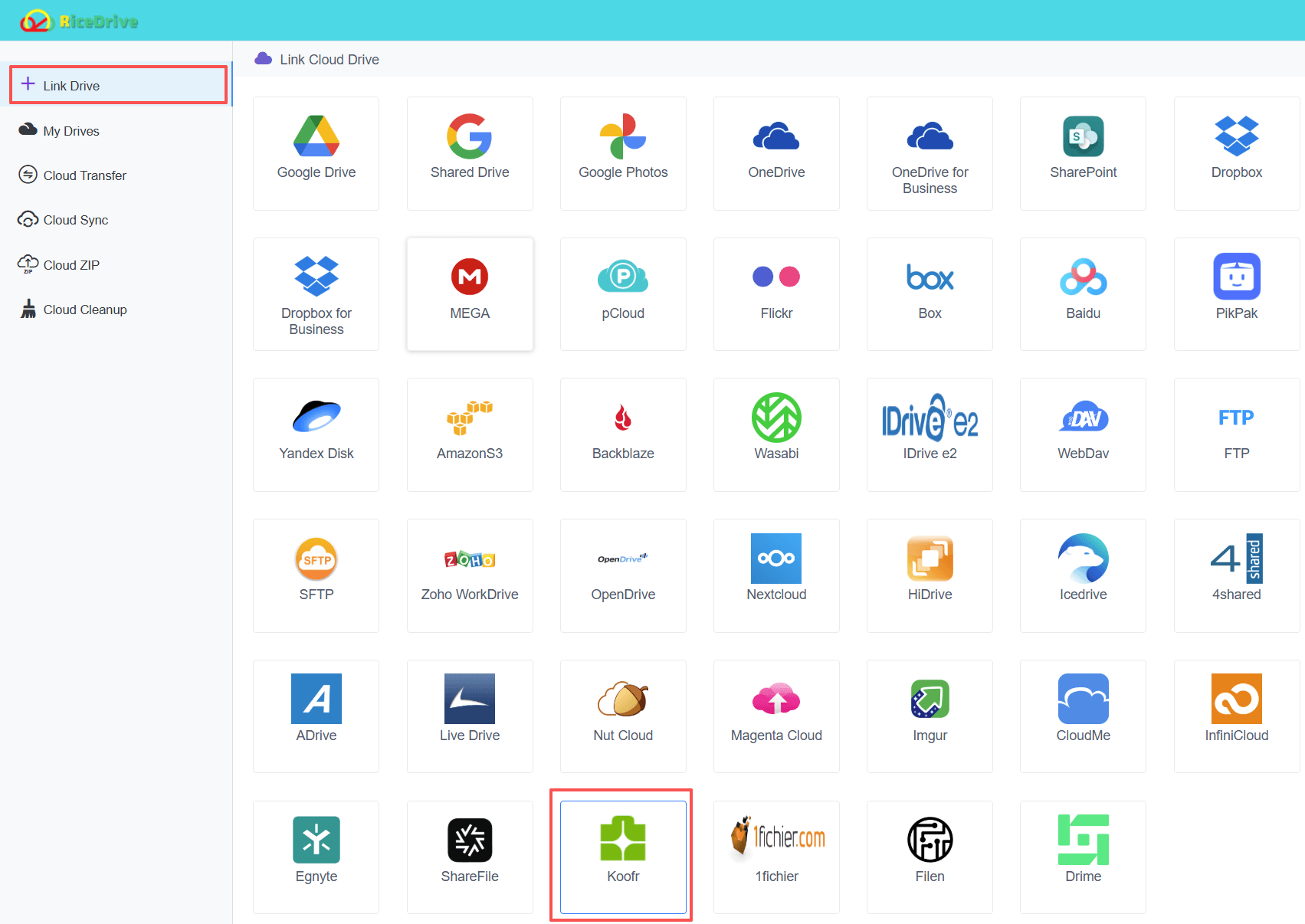
In the RiceDrive dashboard, click Link Drive and select Koofr from the list of supported cloud providers.
You'll be prompted to authenticate with your Koofr credentials. RiceDrive uses OAuth 2.0, so your password is never exposed to RiceDrive. Once connected, RiceDrive will display your Koofr files and folders, ready for transfer.
Step 3: Connect Google Drive
Repeat the process for Google Drive. Click Link Drive → Google Drive and complete the OAuth authorization flow.
If you're using a Google Workspace account, make sure to select the option that supports Shared Drives if you plan to transfer files there.

Step 4: Create a Transfer Task
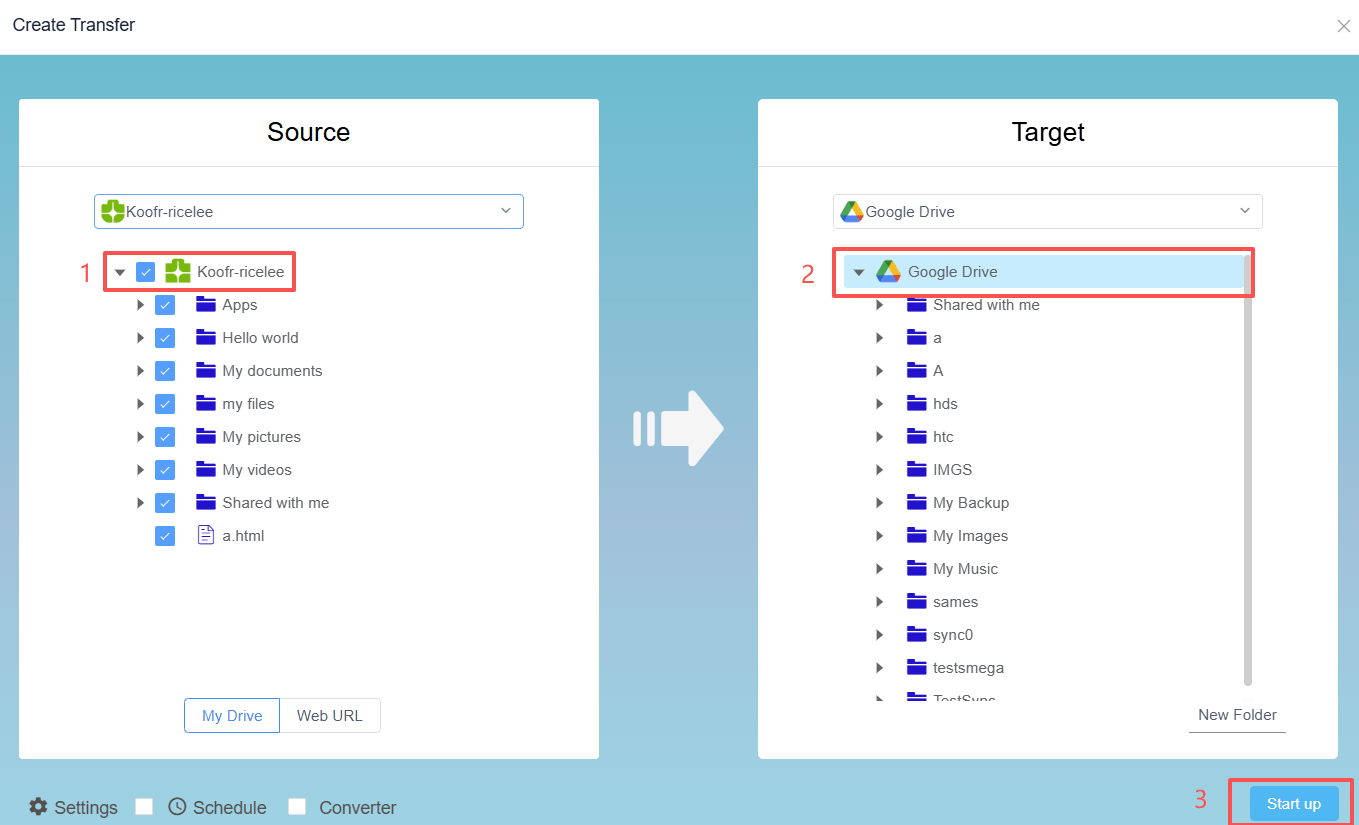
Go to Cloud Transfer → Create Transfer to set up your migration task.
- Source (FROM): Select your Koofr account and choose the folder(s) you want to migrate — you can transfer the entire root or specific subfolders.
- Destination (TO): Select Google Drive and choose the target folder where files will be saved.
- Transfer Mode: Choose between One-time transfer for full migration or Scheduled transfer for ongoing sync.
- Advanced options: You can choose to overwrite existing files, skip duplicates, preserve file modification dates, and receive email notifications when the task completes.
RiceDrive will preserve the original folder structure during migration, keeping your files organized just as they were in Koofr.
Step 5: Start the Transfer
Click Start to begin the migration. RiceDrive will transfer your files directly between Koofr and Google Drive without downloading them to your computer.
This cloud-to-cloud approach saves your local bandwidth and storage space, and transfers run in the background on RiceDrive's servers. You can close your browser and the transfer will continue — you'll receive an email notification when it's complete.
Step 6: Monitor Progress
Track your migration progress in real-time on the Transfer Tasks page. You can view files being transferred, current speed, and total data moved.
After completion, RiceDrive provides a detailed task report with file count, transfer size, duration, and any errors encountered — giving you full visibility into the migration outcome.
Key Benefits of Migrating with RiceDrive
- No local downloads or uploads — files transfer directly between cloud providers, saving bandwidth and time.
- Preserves folder structure — your files stay organized exactly as they were in Koofr.
- Fast cloud-based transfer — powered by multi-threaded transfer technology that maximizes throughput.
- Free 10GB traffic — enough for a substantial initial migration. Additional traffic is available through affordable premium plans.
- Scheduled and incremental transfers — keep files in sync over time with automatic recurring tasks.
- Supports 30+ cloud providers — unified management for all your storage, including Dropbox, OneDrive, MEGA, Box, and more.
- Secure and private — all transfers use HTTPS with end-to-end encryption, and RiceDrive does not store your files.
- User-friendly interface — designed for both technical and non-technical users, with clear instructions and visual feedback.
Whether you're migrating business data, consolidating personal storage, or integrating multi-cloud workflows, RiceDrive provides a secure, efficient, and cost-free solution for moving from Koofr to Google Drive.
Frequently Asked Questions
A: Yes, RiceDrive offers a free plan with 10GB of monthly transfer traffic. This is sufficient for migrating small to medium-sized Koofr accounts. For larger migrations, paid plans offer additional traffic and features like priority support and higher transfer speeds.
A: Absolutely. RiceDrive maintains the exact folder hierarchy from your Koofr account in your Google Drive. All subfolders and nested files will be organized identically.
A: Transfer time depends on the total file size and your internet speed between Koofr and RiceDrive servers. RiceDrive uses multi-threaded transfer to maximize speed. Small accounts (under 1GB) typically complete in minutes, while larger accounts (100GB+) may take several hours.
A: Yes. RiceDrive uses OAuth 2.0 authentication (so your passwords are never shared) and all data is transmitted over HTTPS with end-to-end encryption. RiceDrive does not store your files — they move directly from Koofr to Google Drive.
A: Yes, you have full control. In the transfer setup, you can select individual folders or specific files from Koofr to migrate. You can also use filters to exclude certain file types or sizes.
A: RiceDrive supports resumable transfers. If an interruption occurs, the transfer will automatically resume from where it left off when you restart it. Already-transferred files won't be duplicated.
Summary
Migrating from Koofr to Google Drive doesn't have to be a hassle. With RiceDrive, you can transfer your files directly between cloud providers — no downloads, no re-uploads, and no local storage required.
Simply connect both accounts, create a transfer task, and let RiceDrive handle the rest. It's the easiest way to migrate Koofr to Google Drive for free in 2026.
Whether you're moving 100 files or 100,000, RiceDrive provides the speed, reliability, and security you need for a successful cloud migration.
Get started today with 10GB of free transfer traffic and experience the simplest cloud-to-cloud migration available.