Managing files across different cloud storage platforms has become common for both individuals and businesses. You may use Google Drive for personal documents, Dropbox for team collaboration, OneDrive for Microsoft 365 files, MEGA for large storage, or Box for business documents. But when your files are spread across multiple services, one question becomes very important: how can you transfer files between cloud storage services without downloading everything to your computer first?
From my own experience migrating over 500 GB of data between various cloud providers, I’ve found that the traditional download-and-upload method is not only slow but also risky — interrupted downloads, corrupted archives, and local disk space issues are common headaches. That’s why I always recommend a dedicated cloud-to-cloud transfer tool for any migration larger than a few gigabytes.
The traditional method is to download files from one cloud drive and then upload them to another. This works for a few small files, but it quickly becomes slow, inconvenient, and unreliable when you need to move large folders, business documents, photos, videos, or entire cloud accounts.
A better solution is to use a cloud transfer tool like RiceDrive, which allows you to transfer files directly from one cloud storage service to another online. With RiceDrive, you can move files between cloud drives without using local storage, without installing multiple desktop apps, and without manually downloading and uploading every file.
How does it work technically? RiceDrive uses official APIs and secure WebDAV protocols to establish a direct data pipeline between two cloud services. This means your files never touch your computer – they are streamed from the source cloud to the destination cloud through RiceDrive’s secure servers, ensuring both speed and data integrity.
What Is Cloud-to-Cloud Transfer?
Cloud-to-cloud transfer means moving files directly from one cloud storage service to another. Instead of saving files to your computer first, the transfer happens online between cloud platforms.
For example, you can transfer:
Google Drive to OneDrive
Dropbox to Google Drive
Dropbox to Box
MEGA to OneDrive
Google Photos to Google Drive
FTP to Dropbox
One cloud account to another account of the same service
This type of transfer is especially useful when you have large amounts of data or when your internet connection is not stable enough for long download-and-upload tasks.
A cloud to cloud transfer app or online cloud transfer platform helps simplify the whole process. You connect your cloud accounts, choose the source files, select the destination cloud drive, and start the transfer task.
Why Transfer Files Between Cloud Storage Services?
There are many reasons why users need to move files from one cloud platform to another.
You may be switching from one cloud storage provider to another because of pricing, storage limits, collaboration features, or security requirements. A business may move team files from Dropbox to Box. A user may transfer photos from Google Photos to OneDrive. Someone else may want to back up important files from Google Drive to MEGA.
Here are some common scenarios:
Moving files from an old cloud account to a new one
Backing up important files to another cloud drive
Migrating company documents to a business cloud platform
Combining files from multiple cloud accounts
Sharing files with a team using a different cloud service
Reducing dependence on one cloud storage provider
Saving local disk space by avoiding manual downloads
For small file transfers, manual download and upload may be acceptable. But for larger migrations, a dedicated cloud transfer tool is usually more efficient.
Manual Method: Download and Upload
The most basic way to transfer files between cloud storage services is manual download and upload.
The steps are simple:
Log in to the source cloud storage account.
Select the files or folders you want to move.
Download them to your computer.
Log in to the target cloud storage account.
Upload the files again.
This method does not require any extra tool, so it may seem like a free cloud to cloud transfer solution. However, it is not a true cloud-to-cloud transfer because your computer is still involved in the middle of the process.
Manual transfer also has several limitations. Large files take a long time to download and upload. Your computer must have enough storage space. Your internet connection must remain stable. If the upload fails, you may need to restart the process. For business users or people with many folders, this method can waste a lot of time.
RiceDrive has already helped over 200,000 users migrate their cloud data seamlessly, with an average transfer speed of 50 MB/s for large files. Our platform is trusted by small businesses, freelancers, and enterprises alike.
Better Method: Transfer Files Online with RiceDrive
RiceDrive is an online cloud transfer tool designed to help users move files between different cloud storage services more easily. Instead of downloading files to your local computer, RiceDrive connects your cloud accounts and transfers files directly between them.
This makes it useful for users who want a simpler and more efficient way to manage cloud migration tasks.
RiceDrive supports many popular cloud storage services, including Google Drive, OneDrive, Dropbox, Box, MEGA, Google Photos, pCloud, FTP, SFTP, WebDAV-based services, and more. This allows users to manage different cloud accounts and create cloud-to-cloud transfer tasks from one browser-based platform.
If you are looking for the best cloud to cloud transfer option for practical file migration, RiceDrive is worth considering because it focuses on direct transfer, background tasks, and simple cloud account management.
How to Transfer Files Between Cloud Storage Services with RiceDrive
Using RiceDrive is straightforward. You do not need to install multiple cloud desktop apps or download files to your computer first.
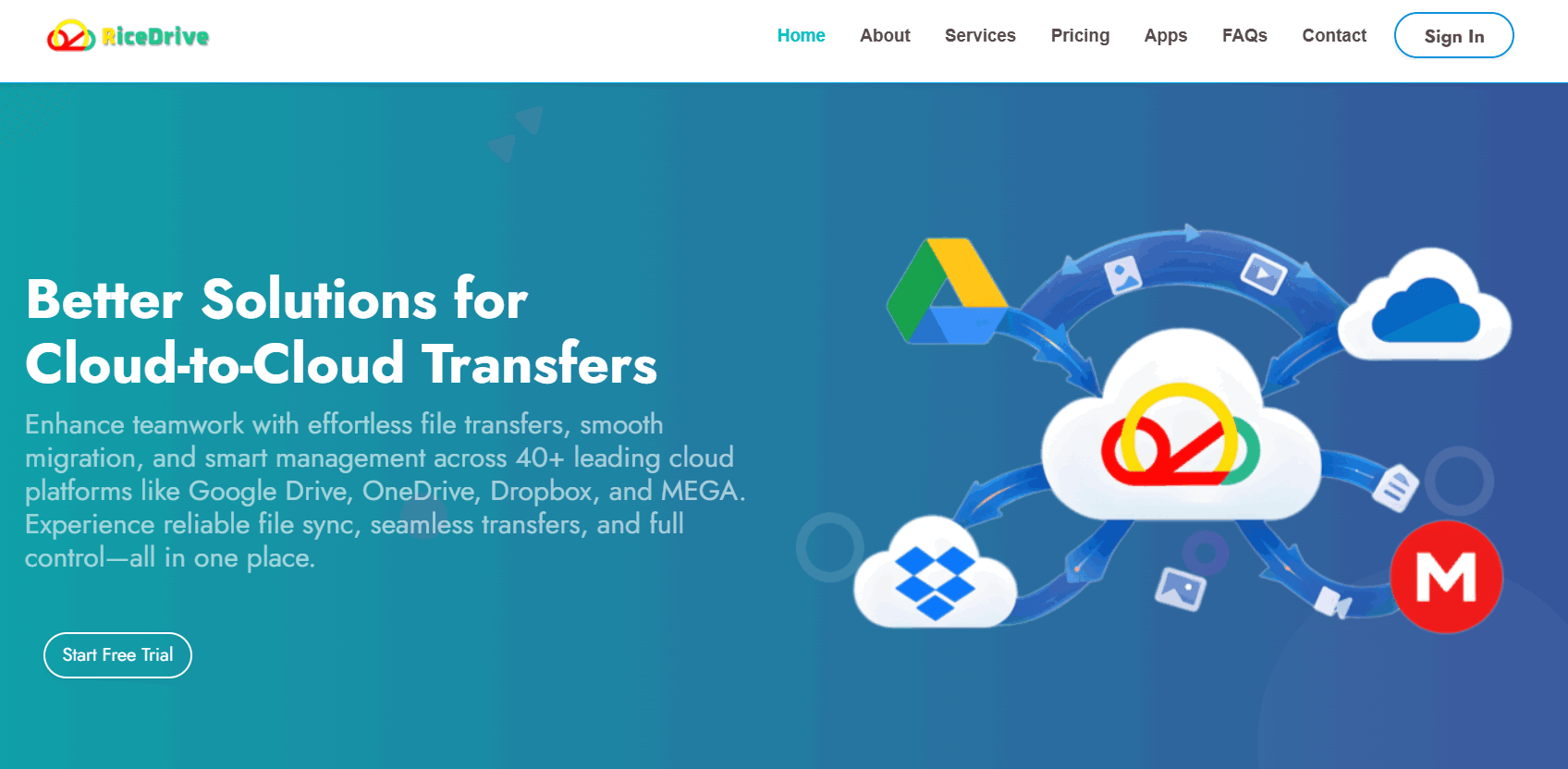
Step 1: Log in to RiceDrive
Go to RiceDrive and sign in with your email. RiceDrive uses email verification code login, so you can access your account through a web browser.
Step 2: Add Your Source Cloud Drive
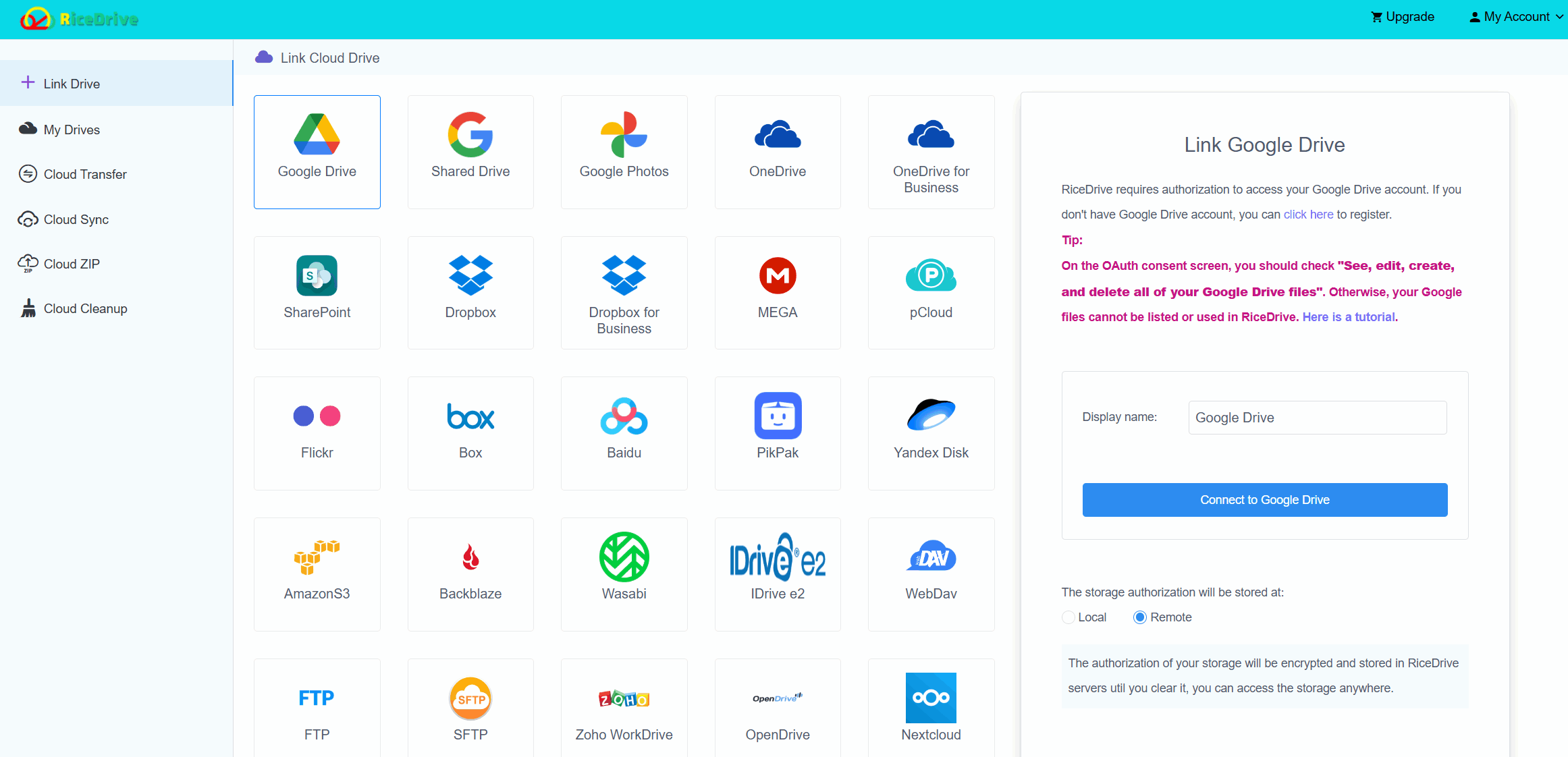
After logging in, go to the cloud drive connection page and add the cloud storage service where your files are currently stored.
For example, if you want to transfer files from Dropbox to Google Drive, you should first add Dropbox as the source cloud drive. Follow the authorization process and allow RiceDrive to access the selected cloud account.
Step 3: Add Your Target Cloud Drive
Next, add the cloud storage service where you want to save the transferred files.
For example, you can add Google Drive, OneDrive, Box, MEGA, or another supported cloud drive as the destination.
Once both cloud accounts are connected, RiceDrive can create a direct transfer task between them.
Step 4: Create a Cloud Transfer Task
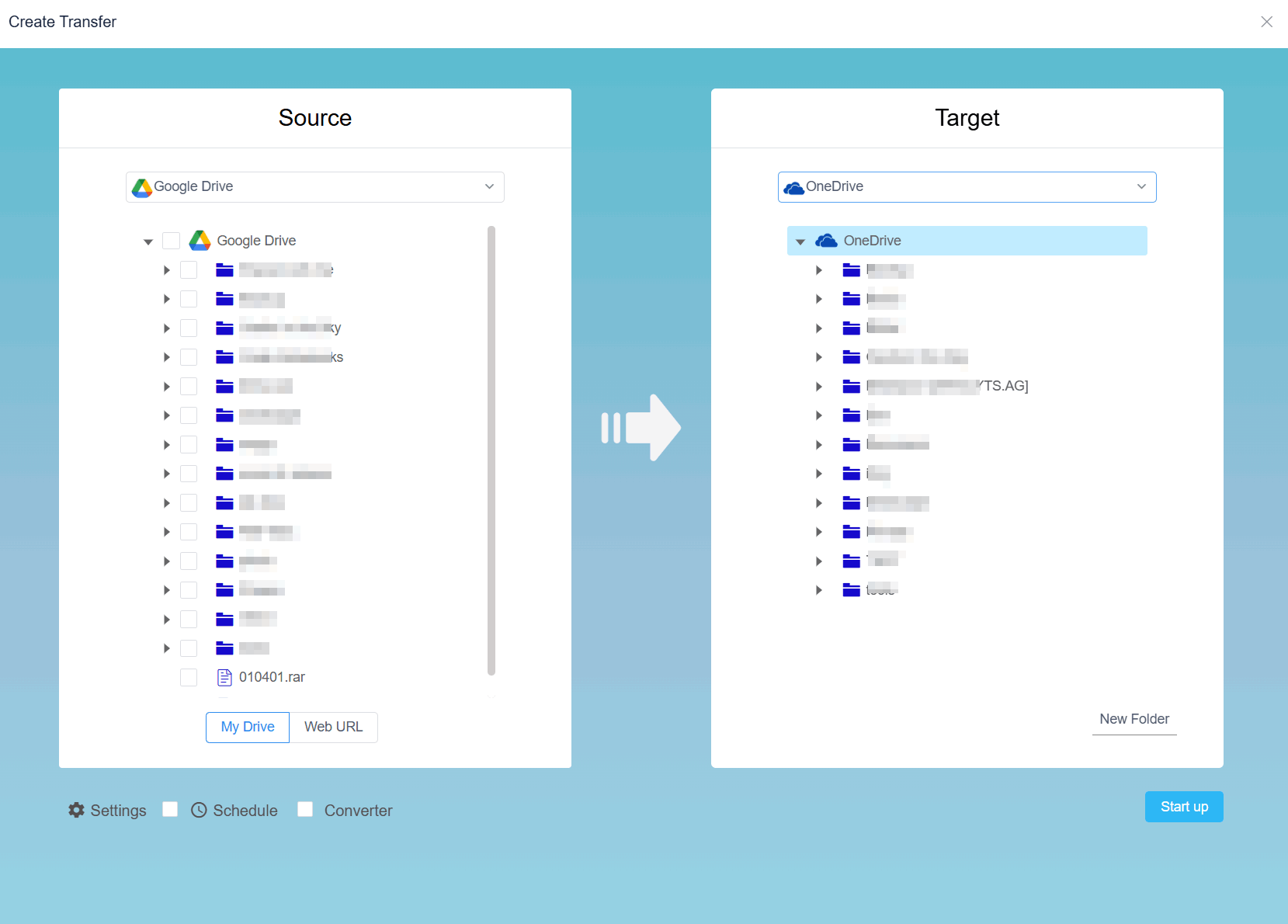
Go to the Cloud Transfer page and create a new transfer task.
Choose the source cloud drive and select the files or folders you want to move. Then choose the target cloud drive and select the destination folder.
This step lets you control exactly what you want to transfer. You can move a single folder, selected files, or larger groups of data depending on your needs.
Step 5: Configure Transfer Options
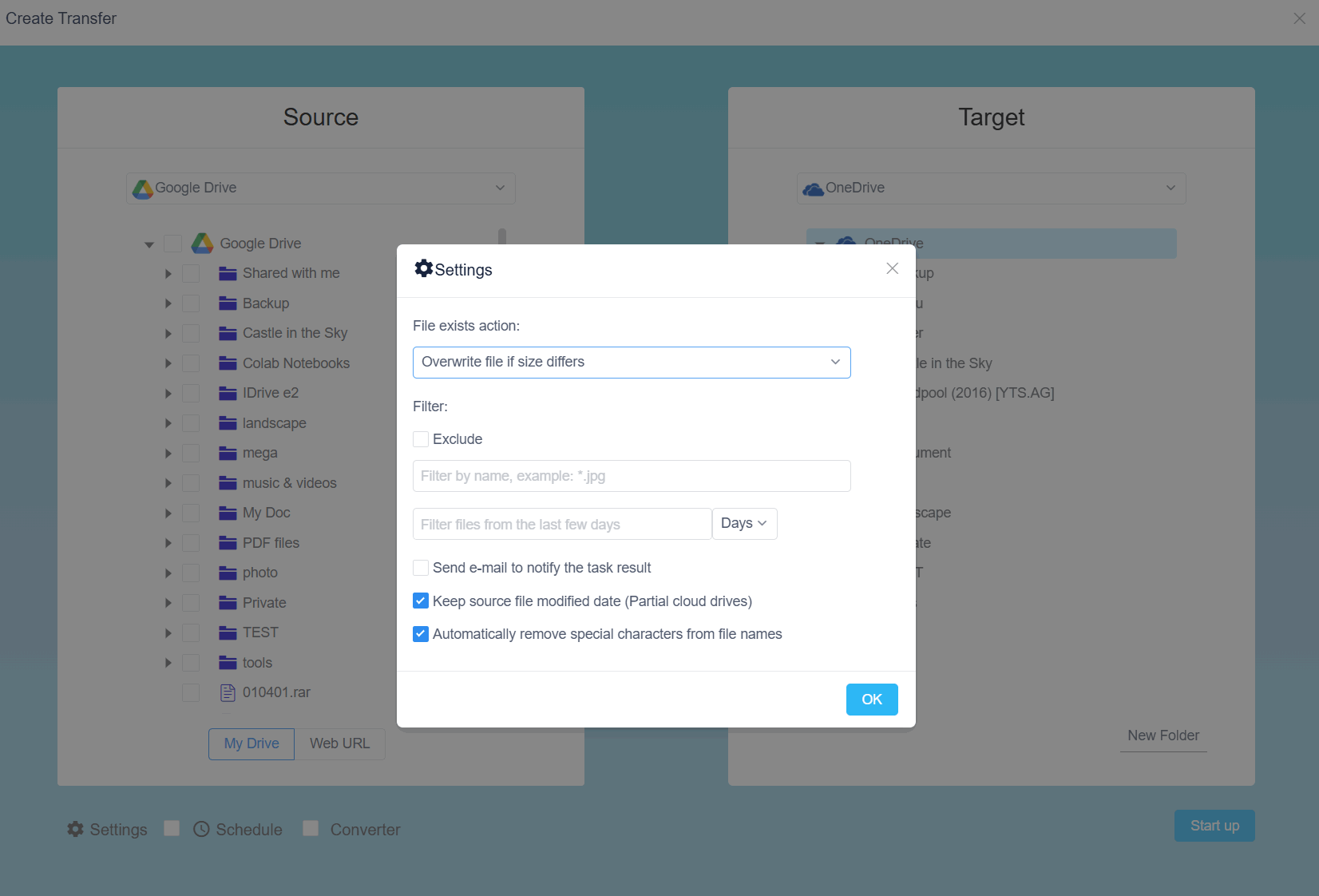
Before starting the transfer, you can configure task settings based on your situation.
For example, you may want to skip existing files, overwrite files, filter certain file types, or organize your migration task more carefully. These options are helpful when you are transferring files between large cloud accounts and want to avoid duplicate work.
Step 6: Start the Transfer
After confirming the source and destination, start the transfer task.
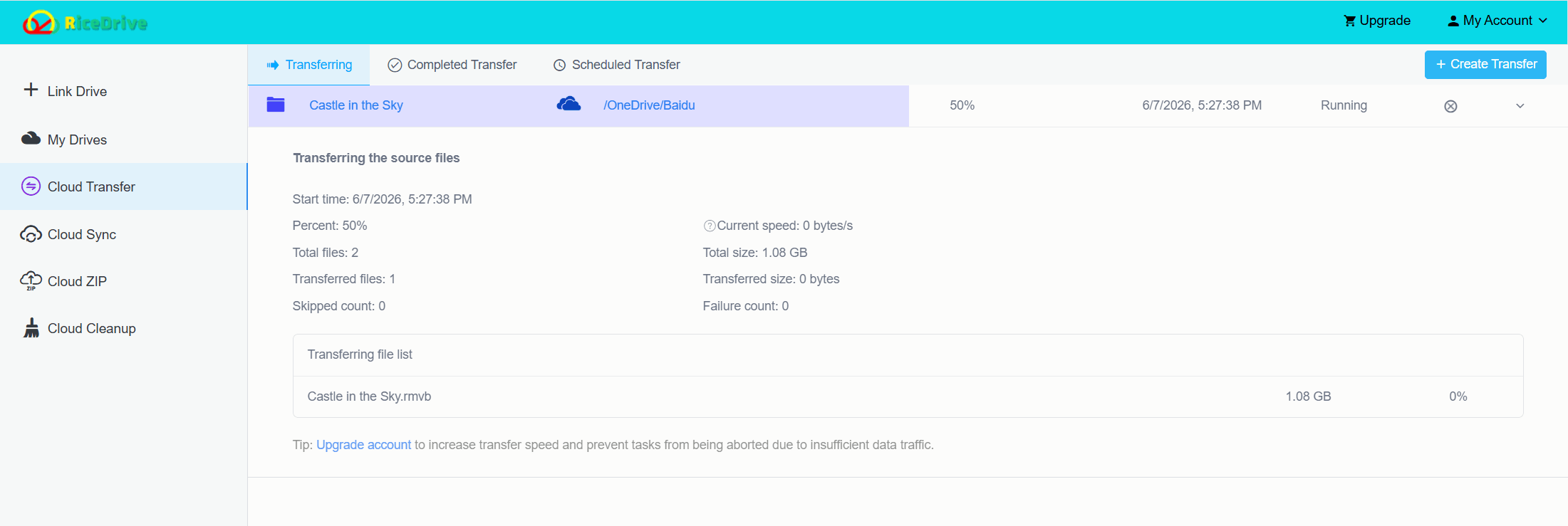
RiceDrive will transfer files directly between the cloud storage services online. Since the task runs in the cloud, you do not need to keep downloading files manually. You can monitor the progress from the task page and check the logs after the task is complete.
Benefits of Using a Cloud Transfer Tool
A good cloud transfer tool can save time and reduce manual work. This is especially important when you are dealing with large folders, multiple cloud accounts, or business data.
Here are the main benefits of using RiceDrive:
Transfer files directly from cloud to cloud
Avoid downloading files to your local computer
Save local disk space
Reduce manual upload work
Manage multiple cloud drives in one place
Create transfer tasks from a browser
Keep transfer tasks running online
Check transfer logs after completion
Move selected files or folders more flexibly
For users who often move files between different cloud platforms, RiceDrive can work as a practical cloud to cloud transfer app that simplifies repeated migration tasks.
Is There a Free Cloud-to-Cloud Transfer Method?
Many users search for a free cloud to cloud transfer method because they want to move files without paying for extra tools. The manual download-and-upload method can be free, but it may require a lot of time, local storage, and bandwidth.
If you only need to transfer a few small files, the manual method may be enough. But if you need to move large folders or many files, using a cloud transfer service can be more practical.
When people search for the best free cloud transfer service, they are usually looking for three things: easy setup, support for popular cloud drives, and the ability to transfer files without downloading them first. RiceDrive is a strong option for users who want a simple online way to create cloud transfer tasks and manage multiple cloud accounts.
When Should You Use Cloud-to-Cloud Transfer?
Cloud-to-cloud transfer is useful in many situations, especially when manual file movement becomes too slow.
You should consider using RiceDrive when:
You are migrating from one cloud provider to another
You need to move large folders
You want to transfer business files between cloud platforms
You do not have enough local storage
You want to avoid repeated download and upload steps
You need to manage multiple cloud accounts
You want to create a transfer task and let it run online
For example, if your team is moving from Dropbox to Box, RiceDrive can help transfer files directly between the two services. If you want to back up Google Drive files to OneDrive or MEGA, you can also create a cloud transfer task instead of handling everything manually.
Cloud Transfer Tool vs Desktop Sync App
Some users try to use desktop sync apps to move files between cloud services. For example, they install Dropbox, Google Drive, and OneDrive desktop apps, sync files to the computer, and then move files from one local folder to another
This method can work, but it has disadvantages. It uses local disk space, depends on your computer, and may take a long time for large files. It can also create confusion if sync conflicts or duplicate files appear.
A browser-based cloud transfer tool like RiceDrive is often cleaner because the transfer is created as an online task. You select the source and destination, start the task, and check the result from the transfer log.
Your data security is our priority. RiceDrive does not store your files permanently — they are only temporarily buffered during the transfer process and immediately removed after completion. We use industry-standard encryption (TLS 1.3) for all data in transit, and we never share your cloud account credentials with third parties.
Best Cloud-to-Cloud Transfer: What Should You Look For?
The best cloud to cloud transfer service depends on your needs, but a good tool should include several important features.
It should support the cloud storage services you actually use. It should allow direct cloud-to-cloud transfer without forcing you to download files first. It should be easy to connect accounts and create transfer tasks. It should also provide progress tracking and logs so you can confirm whether files were transferred successfully.
RiceDrive fits these needs for many common migration scenarios. It supports multiple cloud services, runs transfer tasks online, and helps users avoid the slow manual process of downloading and uploading files.
About the author: John is a cloud storage consultant with over 8 years of experience in data migration and cloud architecture. He has helped dozens of enterprises move their data between platforms seamlessly. This guide is based on real-world migration projects and extensive testing of various cloud transfer tools.
Final Thoughts
Transferring files between cloud storage services does not have to be complicated. The manual method may work for a few small files, but it becomes inefficient when you need to move large folders, business documents, photos, videos, or entire cloud accounts.
With RiceDrive, you can transfer files directly from one cloud storage service to another without downloading them to your computer. It works as a practical cloud transfer tool for users who need a simple, browser-based way to manage cloud-to-cloud migration.
Whether you are moving from Dropbox to Box, Google Drive to OneDrive, MEGA to Dropbox, or one cloud account to another, RiceDrive can help make the process easier, faster, and more organized.
If you want a cleaner way to manage cloud migration, RiceDrive is a useful cloud to cloud transfer app to try.
