Migrating files between cloud services can be frustrating — especially when platforms like Terabox or Amazon Photos don’t provide public APIs. This limitation prevents many cloud transfer tools from accessing and moving your data directly to Google Drive, OneDrive, or Dropbox.
So, is there a way to transfer files without downloading and re-uploading manually?
Yes. With RiceDrive, you can move files from almost any cloud — even unsupported ones — by using a Web URL-based transfer method. In this guide, we’ll show you how to transfer files from Terabox to Google Drive بسهولة and efficiently.
🔍 Why You Can’t Transfer Terabox Files Directly
Most cloud migration tools rely on API integrations. However:
- Terabox does not provide a public API
- Amazon Photos has limited developer access
- Many tools only support Google Drive, Dropbox, and OneDrive
👉 As a result, direct cloud-to-cloud transfer is not possible with traditional methods.
🚀 Best Solution: Use RiceDrive Web URL Transfer
RiceDrive offers a powerful workaround:
Instead of connecting to Terabox via API, it allows you to:
- ✔ Generate a download link (ZIP) from Terabox
- ✔ Let RiceDrive fetch the file directly
- ✔ Save it to Google Drive automatically
💡 This method works with any cloud service that supports file downloads.
📂 Step 1: Organize Files in Terabox
- Log in to your Terabox account
- Put all files you want to transfer into one folder
- Ensure everything is ready before downloading
✅ Tip: Keeping files in one folder simplifies transfer and avoids missing data
🔗 Step 2: Get the Terabox Download Link
- Select the folder in Terabox
-
Click Download Folder
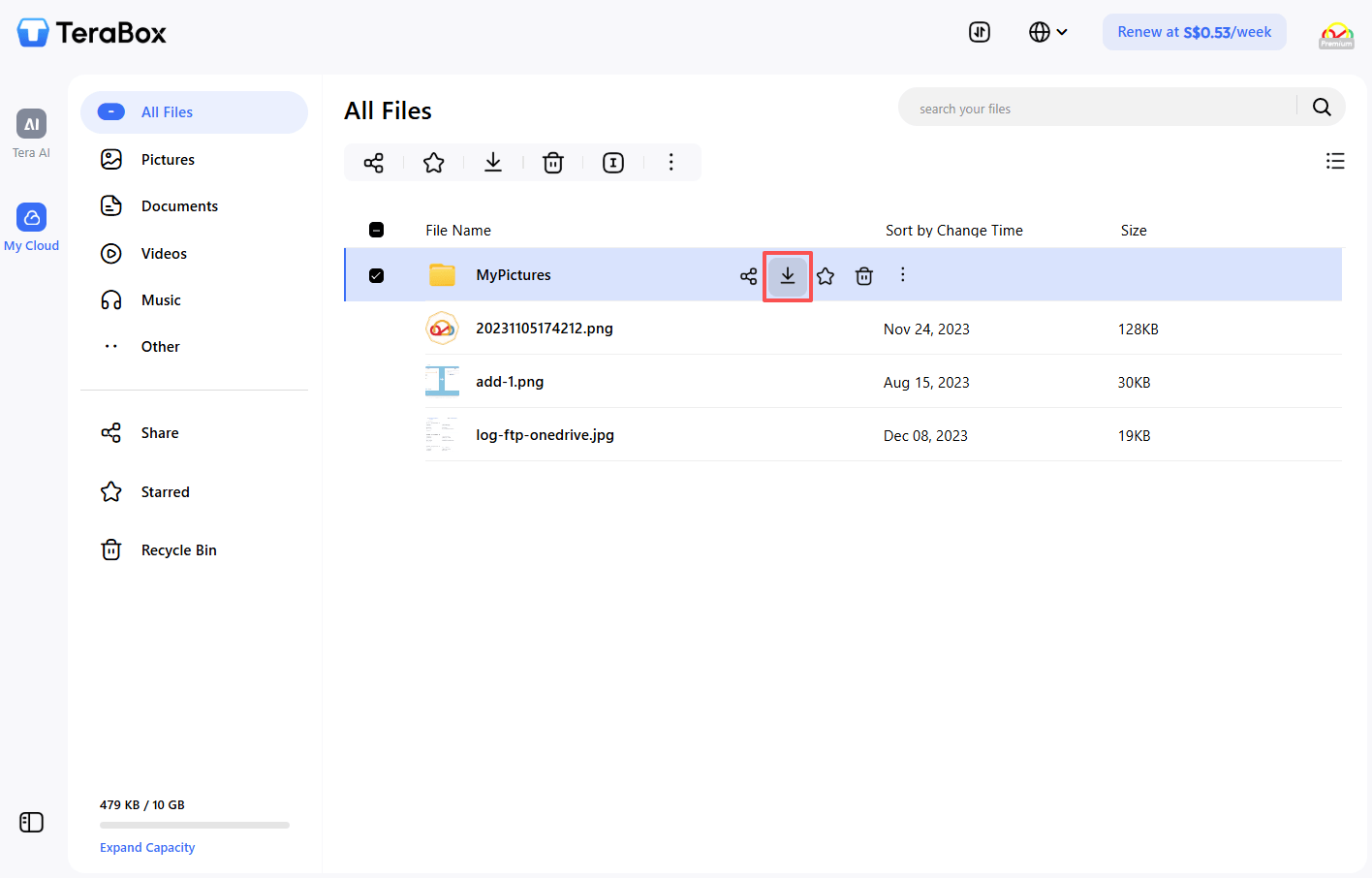
- A ZIP file will be generated
- Copy the download URL from your browser
⚠️ Important: Some download links expire quickly—use them immediately
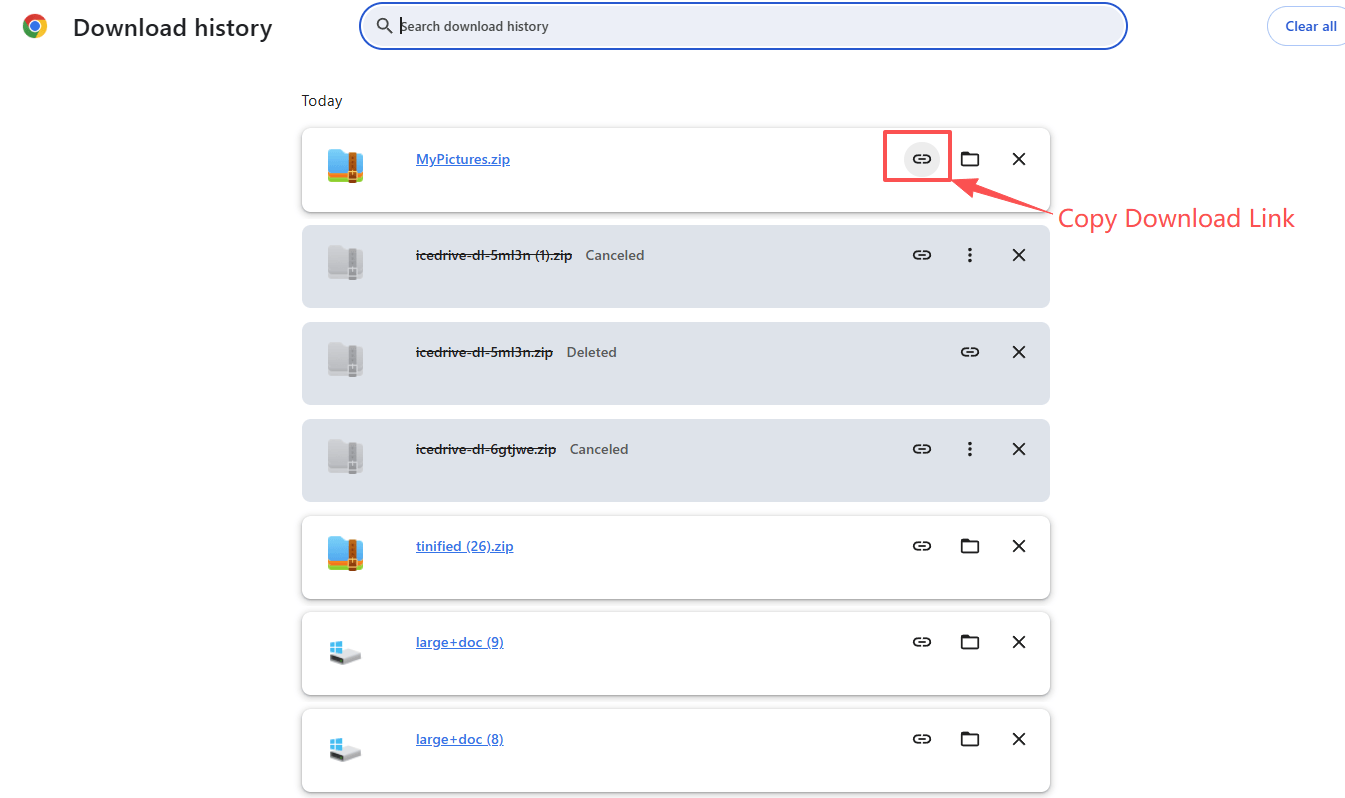
☁️ Step 3: Transfer via RiceDrive
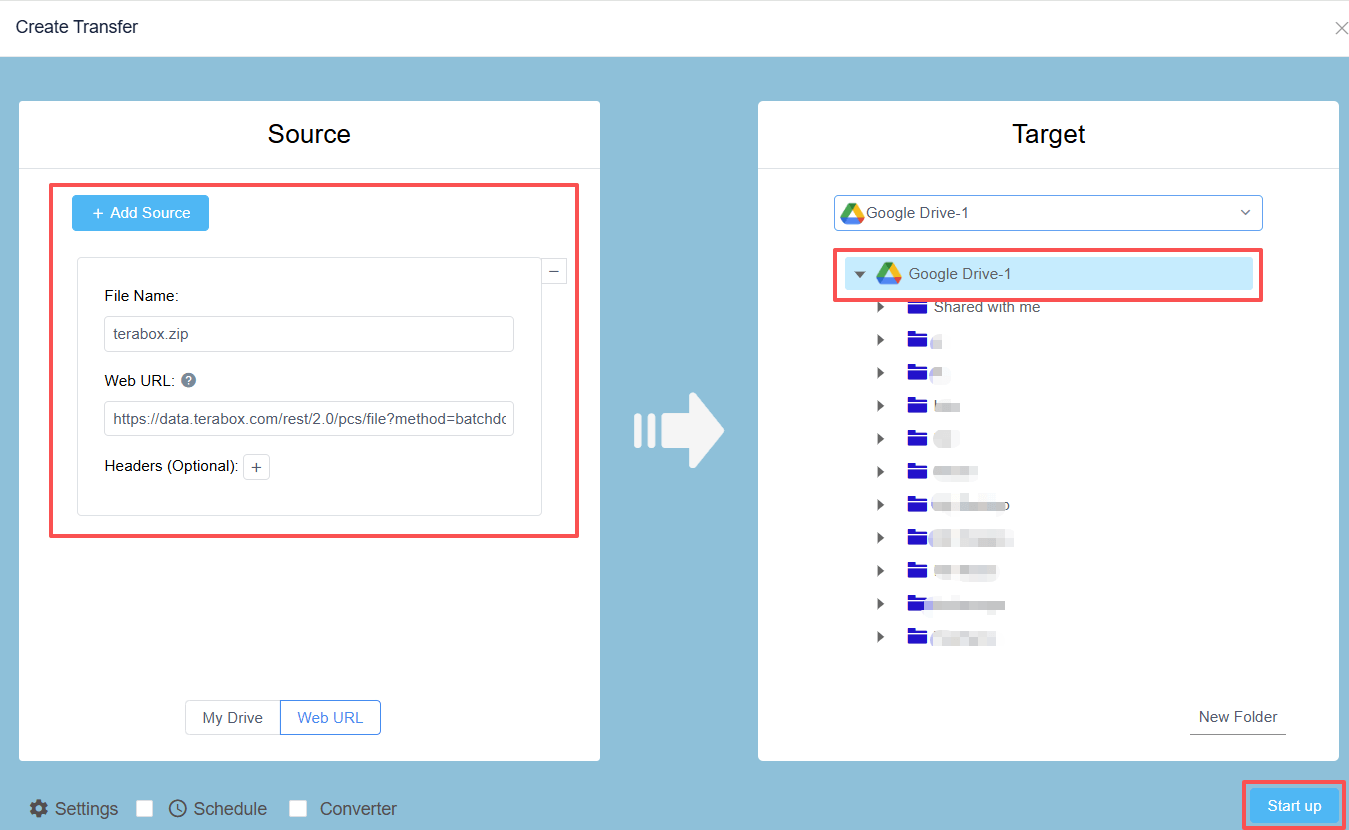
- Log in to RiceDrive
- Go to Cloud Transfer
- Click Create Transfer
- Choose Web URL as source
- Paste the Terabox download link and name
- Select Google Drive as the target
- Click Start up
🎯 RiceDrive will transfer the ZIP file directly from Terabox to Google Drive—no local download needed.
📦 Step 4: Unzip Files in Google Drive
- Open Google Drive
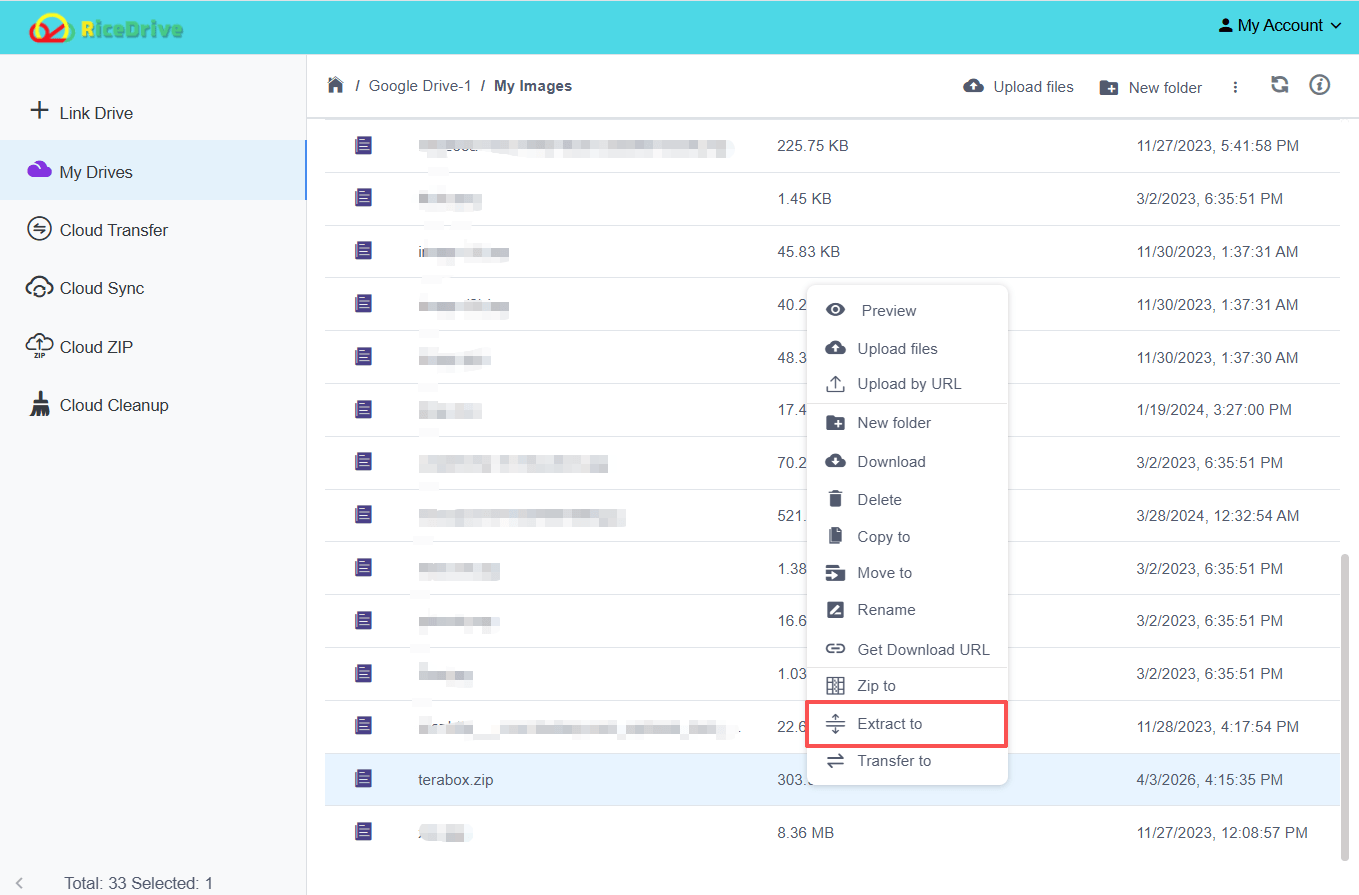
- Locate the transferred ZIP file
-
Extract the files using:
- Google Drive unzip feature
- or RiceDrive unzip tool
✅ Your Terabox files are now successfully migrated!
🌟 Key Benefits of This Method
- 🚫 No manual download and upload
- 💾 No local storage required
- ⚡ Faster cloud-to-cloud transfer
- 🔓 Works with unsupported cloud services
- 📁 Supports large folders via ZIP
🧠 Pro Tips for Better Transfers
- Use stable download links
- Avoid extremely large ZIP files (>20GB if possible)
- Restart failed tasks in RiceDrive instead of recreating them
- Keep folder structure simple
📌 Conclusion
Even without API support, you can still transfer files from Terabox (or any cloud) to Google Drive using RiceDrive.
By leveraging the Web URL transfer method, you bypass traditional limitations and achieve seamless cloud migration.
👉 In short:
Organize → Get Download Link → Transfer via RiceDrive → Unzip in Google Drive
That’s all it takes to move your files efficiently in 2026.
