Moving 1TB from Google Drive to OneDrive can be extremely challenging if you use traditional methods.
Downloading files locally and uploading them again often leads to:
- Very slow transfer speeds
- Insufficient local storage
- Upload failures for large files
- Network interruptions
If you're handling large-scale cloud data, this approach is inefficient and unreliable.
In this guide, you’ll learn how to move 1TB of data between cloud storage services without downloading, using a faster and more stable method.
👉 For large transfers like 1TB, cloud-to-cloud migration is the most efficient solution.
How to Move 1TB Without Downloading (Step-by-Step)
Step 1: Choose a Cloud Migration Tool
Use a reliable cloud transfer service that supports direct migration between platforms.
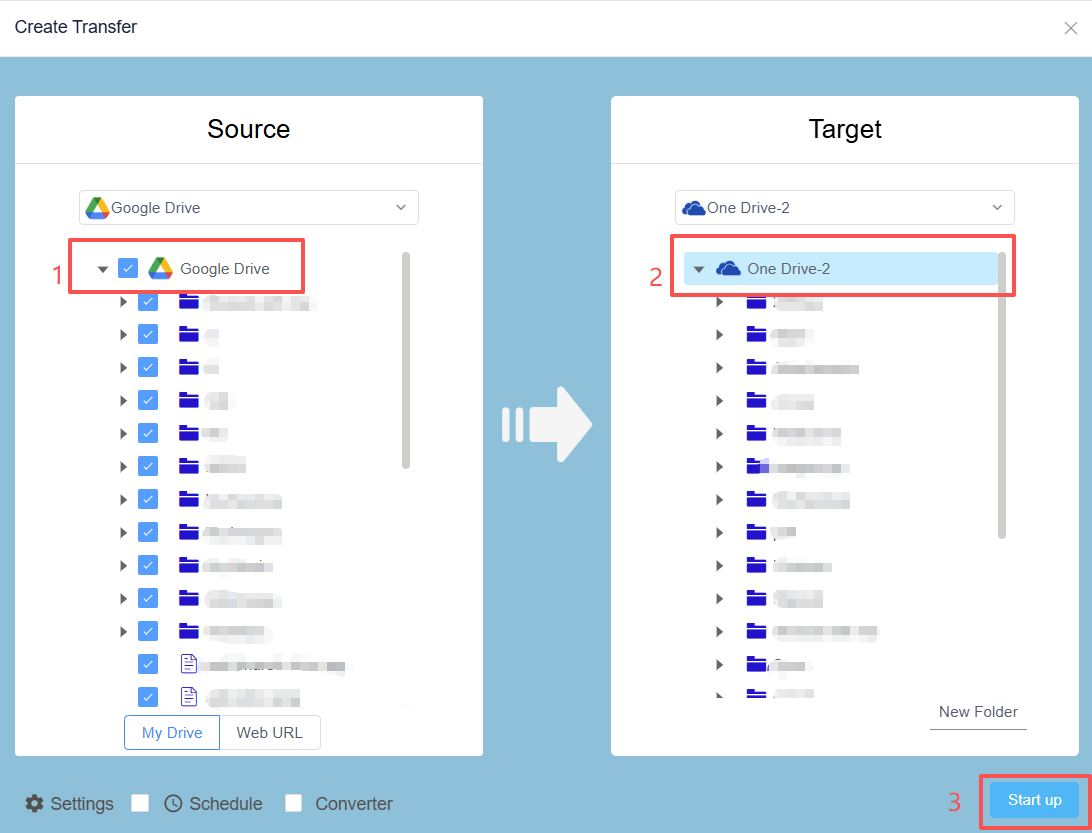
Step 2: Connect Google Drive and OneDrive
Authorize both accounts securely using official access methods.

Step 3: Select Data to Move
Choose:
- Specific folders
- Or your entire Google Drive
Step 4: Start the Migration
Start the task and let it run automatically.
👉 The data is moved directly between cloud servers, without passing through your computer.
Why Cloud-to-Cloud Migration Is Better
- 🚀 Faster than manual download and upload
- 💻 No local storage required
- 🔄 Handles large files (1TB+ total, 100GB+ per file)
- 🔒 Secure and stable transfer process
- 🌐 Runs in the background — even if you close your browser
- ⚡ Fully cloud-based — no need to keep your device online
Best Practices for Moving Large Files
- Schedule transfers during low-traffic hours
- Move files in batches instead of all at once
- Keep folder structure intact
- Monitor transfer progress
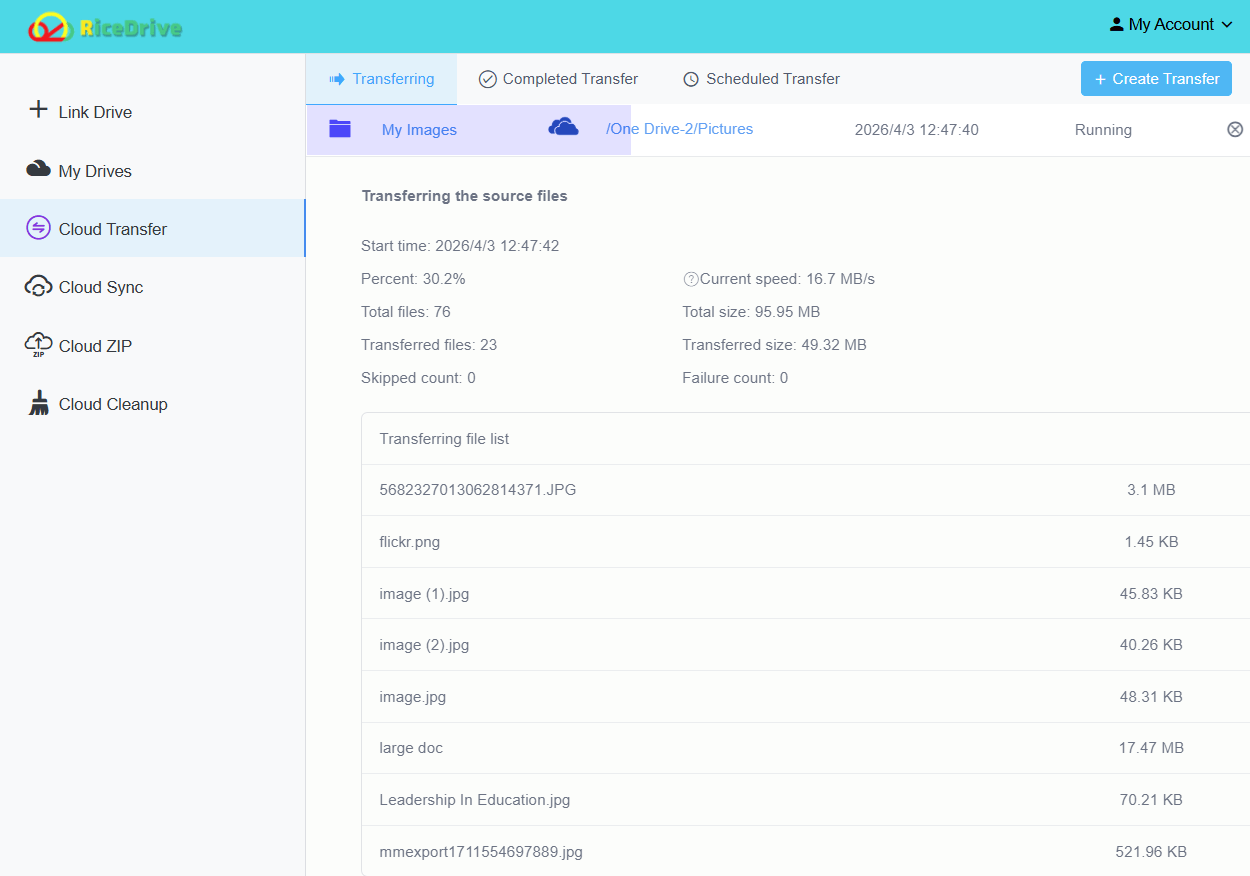
Recommended Tool for Moving 1TB of Data
The easiest way to move large amounts of data between cloud services is to use a dedicated cloud migration tool.
👉 This allows you to:
- Move files directly between platforms
- Avoid download and upload steps
- Improve speed and reliability
FAQ
Can I move more than 1TB of data?
Yes. Most cloud migration tools support multi-terabyte transfers.
Is it safe to move files between Google Drive and OneDrive?
Yes, as long as secure authorization (OAuth) is used.
Do I need to keep my computer on?
No. The process runs entirely in the cloud.
How long does it take to move 1TB?
It depends on server conditions, but cloud migration is much faster than manual methods.
Common Problems When Moving Google Drive to OneDrive
Even when using cloud tools, users often encounter issues when transferring large files between Google Drive and OneDrive.
- Transfer stuck or extremely slow – caused by network congestion or API limits
- Large files fail to upload – especially files over 50GB+
- Missing files after transfer – due to interrupted sync or failed retries
- Folder structure broken – happens with manual downloads
👉 The best way to avoid these issues is to use a cloud-to-cloud transfer system with retry and error handling.
Manual vs Cloud Transfer: Which Should You Choose?
| Feature | Manual Download | Cloud Transfer |
|---|---|---|
| Speed | Very Slow | Fast |
| Stability | Low | High |
| Large File Support | Limited | Excellent |
| Automation | No | Yes |
👉 For anything above 100GB+, cloud transfer is the only reliable solution.
Pro Tips for Faster Google Drive to OneDrive Migration
- 🚀 Use parallel transfer to speed up large jobs
- 📂 Transfer by folder instead of entire drive (better stability)
- ⏱ Schedule transfers during off-peak hours
- 🔁 Enable auto-retry for failed files
- 📊 Always verify transferred file count
These optimizations can reduce transfer time by 30%–70%.
Who Needs This Guide?
This guide is especially useful if you are:
- 📸 Migrating photos from Google Drive to OneDrive
- 🏢 Moving company data between cloud storage services
- 🎬 Handling large video or backup files (100GB+)
- 💼 Switching from Google Workspace to Microsoft 365
👉 If your data exceeds 500GB or 1TB, manual methods are not practical anymore.
Conclusion
Moving 1TB from Google Drive to OneDrive doesn’t have to be slow or complicated.
By using a cloud-to-cloud migration method, you can:
- Save time
- Avoid transfer errors
- Handle large-scale data efficiently
👉 If you regularly manage large files, this is the most effective solution available today.
