Migrating files from Dropbox to Box sounds simple at first: download everything from Dropbox, then upload it again to Box. But once you have large folders, business documents, shared files, videos, or thousands of items, the manual method quickly becomes slow and frustrating.
The good news is that you do not have to download files to your computer first. With a cloud-to-cloud migration tool like RiceDrive, you can migrate Dropbox to Box directly online. This helps you save local storage, avoid long upload times, and keep the migration process much easier to manage.
In this guide, you will learn how to move files from Dropbox to Box without downloading, when to use a free method, and why many users compare Box vs Dropbox before deciding where to store their files.
Why Migrate from Dropbox to Box?
Dropbox is widely used for file storage, sharing, and collaboration. It is simple, familiar, and suitable for individuals, freelancers, and teams. Box, on the other hand, is often chosen by businesses that need stronger document management, enterprise collaboration, workflow controls, and admin features.
There are several common reasons why users want to migrate Dropbox to Box:
Your company is switching from Dropbox to Box
You want to centralize team files in Box
You need better document permissions or admin controls
You are comparing Box vs Dropbox for long-term storage
You want to move large folders without downloading and re-uploading
For small files, manual download and upload may be enough. But for large accounts or business folders, a direct cloud-to-cloud migration is usually a better choice.
Can You Migrate Dropbox to Box Without Downloading?
Yes. You can migrate Dropbox to Box without downloading by using a cloud-to-cloud transfer service such as RiceDrive.
Instead of saving Dropbox files to your local computer and uploading them again to Box, RiceDrive connects both cloud accounts and transfers files directly between them. This means the migration does not depend on your local disk space, and you do not need to keep downloading files manually.
This is especially useful if you are moving:
Large Dropbox folders
Business documents
Photos and videos
Shared project files
Archived files
Multiple folders at once
Method 1: Manual Dropbox to Box Migration
The traditional method is simple:
Log in to your Dropbox account.
Select the files or folders you want to move.
Download them to your computer.
Log in to your Box account.
Upload the files to Box.
This method can work if you only have a few small files. It may also feel like a Dropbox to box free option because you are not using a third-party transfer tool.
However, it has some clear limitations. Large files may take a long time to download and upload. Your computer needs enough local storage. Your internet connection must remain stable. If the transfer fails, you may need to restart part of the process. For business migrations, this method is usually not efficient.
Method 2: Migrate Dropbox to Box with RiceDrive
RiceDrive is a cloud-to-cloud transfer tool that helps users move files between different cloud storage services. It supports popular cloud drives such as Dropbox, Box, Google Drive, OneDrive, MEGA, Google Photos, and more.
With RiceDrive, you can create a transfer task from Dropbox to Box and let the task run online. You do not need to download files to your computer first.
Step 1: Log in to RiceDrive
Go to RiceDrive and sign in with your email. RiceDrive uses email verification code login, so you can access the service through your browser without installing a desktop app.

Step 2: Add Dropbox to RiceDrive
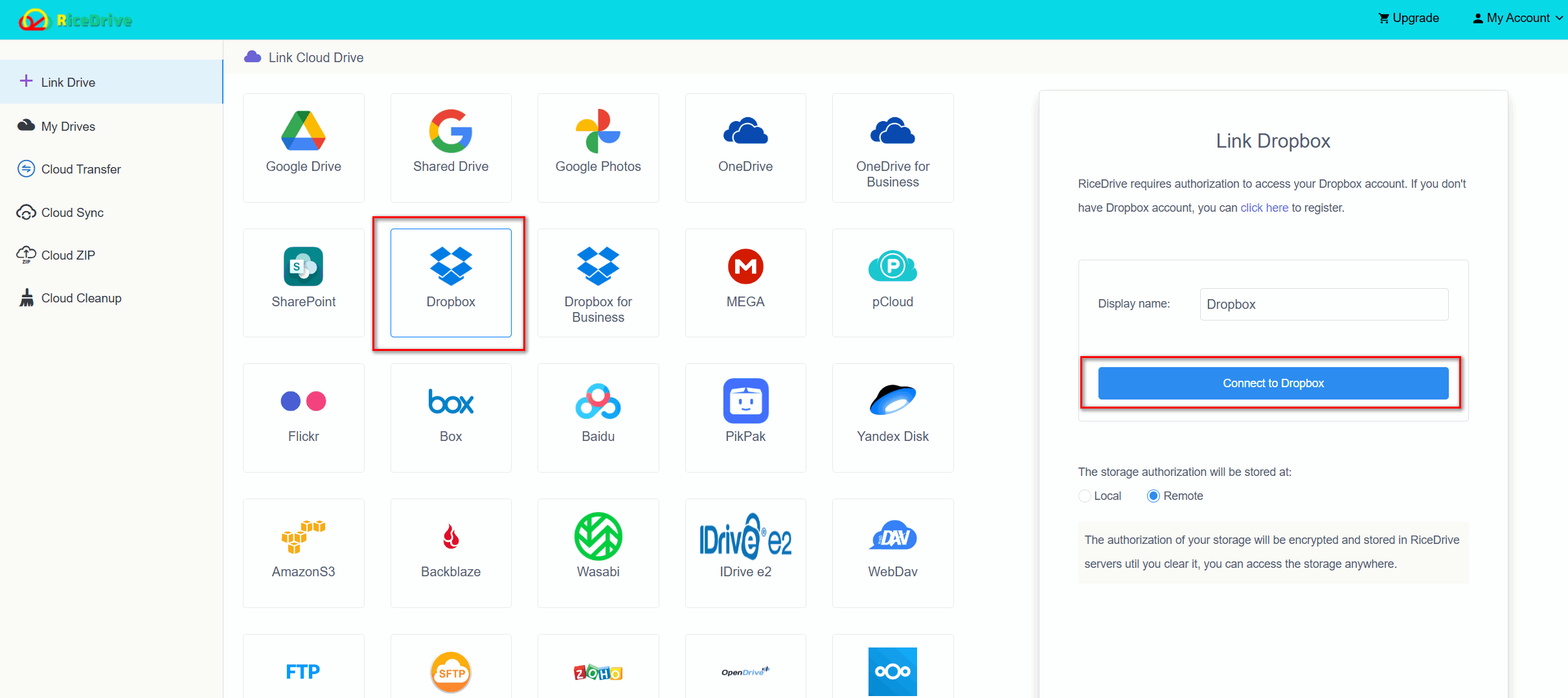
After logging in, go to the Link Drive page. Choose Dropbox from the cloud storage list and follow the authorization process. You will be redirected to Dropbox to allow access. Once authorization is complete, Dropbox will appear in your RiceDrive account.
Step 3: Add Box to RiceDrive
Next, add Box in the same way. Select Box from the supported cloud storage list, authorize access, and confirm that Box has been connected successfully.
Now RiceDrive can access both your Dropbox and Box accounts for the migration task.
Step 4: Create a Cloud Transfer Task
Go to the Cloud Transfer page and click Create Transfer.
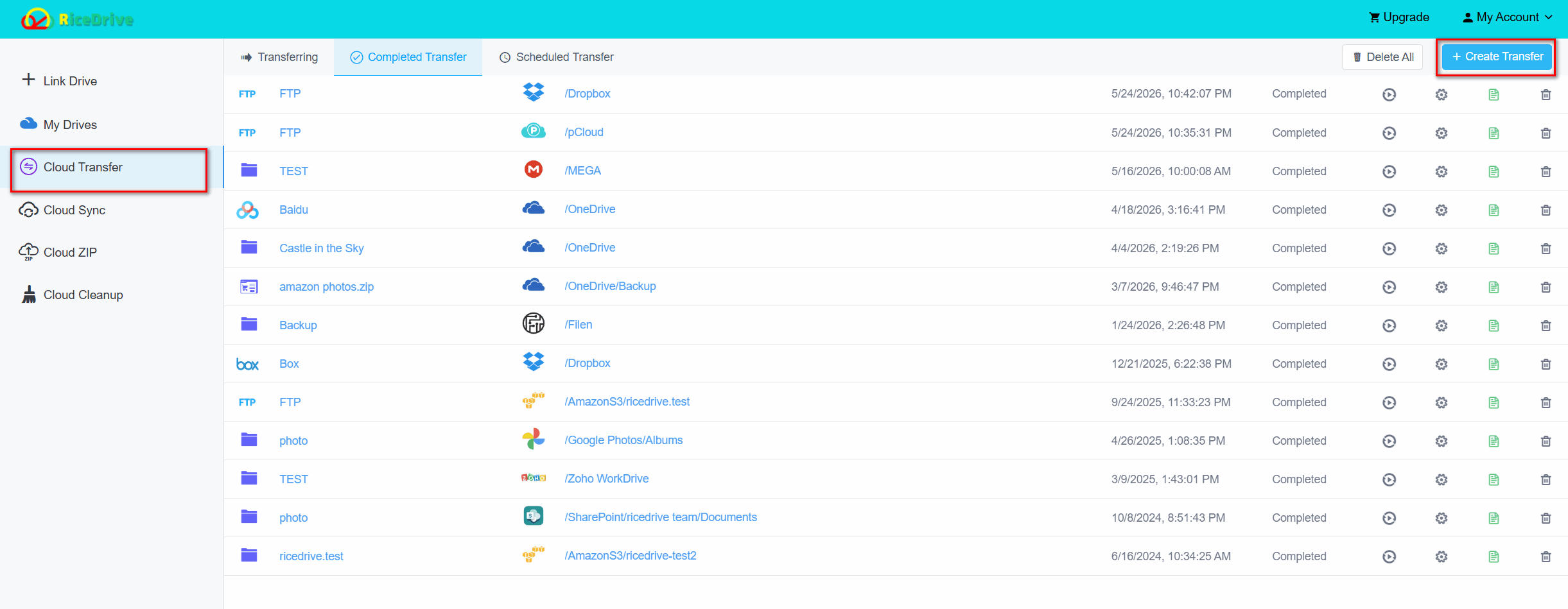
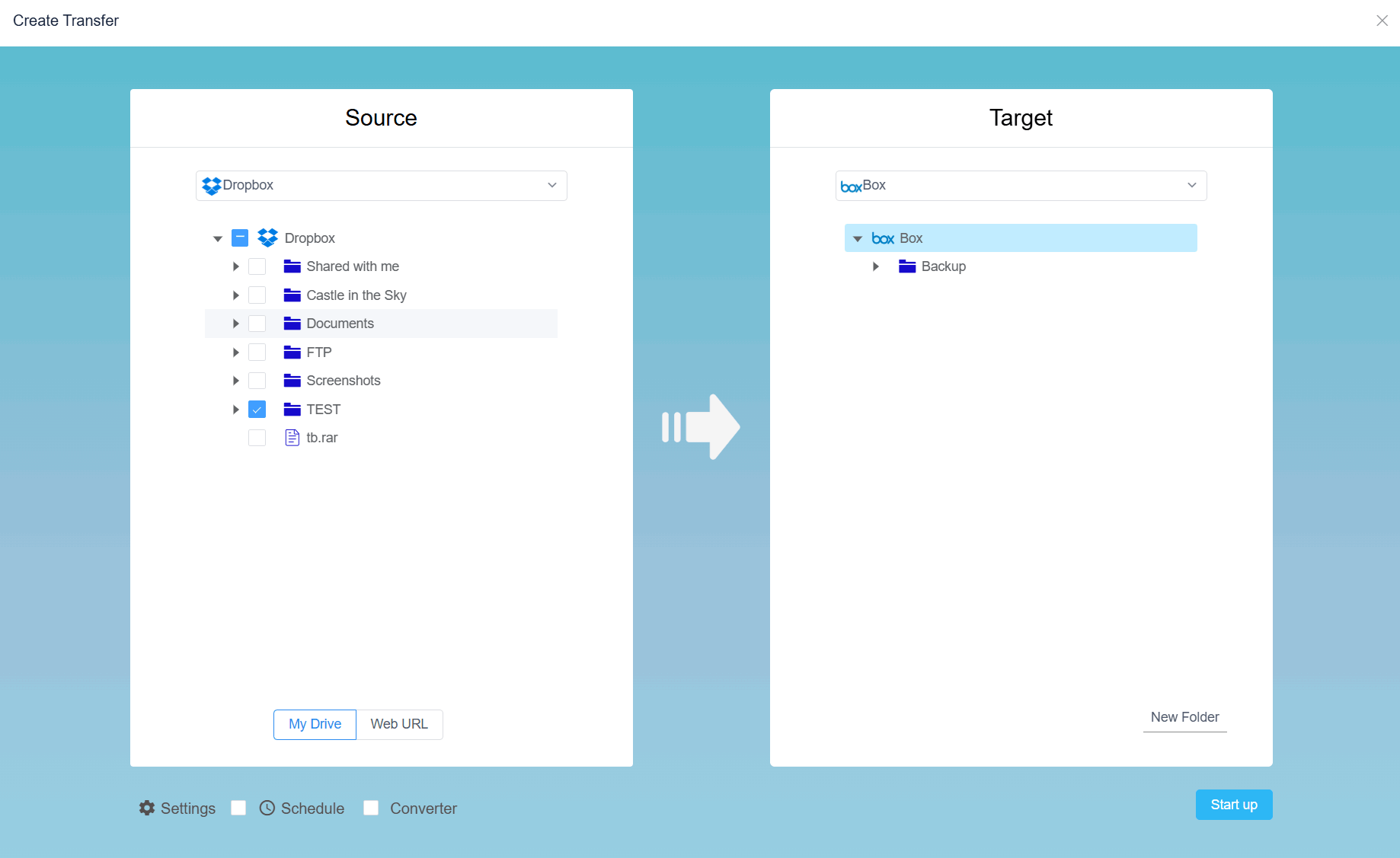
Choose Dropbox as the source cloud drive. Then select the files or folders you want to migrate.
After that, choose Box as the target cloud drive and select the folder where you want to save the migrated files.
Step 5: Configure Transfer Settings
Before starting the migration, you can configure settings based on your needs. For example, you may want to filter certain file types, skip existing files, overwrite files, or organize the transfer task more carefully. This is helpful when you only want to migrate selected folders instead of your entire Dropbox account.
Step 6: Start the Migration
After confirming the source and target folders, click the Start up button.
RiceDrive will begin transferring files from Dropbox to Box directly in the cloud. You can monitor the progress from the task page. Since the task runs online, you can close the webpage and focus on other work. RiceDrive will continue running the migration in the background.
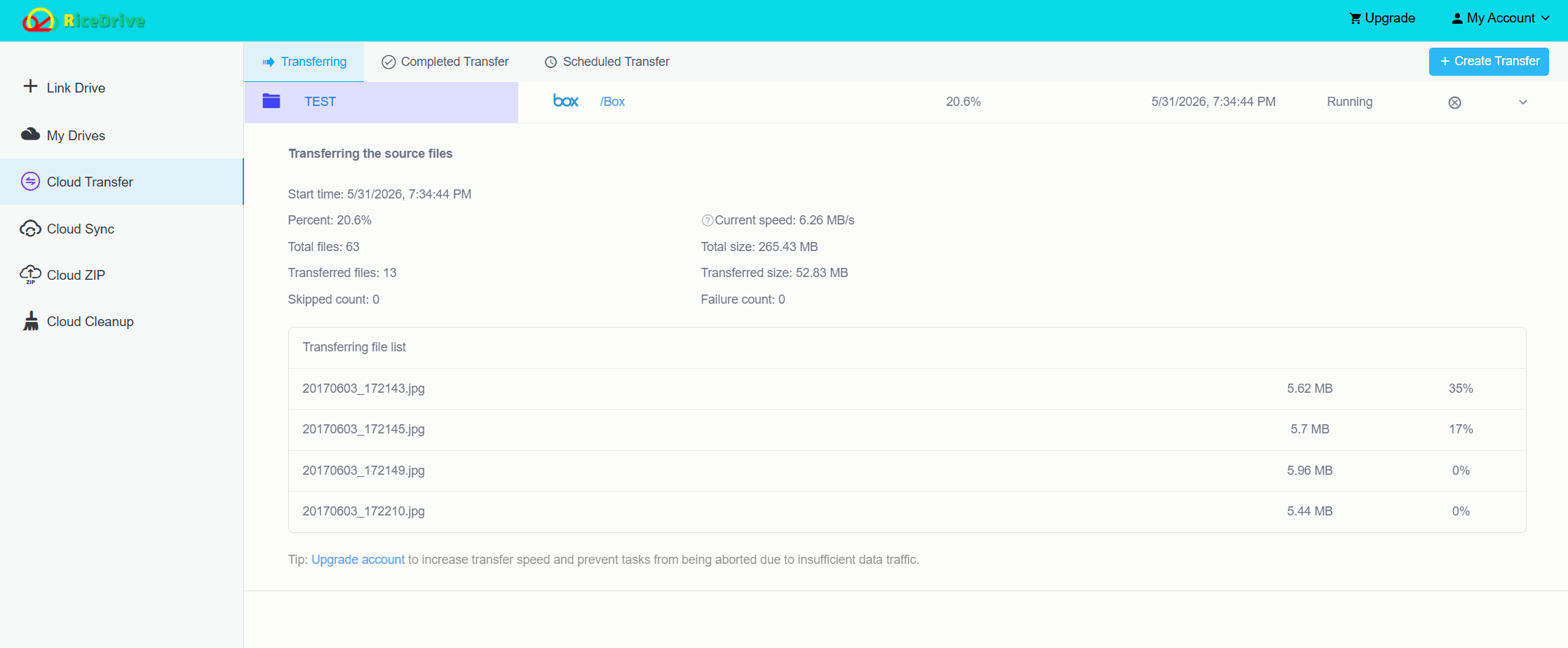
When the task is complete, check the transfer logs to confirm that all files have been moved successfully.
Dropbox to Box Free: Is There a Free Way?
If you search for Dropbox to box free, you are probably looking for a no-cost way to move your files. The manual download-and-upload method can be free, but it may cost you time, bandwidth, and local storage.
RiceDrive can be a better option when you want a more convenient cloud-to-cloud migration experience. It is especially useful when you do not want to install desktop clients or keep your computer running during the whole transfer process.
For small migrations, free methods may be enough. For larger transfers, a cloud migration tool can save much more time.
Box vs Dropbox: Which One Should You Choose?
Before migrating, many users compare Box vs Dropbox to decide which cloud storage service better fits their needs.
Dropbox is often appreciated for its simple interface, file syncing experience, and ease of use. It is popular with individuals, creators, freelancers, and small teams.
Box is often used by businesses and organizations that need content management, collaboration controls, admin features, and enterprise-level file governance.
There is no universal winner. The better choice depends on your workflow, team size, file type, permission needs, and budget.
Box vs Dropbox Pricing
When comparing Box vs Dropbox pricing, do not only look at the monthly price. You should also compare storage limits, user limits, team features, admin controls, file transfer limits, security features, and collaboration tools.
Dropbox may feel more familiar for personal cloud storage and simple file sharing. Box may be more attractive for businesses that need advanced content management and enterprise collaboration.
Because pricing can change over time, always check the latest official pricing pages before making a final decision.
Box vs Dropbox Security
Security is another important factor in the Box vs Dropbox security comparison.
Both Dropbox and Box provide security features for cloud storage, file sharing, and business collaboration. However, businesses may evaluate them differently depending on compliance needs, access controls, encryption, admin management, and industry requirements.
If your organization handles sensitive business documents, legal files, healthcare files, financial records, or internal company data, you should carefully review the security and compliance features of both platforms before migrating.
For everyday users, both services can be secure enough when used correctly. For business users, the better choice depends on your compliance requirements and internal IT policies.
Why Use RiceDrive for Dropbox to Box Migration?
RiceDrive is useful because it makes the Dropbox to Box migration process simpler and more efficient.
Here are the main benefits:
No need to download files to your local computer
No need to upload files manually to Box
Transfer files directly from cloud to cloud
Manage Dropbox and Box in one place
Create transfer tasks through a browser
Keep the task running in the background
Check logs after the migration is complete
This is especially helpful for users who have a large number of files or want a cleaner migration process.
Final Thoughts
Migrating Dropbox to Box does not have to be complicated. If you only have a few small files, you can use the manual download-and-upload method. But if you want to migrate large folders, business files, or multiple directories without downloading, RiceDrive offers a much easier cloud-to-cloud solution.
With RiceDrive, you can connect Dropbox and Box, choose the files you want to move, create a transfer task, and let the migration run online. It saves local bandwidth, reduces manual work, and helps you complete the Dropbox to Box migration more efficiently.
If you are comparing Box vs Dropbox and have decided to move your files to Box, RiceDrive can help you make the transition smoother.
