Managing millions of files or more than 1000 GB of data across Google Drive, Dropbox, and OneDrive can be slow and time-consuming if you download and re-upload everything manually. RiceDrive enables fast, server-side cloud-to-cloud migration, transferring files directly between cloud storage services without using your local device. Your transfers continue offline, even after you close your browser or turn off your computer, making large-scale migrations more reliable and efficient.
1. Why Cross-Cloud Migration?
Each cloud platform has unique strengths: Google Drive excels in collaboration, Dropbox offers robust sync, and OneDrive integrates seamlessly with Microsoft 365. By migrating files between them, you can:
- Consolidate data for centralized management
- Reduce costs by optimizing storage plans
- Improve collaboration with cross-platform teams
- Backup critical files across providers for redundancy
RiceDrive enables all of this without requiring local storage or affecting your internet bandwidth.

2. Getting Started with RiceDrive
Visit RiceDrive and sign up with your email or Google account — no credit card required. Once logged in, you'll see the main dashboard where you can manage all connected cloud drives.

3. Add Your Cloud Accounts
- Go to "Link Drive".
- Select Google Drive, Dropbox, or OneDrive.
- Authorize via OAuth 2.0 — RiceDrive never stores your password.
- Repeat for each cloud service you want to connect.
Once added, you'll see all drives in the sidebar. You can browse files and folders across platforms in one unified view.

4. Create Your First Transfer Task
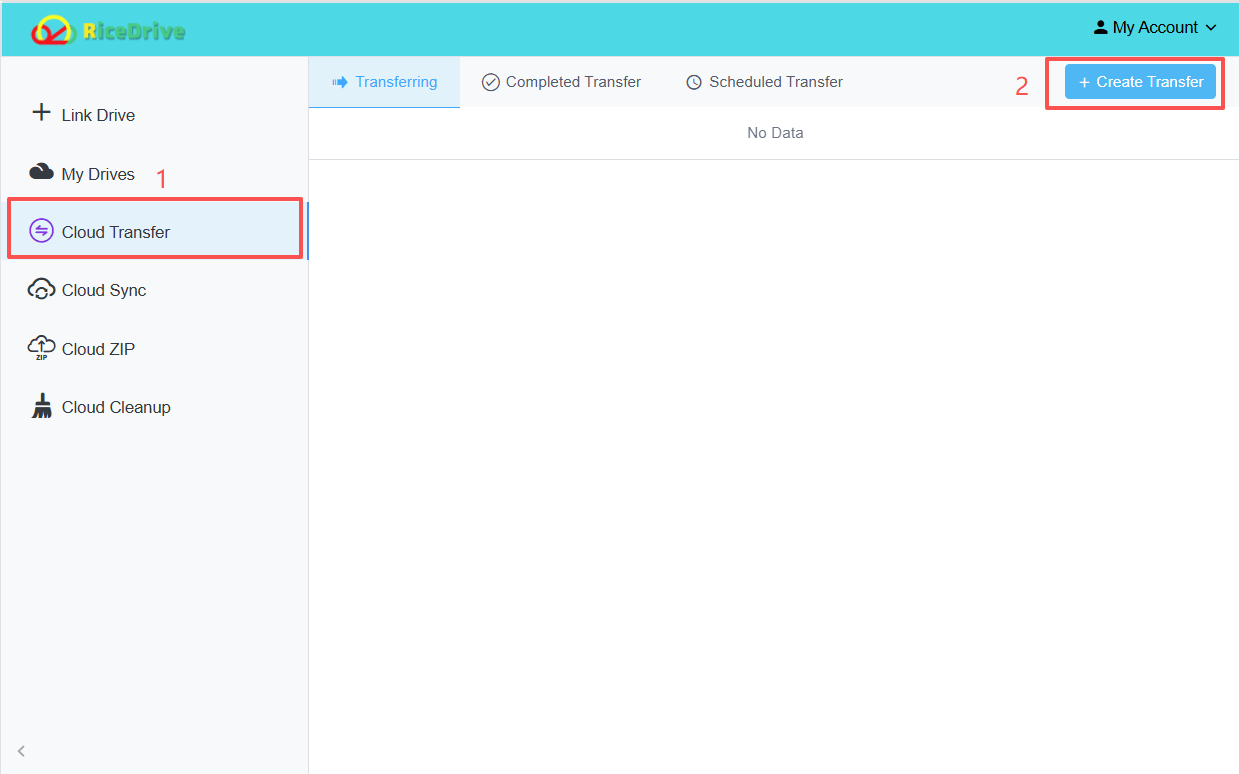
- Click "Cloud Transfer" in the left menu.
- Click "Create Transfer".
- Source: Select the source cloud (e.g., Google Drive) and choose files/folders.
- Target: Pick the target cloud (e.g., Dropbox) and choose a destination folder.
- Hit "Start up" — the task is queued on RiceDrive's secure servers.
The transfer runs entirely in the cloud. You can close your browser; the task will continue.
5. Monitor & Manage Tasks
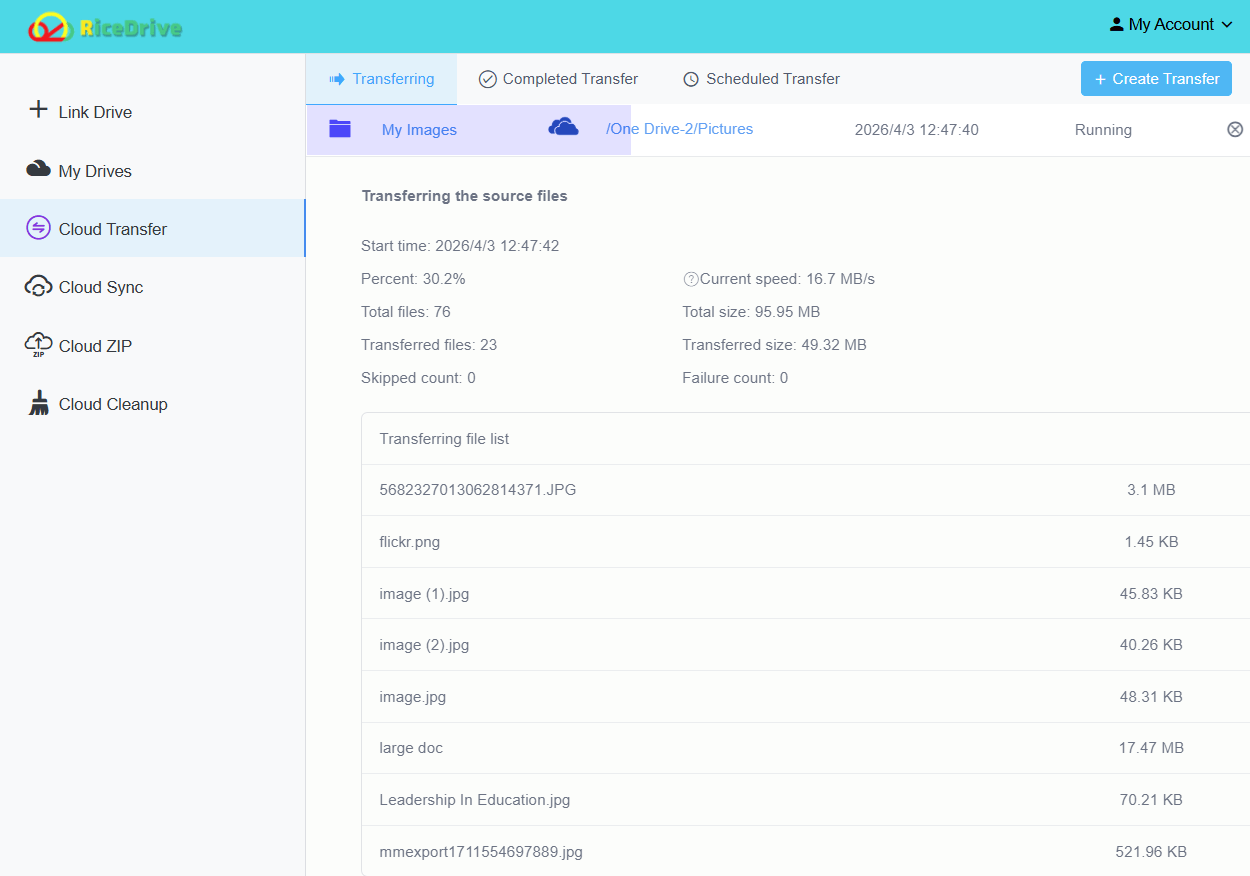
The "Cloud Transfer" page shows real-time progress, speed, and estimated completion time. Completed tasks include detailed logs (success/failed files). You can also enable email notifications in settings.
6. Advanced Features
📌 Filters & Rules
Set include/exclude filters (e.g., only .pdf or exclude files >1GB) to save time and quota.
⏱️ Scheduled Transfers
Automate daily or weekly syncs to keep clouds in sync without manual intervention.
⚙️ Parallel Tasks
Free users can run up to 2 concurrent tasks; paid plans support up to 10 for massive migrations.
👁️ Online Preview
Preview documents, images, and videos directly in RiceDrive before migrating.
7. Speed Optimization Tips
To maximize transfer speeds between clouds:
- Use premium cloud plans (e.g., Google Workspace, Dropbox Professional) for higher API rate limits.
- Transfer during off-peak hours (nighttime or weekends) for better server response.
- Split large folders into batches to avoid API throttling.
8. FAQ & Final Thoughts
Q: Does RiceDrive use my local bandwidth?
A: No — all transfers occur on RiceDrive's servers. Your local network is not involved.
Q: What are the free limits?
A: Free accounts get 10GB one-time traffic, 10GB max file size, and 2 concurrent tasks. Paid plans remove these caps.
Q: Is my data secure?
A: RiceDrive uses OAuth 2.0 (no password storage) and TLS 1.3 encryption for all data in transit.
Conclusion: RiceDrive simplifies cross-cloud migration between Google Drive, Dropbox, and OneDrive. Whether you're consolidating backups or switching primary providers, this guide gives you the tools to move files efficiently. Start with 10GB free today!