Managing files across multiple cloud storage services can be a challenge. If you're looking to move your data from Google Drive to pCloud, the good news is—you don't need to download and re-upload everything manually. This updated 2026 guide shows you the easiest way to transfer your files safely and efficiently.
Whether you're switching cloud providers, backing up important data, or simply organizing your storage, this guide covers everything you need to know about migrating from Google Drive to pCloud.
🚀 Best Way: Use a Cloud-to-Cloud Transfer Tool
The fastest and most convenient method is to use a dedicated cloud transfer service like RiceDrive, MultCloud, or CloudFuze. These tools allow you to copy files directly from Google Drive to pCloud without downloading them to your computer—saving time, bandwidth, and local storage.
Step-by-Step: Transfer with RiceDrive
- Go to RiceDrive.com and create a free account.
- Log in to your RiceDrive dashboard.

- Connect your Google Drive and pCloud accounts by authorizing access.
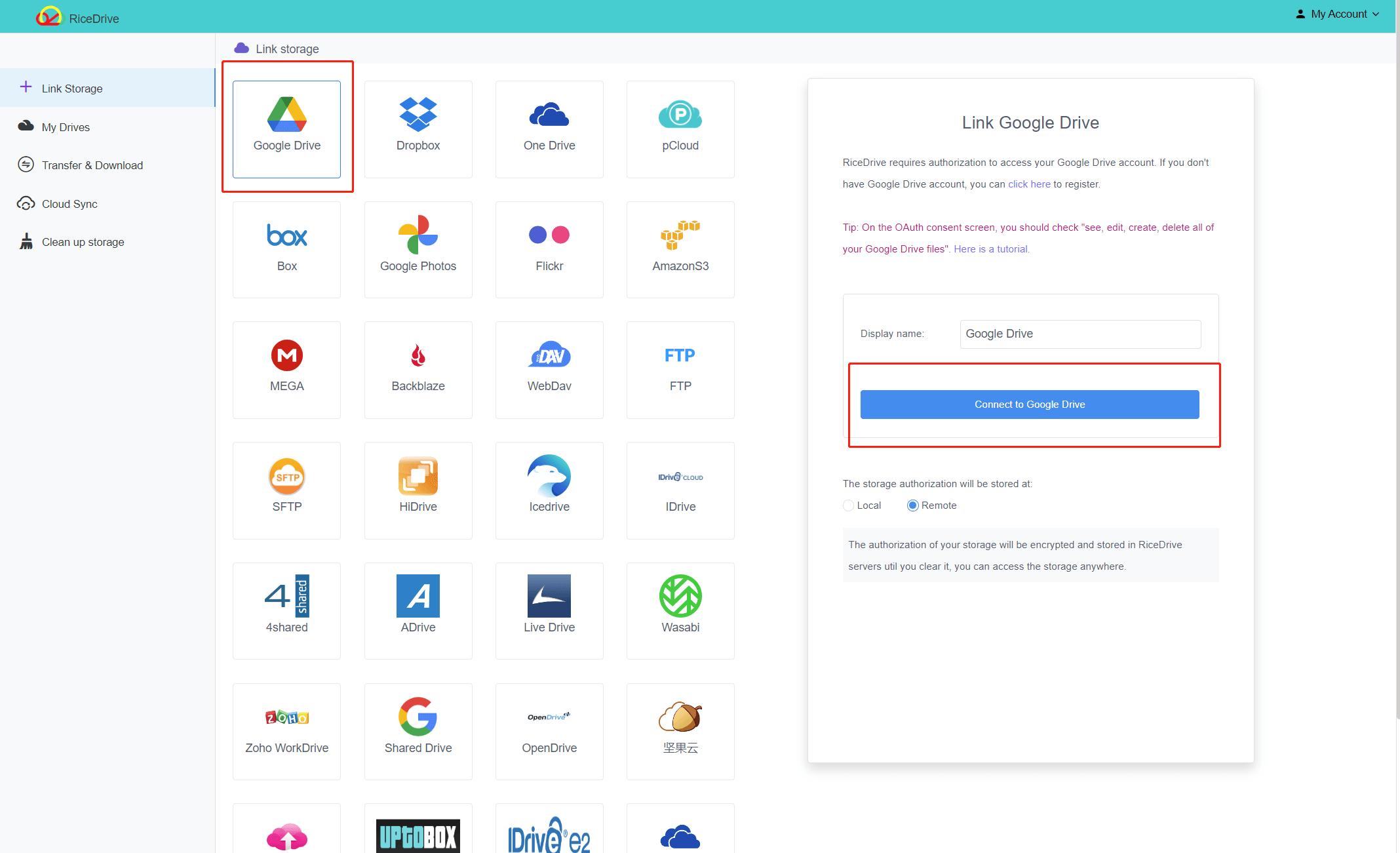
- Select Google Drive as the source and pCloud as the target.

- Choose specific folders, files, or transfer everything.
- Click Start Transfer and let RiceDrive handle the rest.
✅ That's it—your files will be copied directly in the cloud. You can monitor progress from your dashboard, and even close your browser while it runs.
✅ Why Use RiceDrive for Cloud Migration?
RiceDrive is designed specifically for cross-cloud file management. Here's why thousands of users choose it for Google Drive to pCloud transfers:
- ⚡ Speed No download/upload bottleneck — server-to-server transfer.
- 📁 Structure Preserves your complete folder hierarchy.
- 💾 Large Files Handles big files and bulk transfers with ease.
- 🔄 Background Runs 24/7 even when your device is offline.
- 🔒 Security OAuth authentication — we never store your passwords.
- 💰 Free Tier 10GB free traffic to get started.
📊 Cloud Transfer Tools vs. Manual Upload
Still unsure which method to choose? Here's a quick comparison:
| Feature | RiceDrive (Cloud-to-Cloud) | Manual Download + Upload |
|---|---|---|
| Speed | ✅ Fast (server-side) | ❌ Slow (depends on your internet) |
| Local Storage Required | ✅ No | ❌ Yes (downloads occupy space) |
| Folder Structure Preserved | ✅ Yes | ⚠️ Manual effort required |
| Interruption Recovery | ✅ Auto-resume | ❌ Start over |
| Background Transfer | ✅ Yes (server-side) | ❌ No (computer must stay on) |
| Cost | ✅ Free tier available | ✅ Free (but uses your bandwidth) |
🛠️ Alternative: Manual Download & Upload
If you prefer not to use a third-party tool, you can manually download files from Google Drive and upload them to pCloud. However, this approach has significant drawbacks:
- Log in to Google Drive and download files to your computer.
- Log in to pCloud and upload the downloaded files.
⚠️ Drawbacks of the manual method:
- Uses your local bandwidth and storage.
- Much slower for large files or many folders.
- Prone to interruptions — if your connection drops, you may need to restart.
- No automatic folder structure preservation.
💡 Pro Tips for a Smooth Transfer
- Plan ahead: Review your Google Drive contents and decide which folders you actually need to move. This saves time.
- Check storage limits: Make sure your pCloud account has enough free space before starting.
- Use filters: RiceDrive allows you to filter by file type or date — use this to exclude unnecessary files.
- Run a test: Transfer a small folder first to verify that everything works as expected.
- Monitor progress: Log in to RiceDrive periodically to check transfer status and resolve any errors quickly.
🔍 Frequently Asked Questions
Will my original files on Google Drive be deleted after transfer?
No. The transfer process only copies your files. Your originals remain intact in Google Drive unless you manually delete them.
Does the folder structure stay the same after transfer?
Yes. Professional cloud transfer tools like RiceDrive preserve the original folder hierarchy, keeping everything organized just as you had it.
Can I turn off my computer after starting the transfer?
Absolutely. Cloud-to-cloud transfers run entirely on the server side, so your local device doesn't need to stay online.
Is RiceDrive safe and secure to use?
Yes. RiceDrive uses OAuth authorization and never stores your cloud passwords. All data transfers are encrypted with TLS for maximum privacy.
What happens if the transfer gets interrupted?
RiceDrive supports resumable transfers. If an interruption occurs (e.g., network issue), the task will automatically resume from where it stopped.
How long does a transfer from Google Drive to pCloud take?
Transfer speed depends on total file size and network conditions. RiceDrive uses high-speed server infrastructure to complete transfers much faster than manual methods.
📌 Conclusion
Transferring files from Google Drive to pCloud doesn't have to be a time-consuming chore. With a cloud-to-cloud transfer tool like RiceDrive, you can migrate your data quickly, securely, and without using your local bandwidth or storage.
Whether you're migrating for backup, switching providers, or just organizing your digital life, RiceDrive gives you full control over your cloud file management.
Start your free transfer at RiceDrive.com — 10GB free traffic included!
