Are you looking to transfer your cherished Flickr photos to Google Photos? RiceDrive offers a seamless solution to efficiently migrate your photo collection. But the real question is: how can you retain the modification and creation times during the migration? This 2026 guide covers everything you need to know.

Why Use RiceDrive for Flickr Migration?
RiceDrive is a powerful cloud management tool that integrates with multiple platforms, including Flickr and Google Photos. It simplifies cross-service data movement, saving you time and effort. Here's why RiceDrive is the ideal choice:
- Cross-platform Integration: Effortlessly connect Flickr and Google Photos in one dashboard.
- Automation: Schedule and execute bulk transfers efficiently.
- Offline Transfer: Transfers run in the cloud — you can close your browser or turn off your computer.
- User-friendly Interface: Suitable for both beginners and advanced users.
Direct Transfer: Flickr to Google Photos
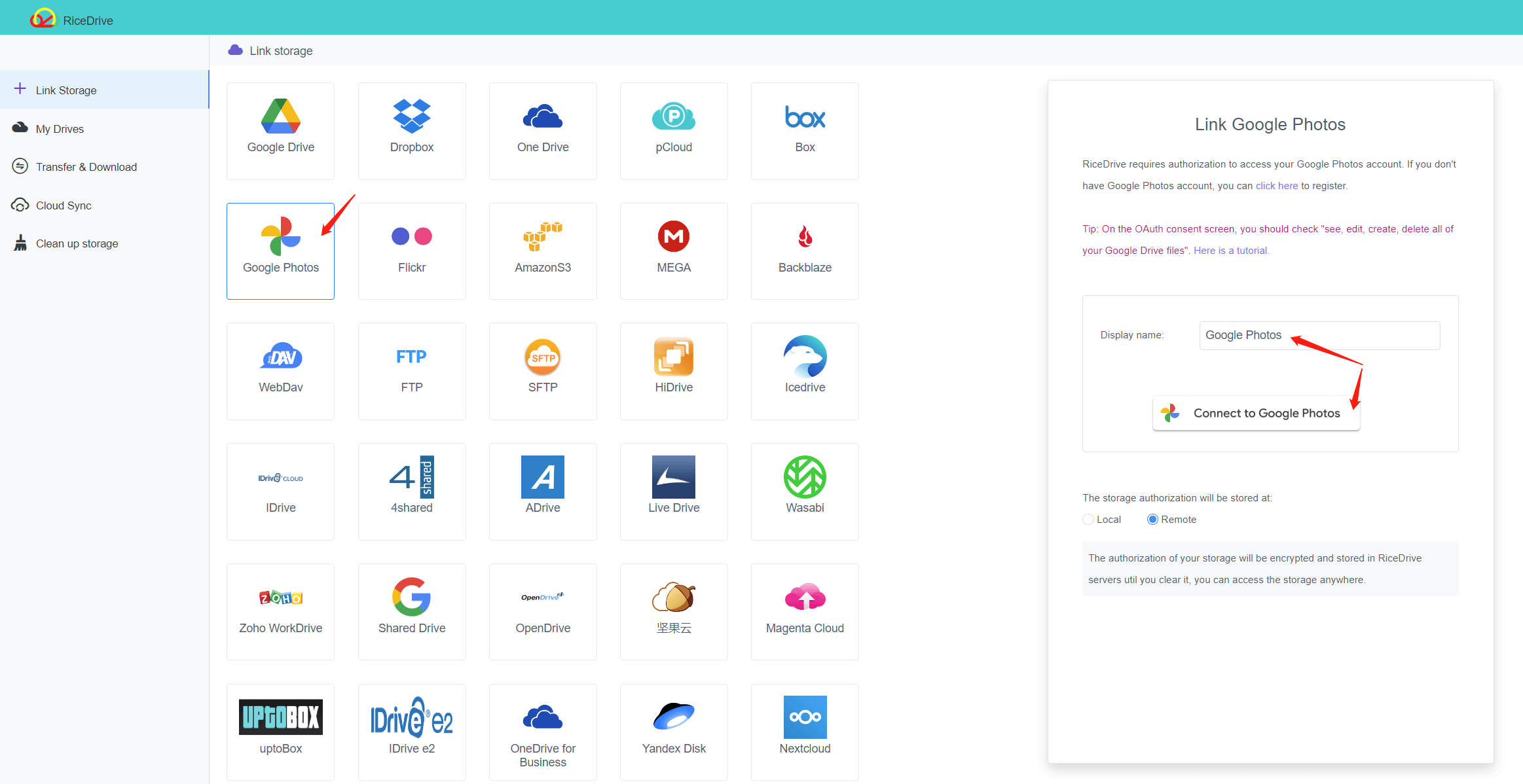
Step 1: Link Your Accounts
Log into RiceDrive with your email.
Navigate to the "Link Drive" section.
Select Flickr and authorize RiceDrive to access your account.
Repeat the process for Google Photos.
Step 2: Configure the Transfer
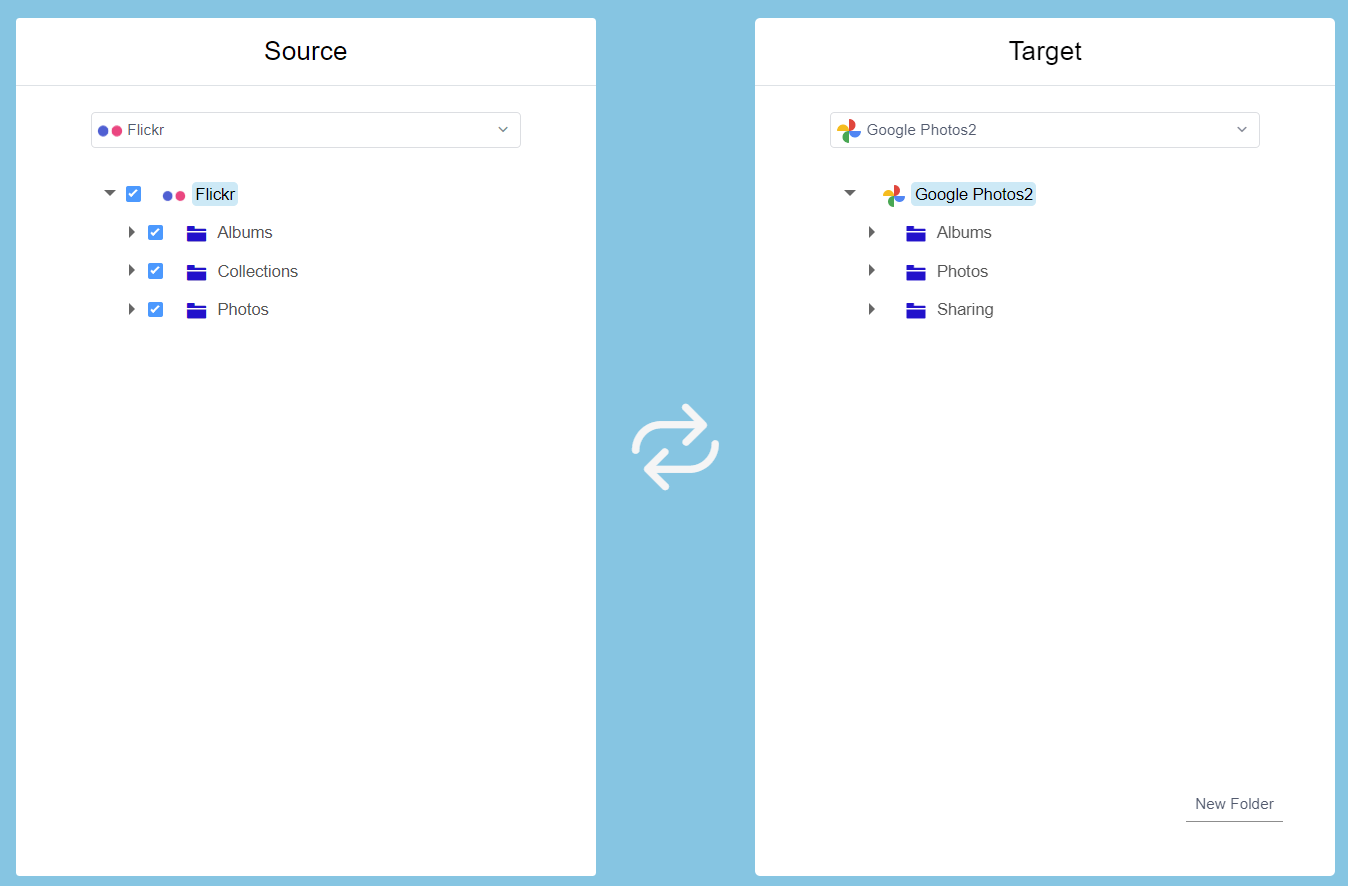
Go to the "Cloud Transfer" tab.
Choose Flickr as the source and Google Photos as the destination.
Select the specific albums or photos you want to transfer.
Step 3: Execute the Transfer
Start the transfer and monitor progress through the RiceDrive dashboard.
Once completed, review the photos in Google Photos.
Tips for a Smooth Transfer
- Check Storage Limits: Ensure your Google Photos account has enough space for the incoming files.
- Batch Transfers: For large collections, break the transfer into smaller batches to avoid interruptions.
- Partial Failure Handling: If some files fail, you can restart the task to retry only the unsuccessful files.
How to Preserve Creation & Modification Times
The direct method above transfers images from Flickr to Google Photos, but it does not retain the modification and creation times because the Google Photos API does not support setting photo timestamps during import.
If timestamp preservation is critical, follow this alternative workflow:
Add your Flickr, Google Drive, and Google Photos accounts to RiceDrive (Google Drive and Google Photos should be the same Google account).
Create a cloud transfer with Flickr as source and Google Drive as destination.
-
Click "Settings" and check the "Keep source file modified date" option, then click "Start up".

After the transfer completes, go to the Google Photos website.
-
Click "Upload" and select the "Google Drive" option.

Find and select the transferred photos from Google Drive. Tip: Hold the Shift key to select multiple files quickly.
Your images will appear in Google Photos with their original modification and creation times preserved.
If you also want to transfer album structures, create a new cloud transfer with Flickr Albums as source and Google Photos Albums as destination.
Note: If you have a large number of files, selecting them individually in Google Photos can be cumbersome. You may need to open each folder to select images from Google Drive.
Overall, preserving timestamps requires a few extra steps, but it ensures your photo library remains authentic and well-organized.
Frequently Asked Questions
Does Google Photos preserve original timestamps when importing from Flickr?
Not directly via the Google Photos API. However, by first transferring photos to Google Drive with the "Keep source file modified date" option enabled, and then uploading from Google Drive to Google Photos, the original creation and modification times are preserved.
Is RiceDrive free to use for transferring Flickr to Google Photos?
Yes, RiceDrive offers a free plan with 10GB of traffic, which is sufficient for transferring a moderate-sized photo library. Larger transfers may require a paid plan.
Can I transfer albums from Flickr to Google Photos while keeping folder structure?
Yes. After uploading photos from Google Drive to Google Photos, you can create a new cloud transfer in RiceDrive, selecting Flickr Albums as the source and Google Photos Albums as the destination to replicate album structures.
What should I do if some files fail during the Flickr to Google Photos transfer?
RiceDrive allows you to restart the task after completion to retry only the failed files, saving you time and bandwidth.
Does RiceDrive support offline transfers?
Yes, RiceDrive transfers happen in the cloud. You can close your browser or turn off your computer, and the transfer will continue in the background.
Conclusion
Transferring photos from Flickr to Google Photos using RiceDrive is a hassle-free way to organize and safeguard your digital memories. By following this guide, you can ensure that your photos' original timestamps remain intact, making your new library as authentic as the original. Start your transfer today and experience the convenience of RiceDrive!
