Google Drive does not offer all the features we need, such as cloud downloading. However, PikPak provides this functionality, allowing you to download torrents and magnet links directly to your PikPak storage. With RiceDrive, you can seamlessly transfer these downloaded files to Google Drive, Microsoft 365 (OneDrive), Baidu Cloud, and other cloud storage platforms.

What is PikPak?
PikPak is a versatile cloud storage service that offers a variety of features for storing and managing your files. Whether you're using it for personal or professional purposes, PikPak makes it easy to store and access large files. One of its standout features is PikPak Cloud Download, which lets users download torrents, magnet links, and other types of files directly to the cloud, making it an ideal platform for managing large media files.
What is Google Drive?
Google Drive is one of the most popular cloud storage services available today. It allows users to store, share, and collaborate on documents, photos, videos, and more. With its seamless integration into the Google ecosystem and easy-to-use interface, Google Drive is a top choice for individuals and businesses alike.
How to Copy Files from PikPak to Google Drive?
Step 1: Set Up Your Accounts
Before you start the file transfer, make sure you have accounts set up on both PikPak and Google Drive. Ensure that you have enough storage space on both platforms for the files you plan to transfer.
Step 2: Log in to RiceDrive
Log in to RiceDrive: Head to the RiceDrive website. No registration required — you can directly log in using your email.
Step 3: Link PikPak and Google Drive to RiceDrive
-
Enable PikPak WebDAV: Visit PikPak.com, log in to your PikPak account, and enable WebDAV: Settings → Experimental Features → WebDAV.

Add PikPak Account: In RiceDrive, go to the "Link Drive" section and select PikPak. Enter your PikPak WebDAV account and password. Click "Connect to PikPak".
-
Add Google Drive Account: Similarly, go to "Link Drive" and add Google Drive by logging into your Google account. Tip: On the OAuth consent screen, check "see, edit, create, delete all of your Google Drive files".
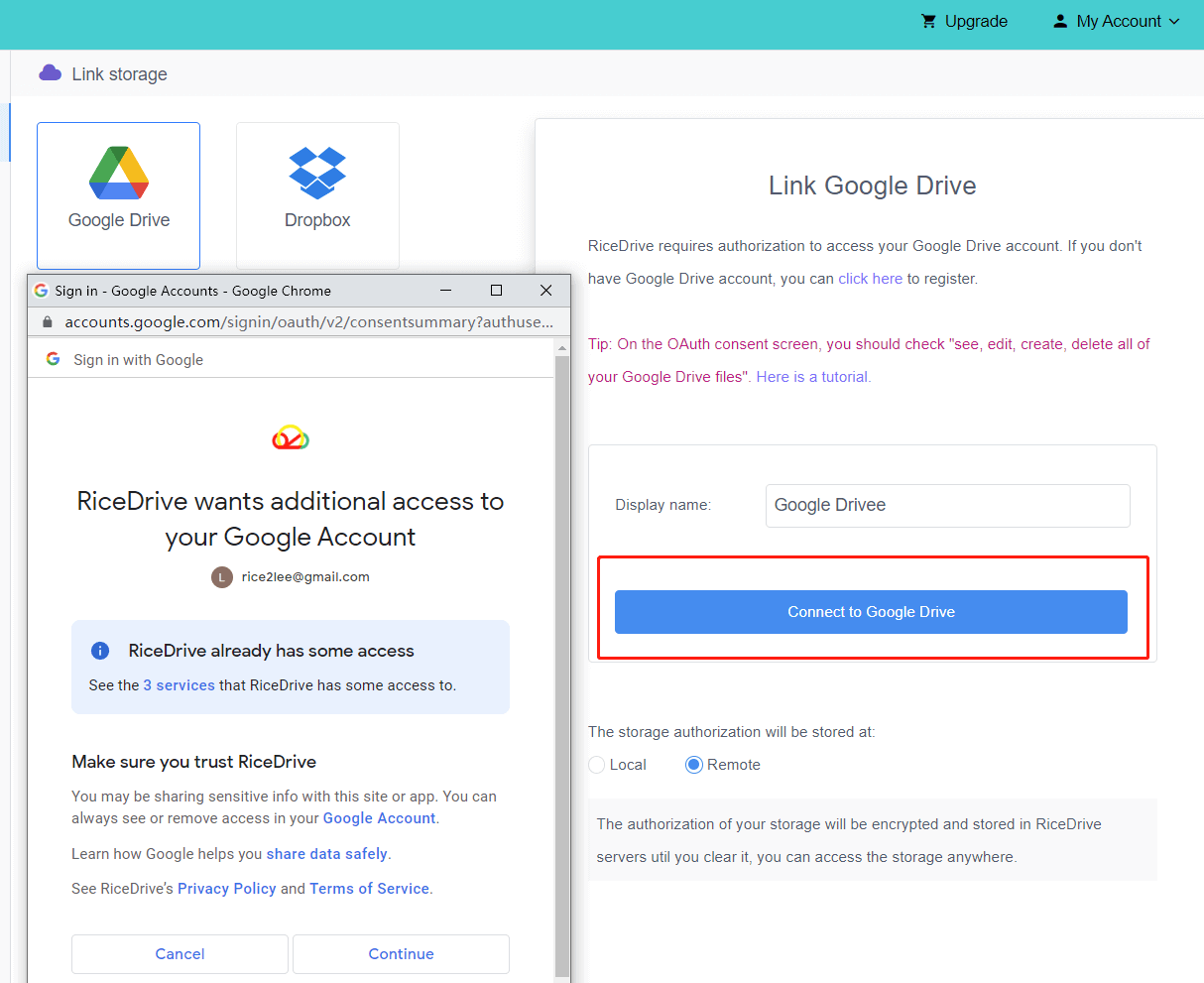
Now both your PikPak and Google Drive accounts will be linked to RiceDrive. If you can access files in Google Drive and PikPak through RiceDrive, you have successfully added your cloud drive accounts.
Step 4: Transfer Files from PikPak to Google Drive
Open RiceDrive: In RiceDrive, navigate to your PikPak account and find the files you want to transfer to Google Drive.
Select Files to Transfer: Select the files or folders you want to move or copy.
Transfer Files to Google Drive: Right-click and choose the "Transfer to" option, then select Google Drive as the destination.
Monitor the Transfer: Depending on file size and number, the transfer may take some time. Check the progress in Cloud Transfer.
Check Transfer Result: Click the Logs icon of the task to view the result. If complete, your files will be available in your Google Drive account.

Step 5: Verify the Transfer
After the transfer process is finished, go to your Google Drive and verify that the files are correctly uploaded. Ensure that the file sizes match and that the files are intact.
RiceDrive supports offline file transfer. You can close your browser and computer — the task will continue to run. Log in anytime to check progress and reports.
Why Choose RiceDrive for File Transfers?
Seamless Transfers: RiceDrive provides a simple way to move large files between cloud storage platforms without manual download and re-upload.
Time-Saving: Avoid the tedious process of downloading to your local device and re-uploading. Transfers are much faster.
Support for Large Files: Handles high-definition videos, software, and large datasets with ease.
No Additional Software: RiceDrive handles everything — no third-party applications or complicated setups required.
PikPak Cloud Download Features
Before you begin the transfer process, let's take a closer look at one of PikPak's most useful features: PikPak Cloud Download.
PikPak Cloud Download allows users to download files from torrents, magnet links, and other online sources directly to their PikPak cloud storage. This feature is especially useful for users who want to store large media files, such as movies, music, or software, in their cloud without having to worry about local storage space.

Transfer Files from RiceDrive to PikPak
PikPak WebDAV currently does not support file uploads, so you cannot use RiceDrive to copy files directly from Google Drive to PikPak. If you only need to transfer a small number of files, you can use the following method:
Get Download Link: In RiceDrive, find your file and right-click the menu → Get Download URL.
Use PikPak Cloud Download: In your PikPak account, open Cloud Download and paste the download URL to start the download.
Confirm Download Completion: Wait until the download finishes and the files appear in your PikPak cloud storage.

Here are some of the key benefits of PikPak Cloud Download:
Seamless Integration: You can download torrents and magnet links directly into your PikPak account.
No Local Downloading: Files are downloaded directly to the cloud, saving you time and hard drive space.
Large File Support: Perfect for downloading large files that might not fit on your local device.
Conclusion
Transferring large files from PikPak to Google Drive has never been easier with RiceDrive. By linking both your PikPak and Google Drive accounts to RiceDrive, you can seamlessly copy or move files between the two cloud storage services. Plus, with PikPak Cloud Download, you can download torrents, magnet links, and other files directly to your PikPak cloud, further simplifying the process of managing large media files.
Unfortunately, PikPak WebDAV currently does not support file uploads, which means you cannot use RiceDrive to transfer large batches of files to PikPak. However, for smaller file transfers, you can use the "Get Download URL" feature in RiceDrive to generate download links for your files, and then upload them to PikPak using its Cloud Download feature.
