In 2026, cloud storage is essential for managing large files and extensive data. If you want to save online pictures, videos, or several GB files to your cloud drive, the traditional approach forces you to download them locally first — then re-upload. RiceDrive eliminates this friction by enabling direct cloud-to-cloud uploads via URL.
With RiceDrive, you can upload online files to Google Drive, Dropbox, OneDrive, Mega.nz, pCloud, and more. Whether you're backing up critical data, sharing files with colleagues, or freeing up local storage, RiceDrive provides a unified platform to handle everything seamlessly.
What is RiceDrive?
RiceDrive is a powerful cloud management tool that enables users to upload, download, sync, and transfer files across multiple cloud storage services. It supports a wide range of platforms, including:
- Google Drive
- Dropbox
- OneDrive
- pCloud
- Amazon S3
- Mega
- And many more!
Manage all your cloud accounts in one dashboard — no more switching between tabs or apps.
Key Features of RiceDrive
Multi-cloud support: Connect multiple cloud storage accounts in one interface.
File sync and transfer: Seamlessly move or copy large files between different cloud services.
Automated tasks: Schedule regular backups or file transfers on a daily, weekly, or monthly basis.
Secure file management: Protects your data with SSL encryption and chunked uploads for large files.
Step-by-Step Guide to Cloud Upload with RiceDrive
RiceDrive will automatically begin transferring your selected data in the background. The transfer manager displays real-time progress bars so you can monitor the migration status. Larger transfers may take some time. Follow these steps to get started:
-
1. Sign Up and Log In
Visit RiceDrive's official website and create an account. If you already have one, simply log in.
-
2. Connect Your Cloud Storage Accounts
After logging in, connect your cloud storage services. RiceDrive supports Google Drive, Dropbox, OneDrive, and many others.
To connect a cloud storage account:
- From the RiceDrive dashboard, click the "Link Drive" button.
- Select the cloud service you want to connect (e.g., Google Drive).
- Follow the authentication prompts to grant RiceDrive access to your cloud account.
Once connected, your cloud accounts will be listed on the dashboard, ready for file uploads.
-
3. Upload Online Files to Your Cloud Storage
With your cloud accounts connected, you can now upload files from your local system or directly save online files using a URL.
Here’s how to perform a cloud upload:
- On the dashboard, open a folder on the target cloud drive where the file should be saved.
- Right-click on the file list or click the "⋮" in the upper right corner, and select Upload by URL from the menu.
- In the popup, enter a filename and paste the URL of the online file.
- Click "Start Upload", and RiceDrive will handle the rest.
RiceDrive’s chunked upload technology ensures even large files are uploaded smoothly without interruption. If an upload is interrupted, it will resume from where it stopped.

-
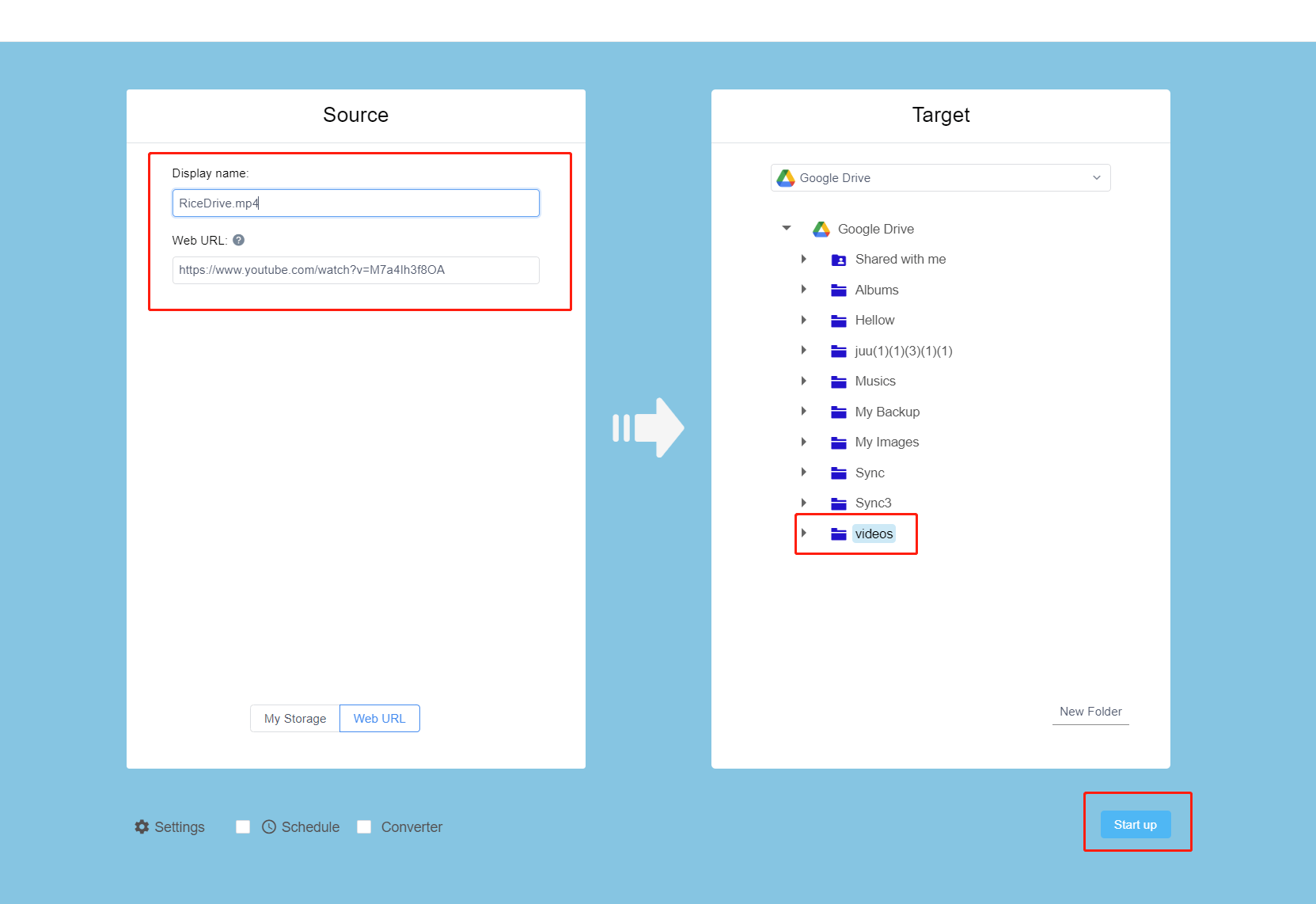
4. Automate Your Cloud Uploads
One of RiceDrive's standout features is automation. This is especially useful if you regularly save online files or want to back up data on a schedule.
- From Cloud Transfer, click "Create Transfer".
- Enter a filename and paste the URL.
- Select the target cloud storage service.
- Specify the files or URLs to be uploaded and set a schedule (e.g., daily, weekly, monthly).
- Confirm the task, and RiceDrive will automatically perform the upload based on your schedule.
-
5. Monitor and Manage Your Uploaded Files
Once the upload is complete, monitor and manage your files through RiceDrive’s intuitive interface. You can move files between cloud platforms, rename them, or delete them as needed. RiceDrive also tracks your storage usage across services, giving you a clear view of your data.
Security and Privacy with RiceDrive
Security is a top priority when dealing with cloud storage. RiceDrive addresses this with robust measures:
- SSL Encryption: All file transfers use SSL encryption to protect your data during upload and download.
- OAuth Authentication: RiceDrive uses OAuth to securely connect to your cloud accounts, ensuring your login details remain private.
- Chunked Uploads: This feature helps safeguard large file transfers by breaking files into smaller parts, making uploads more reliable even over unstable networks.
Benefits of Using RiceDrive for Cloud Upload
- Cross-Cloud Management: Manage and upload files to multiple cloud accounts from one platform.
- Automation: Schedule regular uploads or backups without manual intervention.
- Time-Saving: Eliminate the need to juggle between different cloud storage accounts.
- Ease of Use: RiceDrive’s intuitive interface makes file uploads simple, even for non-technical users.
- Secure and Reliable: Enjoy peace of mind knowing your data is securely uploaded with advanced encryption and resumable uploads.
Conclusion
In 2026, managing and uploading files to the cloud should be easy, secure, and efficient — and that’s exactly what RiceDrive offers. Whether you want to save online files directly or manage your existing cloud storage, RiceDrive provides a seamless solution for cloud uploads.
With multi-cloud support, automated tasks, and a secure interface, RiceDrive helps you take control of your cloud storage needs. Say goodbye to the hassle of managing multiple platforms and embrace a simplified, unified cloud experience with RiceDrive.