Can you transfer OneDrive to Filen without downloading?
Yes. You can transfer OneDrive to Filen without downloading the files to your computer first by using a cloud-to-cloud migration service such as RiceDrive. The process is simple: connect both accounts, select OneDrive as the source, choose Filen as the destination, and start the transfer.
- Best for larger transfers: cloud-to-cloud migration with RiceDrive.
- Best for a few small files: manual download and upload.
- 2026 check: verify destination storage and test very large files before migrating everything.
Why Transfer OneDrive to Filen?
OneDrive is deeply integrated with Microsoft 365 and Windows, while Filen takes a more privacy-focused approach to cloud storage. Filen describes its platform as zero-knowledge and client-side end-to-end encrypted, making it attractive to users who want an encrypted storage alternative or a separate privacy-focused backup.
Common reasons to move OneDrive files to Filen include:
- Privacy-focused storage: keep a second copy in an encrypted cloud service.
- Cloud diversification: avoid keeping every important file with one provider.
- Backup: use Filen as an additional destination without immediately deleting OneDrive data.
- Migration: gradually move personal files away from Microsoft storage.
Method 1: Transfer OneDrive to Filen with RiceDrive
For larger migrations, a cloud-to-cloud task is usually more convenient than downloading everything to a local computer. RiceDrive lets you connect OneDrive and Filen and create an online transfer task.
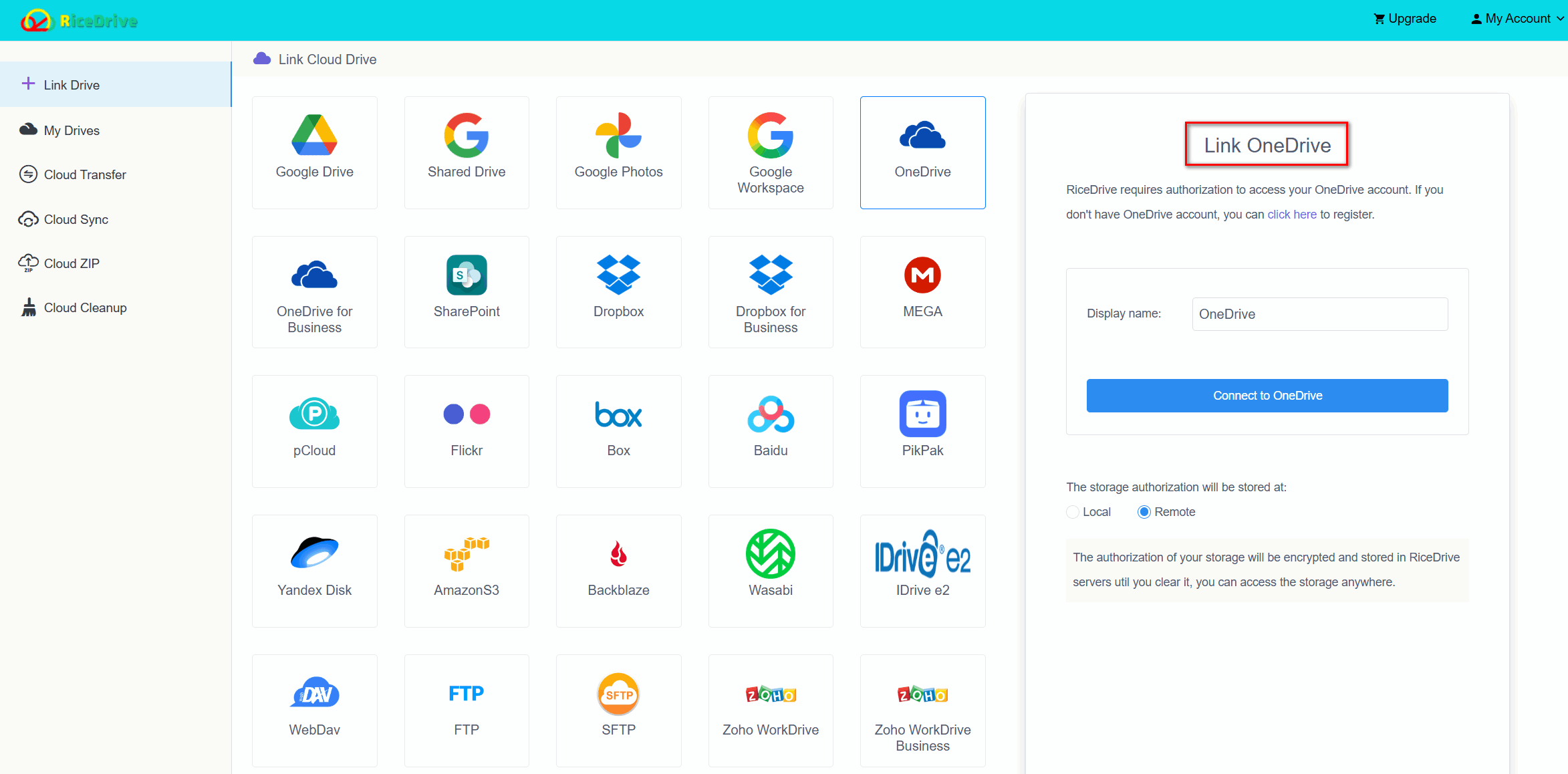
Step 1: Connect Your OneDrive Account
Sign in to RiceDrive, open Link Drive, choose OneDrive, sign in to your Microsoft account, and complete the authorization process.
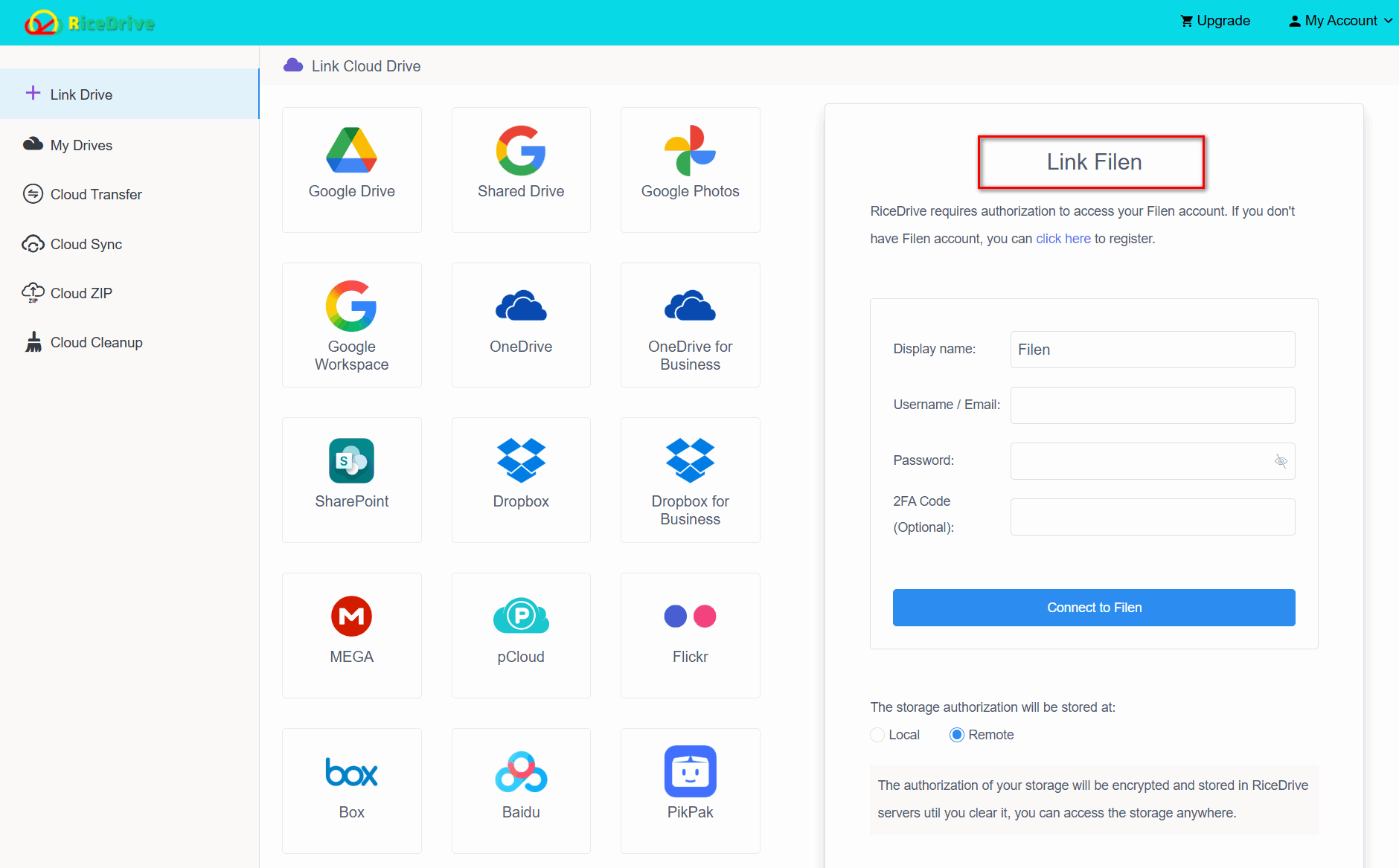
Step 2: Connect Your Filen Account
Add Filen as another storage account and complete the required authentication. If your Filen account uses additional security verification, finish that process before continuing.
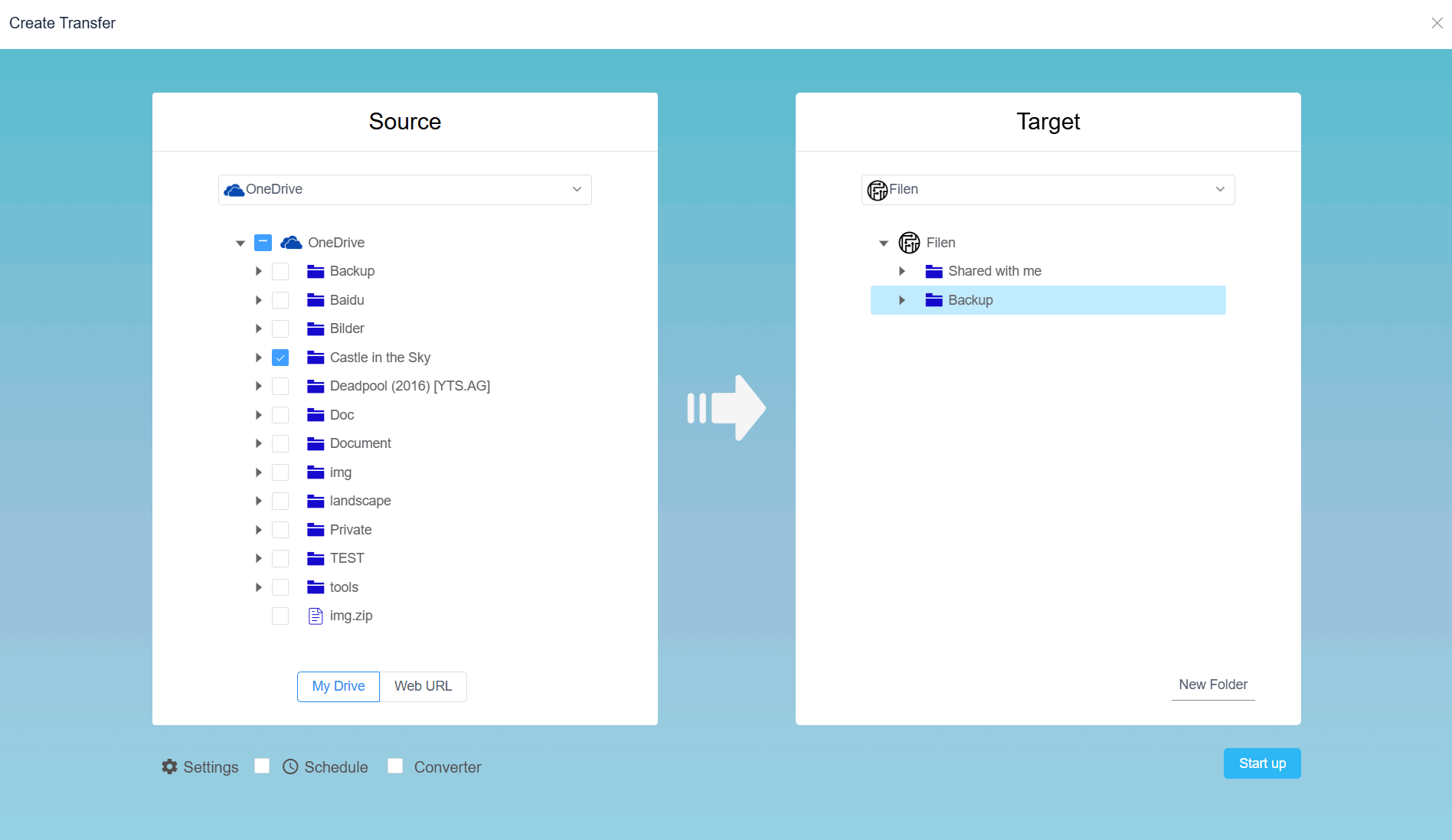
Step 3: Create a Cloud Transfer Task
Open Cloud Transfer. Choose OneDrive as the source, select the files or folders you want to move, and choose Filen as the destination.
Step 4: Configure Transfer Options
Before starting, review available options such as file filters, scheduled transfer, destination folder, and how existing files should be handled.
Step 5: Start the Transfer
Start the task. RiceDrive processes the transfer online in the background, so you do not need to manually download each file to your computer and upload it again.
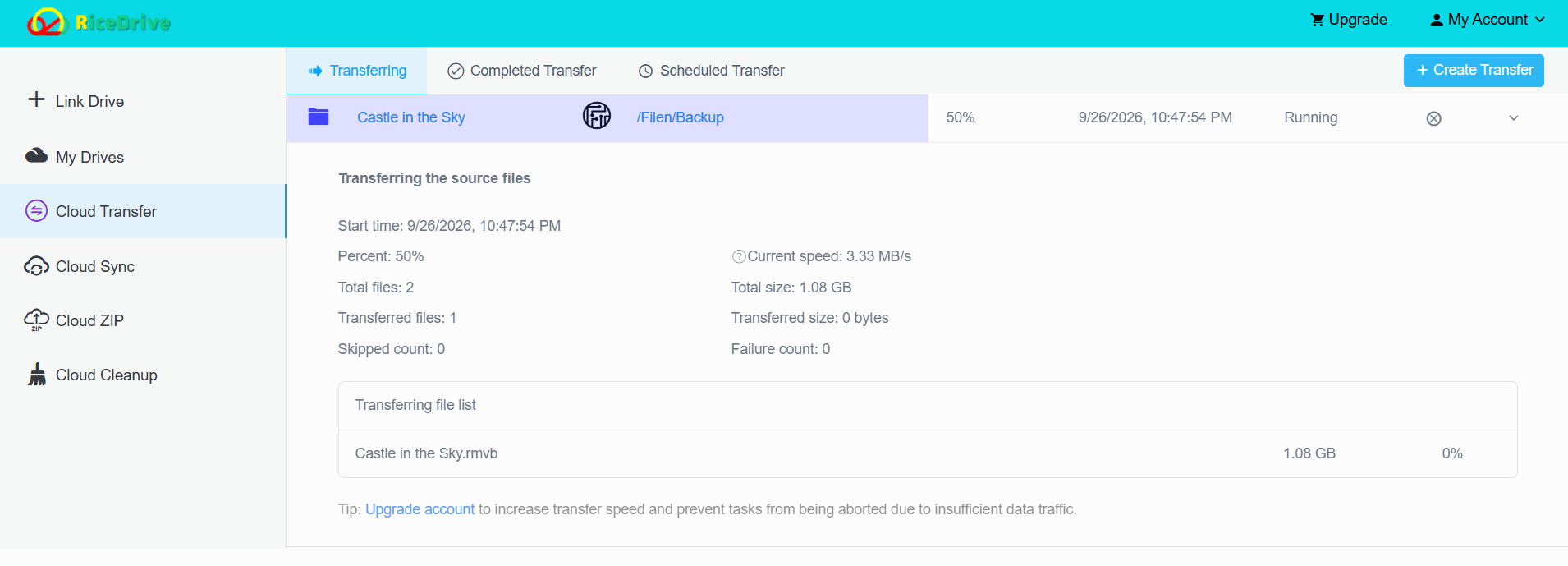
Step 6: Verify the Files in Filen
After the task completes, review the RiceDrive transfer log and check the destination in Filen. Confirm important folders, large files, and file counts before removing anything from OneDrive.
Method 2: Download from OneDrive and Upload to Filen
The manual method works well when you only have a small number of files:
- Sign in to OneDrive.
- Select the files or folders you want to move.
- Download them to your computer.
- Open Filen.
- Upload the downloaded files to the destination folder.
The main disadvantages are local disk usage, double bandwidth consumption, interrupted downloads, and the time needed to manage large folder structures. For a large migration, the process becomes much less convenient.
RiceDrive vs Manual Transfer
| Method | Local Download Required | Good for Large Transfers | Background Transfer | Difficulty |
|---|---|---|---|---|
| RiceDrive | No | Yes | Yes | Easy |
| Download + Upload | Yes | Less suitable | No | Easy for small transfers |
The manual method gives you direct control over a local copy. RiceDrive is more convenient when your priority is avoiding local downloads and keeping the migration workflow online.
What to Check Before Migrating
1. Available Filen Storage
Make sure your Filen account has enough available capacity for the OneDrive folders you plan to move. Do not start a full migration if the destination is close to its storage limit.
2. Very Large Files
OneDrive can contain very large individual files. If your account includes large videos, archives, backups, or disk images, test a few representative files first before starting a complete migration.
3. File and Folder Verification
After the migration, compare the folder structure, file count, important filenames, and several large files. Keep the original OneDrive data until you are satisfied that the destination copy is complete.
Can You Use Filen WebDAV Instead?
Filen offers WebDAV functionality through its desktop client and CLI, but its WebDAV approach is different from a normal public cloud WebDAV endpoint. It is designed around Filen's encryption model and can require a locally hosted bridge.
For users whose only goal is moving OneDrive data into Filen, using a migration platform that directly supports both services is usually simpler than building a local WebDAV workflow.
Frequently Asked Questions
Final Thoughts
If you only need to move a few files, downloading them from OneDrive and uploading them to Filen is perfectly reasonable.
For larger migrations, a cloud-to-cloud approach reduces the need for local disk space and manual download/upload work. The workflow is straightforward: OneDrive → Select Files → Filen → Start Transfer.
For users searching for an easier way to transfer OneDrive to Filen without downloading, RiceDrive provides a practical browser-based option.
🚀 Ready to transfer OneDrive files to Filen?
Start Free Transfer →10GB free traffic • Browser-based cloud transfer • No manual download required