Migrating from Microsoft 365 (OneDrive Business) to Google Workspace is a strategic move for many organizations seeking better collaboration, AI-powered tools, or cost optimization. However, moving hundreds of gigabytes of files manually is time-consuming and risky. RiceDrive enables fast, server-side cloud-to-cloud migration, transferring files directly between OneDrive Business and Google Drive without using your local device. Your transfers continue offline, even after you close your browser — making large-scale migrations reliable and efficient.
1. Why Migrate from Microsoft 365 to Google Workspace?
Google Workspace offers seamless collaboration with Docs, Sheets, and Slides, plus powerful AI features like Smart Compose and Workspace AI. Key reasons to migrate:
- Enhanced collaboration with real-time editing and commenting
- AI-powered productivity tools integrated across all apps
- Simplified IT management with a unified admin console
- Cost flexibility with competitive pricing models
- Better integration with third-party apps via Google Workspace Marketplace
RiceDrive makes this transition smooth by transferring all your OneDrive Business files and SharePoint documents to Google Workspace.

2. Getting Started with RiceDrive
Visit RiceDrive and sign in with your email or Google account — no credit card required. Once logged in, you'll see the main dashboard where you can manage all connected cloud drives.

3. Add Your Cloud Accounts
-
Add OneDrive for Business
- Go to Link Drive.
- Select OneDrive for Business.
- Copy your Tenant ID from the Microsoft Entra admin center.
- Enter the Tenant ID and click Connect to OneDrive for Business.
- Repeat for any additional accounts (such as SharePoint).
-
Add Google Workspace
- Go to Link Drive.
- Select Google Workspace.
- Sign in to the Google Admin Console using a Google Workspace administrator account.
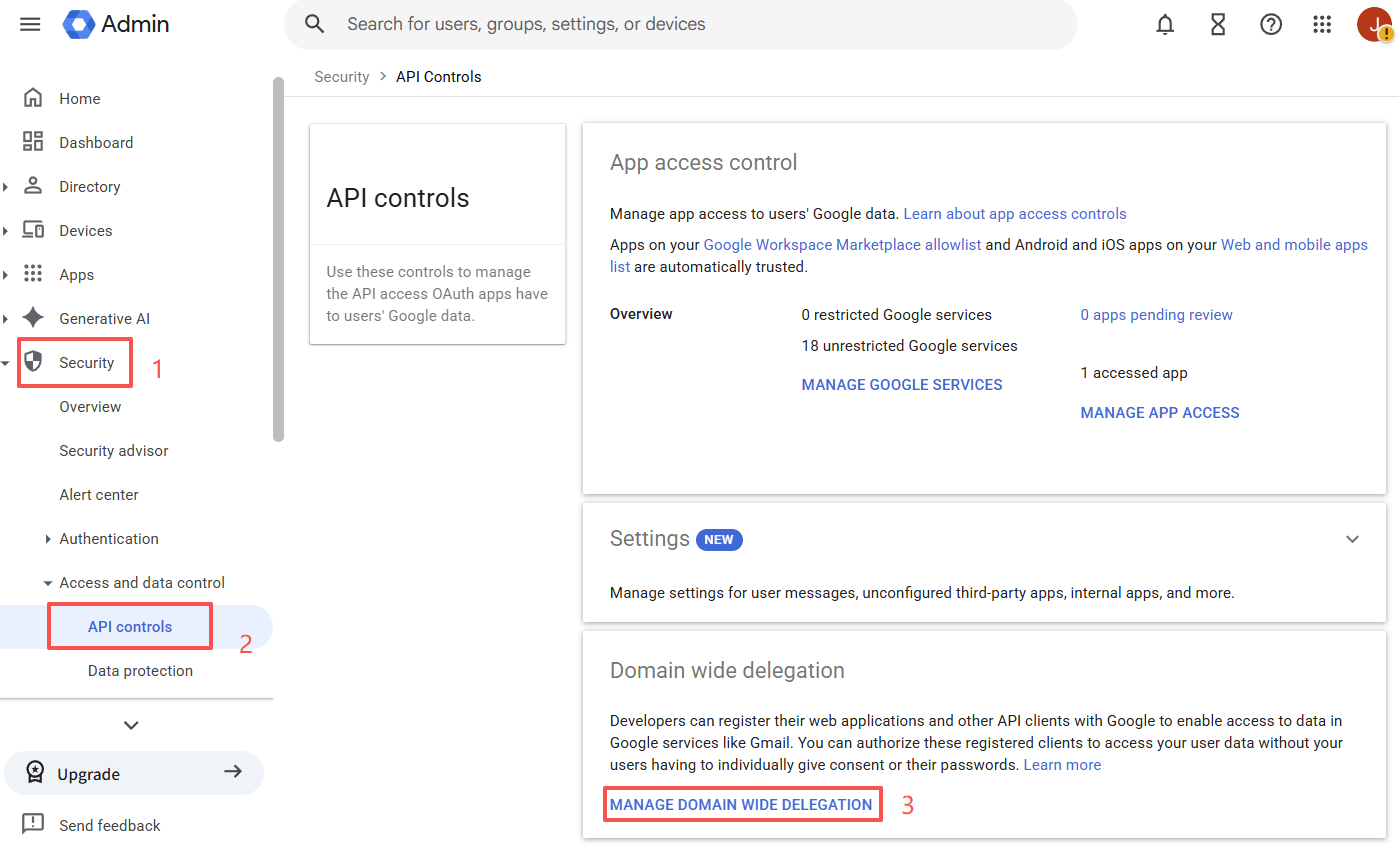
- In the left menu, go to Show more → Security → Access and data control → API controls.
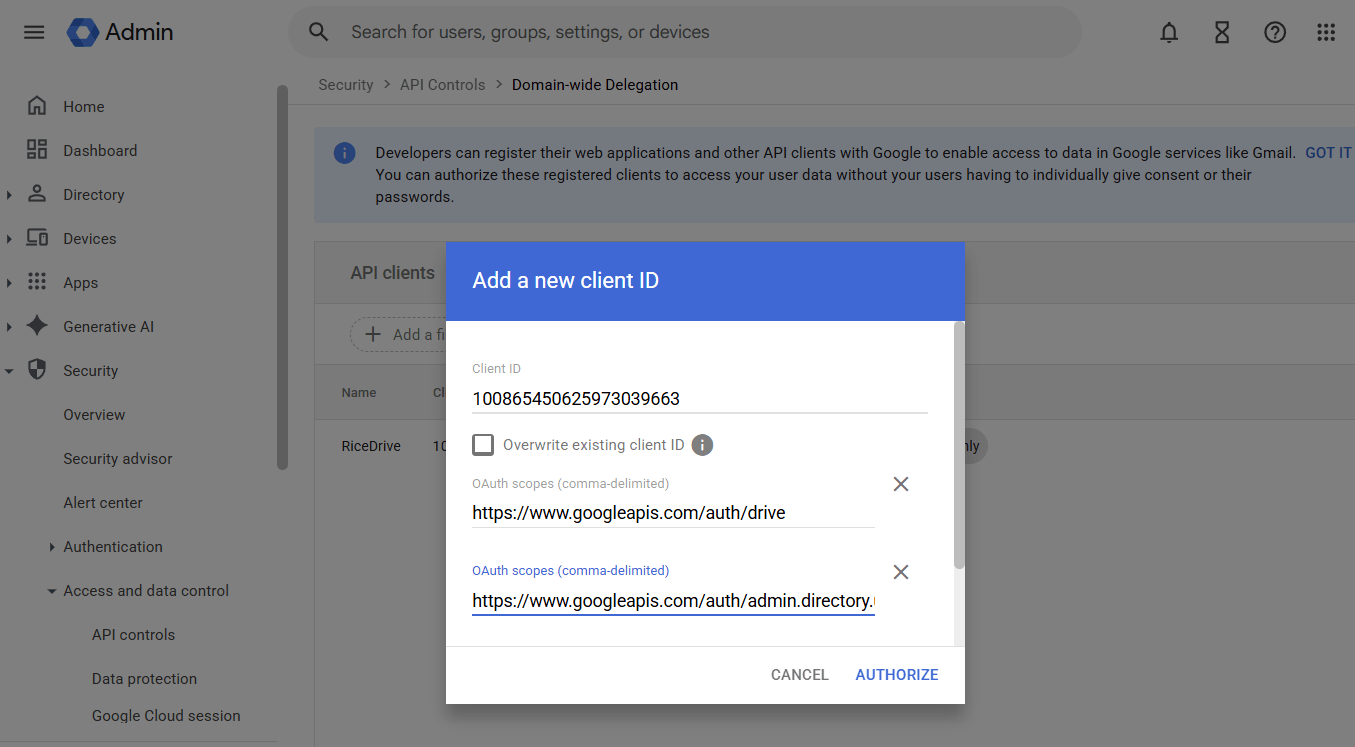
- Click Manage Domain Wide Delegation, then click Add new.
- Enter the following information:
- Client ID:
100865450625973039663 - OAuth scopes:
https://www.googleapis.com/auth/drivehttps://www.googleapis.com/auth/admin.directory.user.readonly
- Client ID:
- Click Authorize.
- Select the source location: My Drive or Shared drives.
- Return to RiceDrive and click Connect to Google Workspace.
RiceDrive never stores your password — all authentication is handled securely via OAuth. Once added, you'll see all drives in a unified sidebar.
4. Create Your First Transfer Task
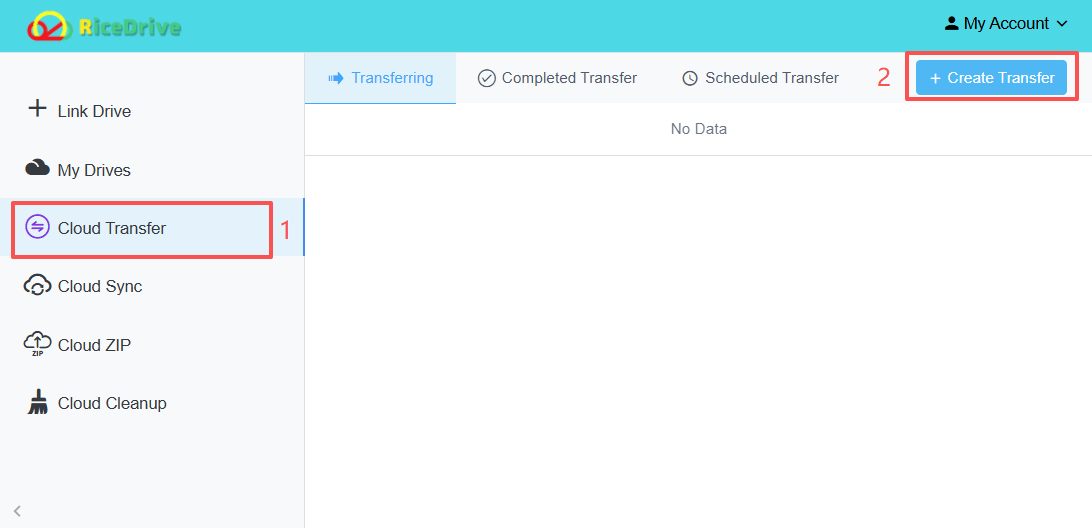
- Click "Cloud Transfer" in the left menu.
- Click "Create Transfer".
- Source: Select OneDrive Business and choose files/folders.
- Target: Pick Google Workspace (Google Drive) and select a destination member folder.
- Click "Start up" — the task is queued on RiceDrive's secure servers.
The transfer runs entirely in the cloud. You can close your browser; the task will continue.
5. Monitor & Manage Your Migration
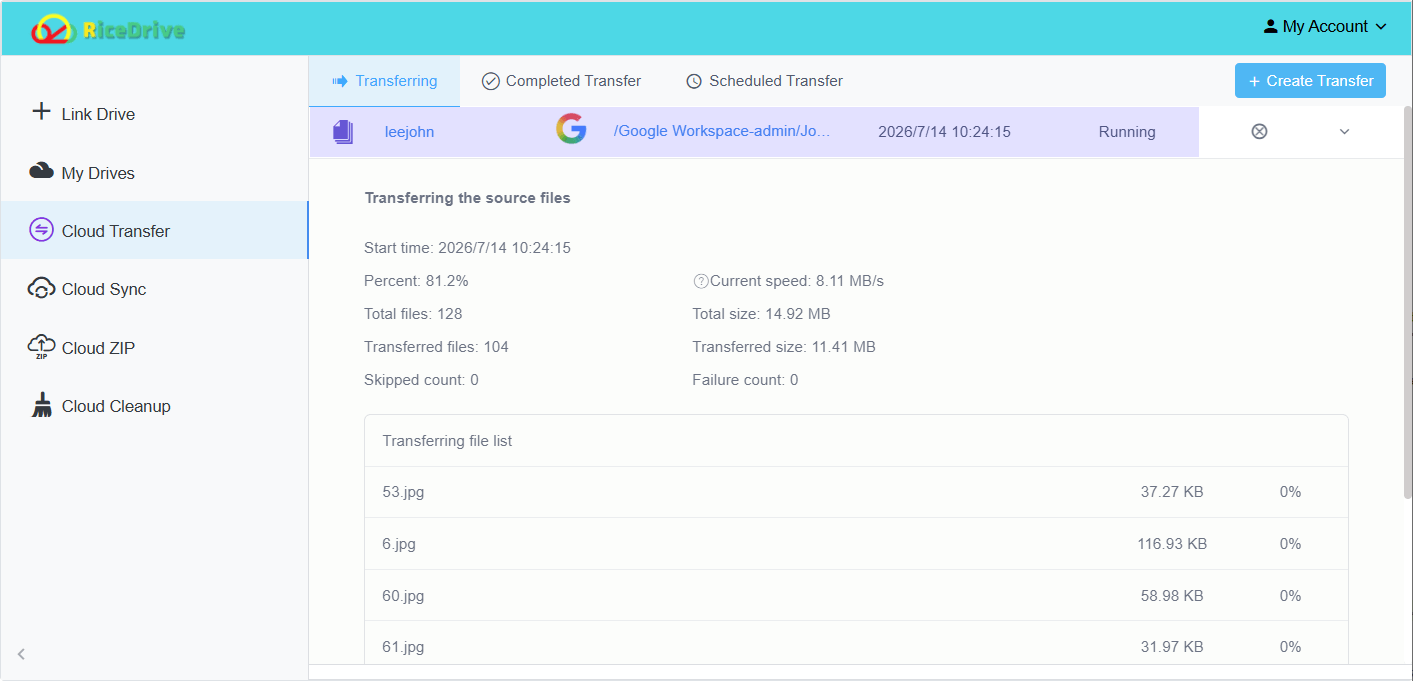
The "Cloud Transfer" page shows real-time progress, speed, and estimated completion time. Completed tasks include detailed logs (success/failed files). You can also enable email notifications to stay updated.
6. Advanced Features
🔗 URL Upload
Upload files directly from a URL to your cloud drive without downloading them to your local device. Simply paste the file URL and choose the destination.
📦 Cloud Extract
Extract ZIP, RAR, 7Z, TAR, and other archive files directly in the cloud. No local download or extraction is required.
📌 File Filters & Rules
Set include/exclude filters (e.g., only .pdf files or exclude files larger than 1 GB) to save time and transfer quota.
⏱️ Scheduled Transfers
Automate daily, weekly, or monthly transfers to keep your cloud drives synchronized without manual intervention.
7. Speed Optimization & Best Practices
To maximize transfer speeds from OneDrive Business to Google Workspace:
- Use premium cloud plans (e.g., Microsoft 365 E3/E5, Google Workspace Enterprise) for higher API rate limits.
- Transfer during off-peak hours (nighttime or weekends) for better server response.
- Split large folders into batches to avoid API throttling.
- Enable parallel tasks (up to 10 on paid plans) for massive migrations.
8. FAQ & Final Thoughts
Q: Does RiceDrive use my local bandwidth?
A: No — all transfers occur on RiceDrive's servers. Your local network is not involved.
Q: What are the free limits?
A: Free accounts get 10GB one-time traffic, 10GB max file size, and 2 concurrent tasks. Paid plans remove these caps.
Q: Is my data secure?
A: RiceDrive uses OAuth 2.0 (no password storage) and TLS 1.3 encryption for all data in transit.
Q: Can RiceDrive extract archive files in the cloud?
A: Yes. RiceDrive can extract ZIP, RAR, 7Z, TAR, and other supported archive formats directly in the cloud without requiring a local download.
Conclusion: Migrating from Microsoft 365 (OneDrive Business) to Google Workspace has never been easier. With RiceDrive, you can move files seamlessly — without downloading or re-uploading. Start with 10GB free today and experience the future of cross-cloud migration.