Moving your organization's files from Google Drive to SharePoint Online is a significant step toward unifying your Microsoft 365 ecosystem. Whether you're fully embracing Microsoft's collaboration suite, consolidating IT infrastructure, or simply seeking better integration with Microsoft Teams and Office apps, the migration itself doesn't have to be a bottleneck. With RiceDrive, you can transfer entire My Drive contents, Shared Drives (formerly Team Drives), and millions of files in one go — all without touching your local machine.
1. Why Move from Google Drive to SharePoint?
Google Drive is a powerful cloud storage solution, but SharePoint Online offers distinct advantages for organizations deeply embedded in the Microsoft ecosystem:
- Native Microsoft 365 integration — seamless with Teams, Outlook, Word, Excel, and PowerPoint.
- Advanced enterprise content management — metadata, document sets, and retention policies.
- Superior compliance and governance — built-in data loss prevention, eDiscovery, and legal hold.
- Deep integration with Power Platform — automate workflows with Power Automate and build apps with Power Apps.
- More granular permission management — site-level, folder-level, and item-level sharing controls.
RiceDrive bridges the gap, letting you move Google Drive contents to SharePoint without disrupting daily operations.

2. Why RiceDrive for Google Drive to SharePoint?
Traditional migration methods require downloading files from Google Drive and re-uploading to SharePoint — a process that eats bandwidth, fills local storage, and can take days or even weeks. RiceDrive flips the script:
- Server-side transfer — files move directly between cloud platforms.
- Offline processing — close your browser; the transfer keeps running in the background.
- Shared Drive support — preserves folder structure and permissions from Google Shared Drives.
- No storage limits — transfer terabytes of data with paid plans.
- Preserve metadata — keeps file timestamps, descriptions, and custom properties where possible.

3. Connecting Google Drive
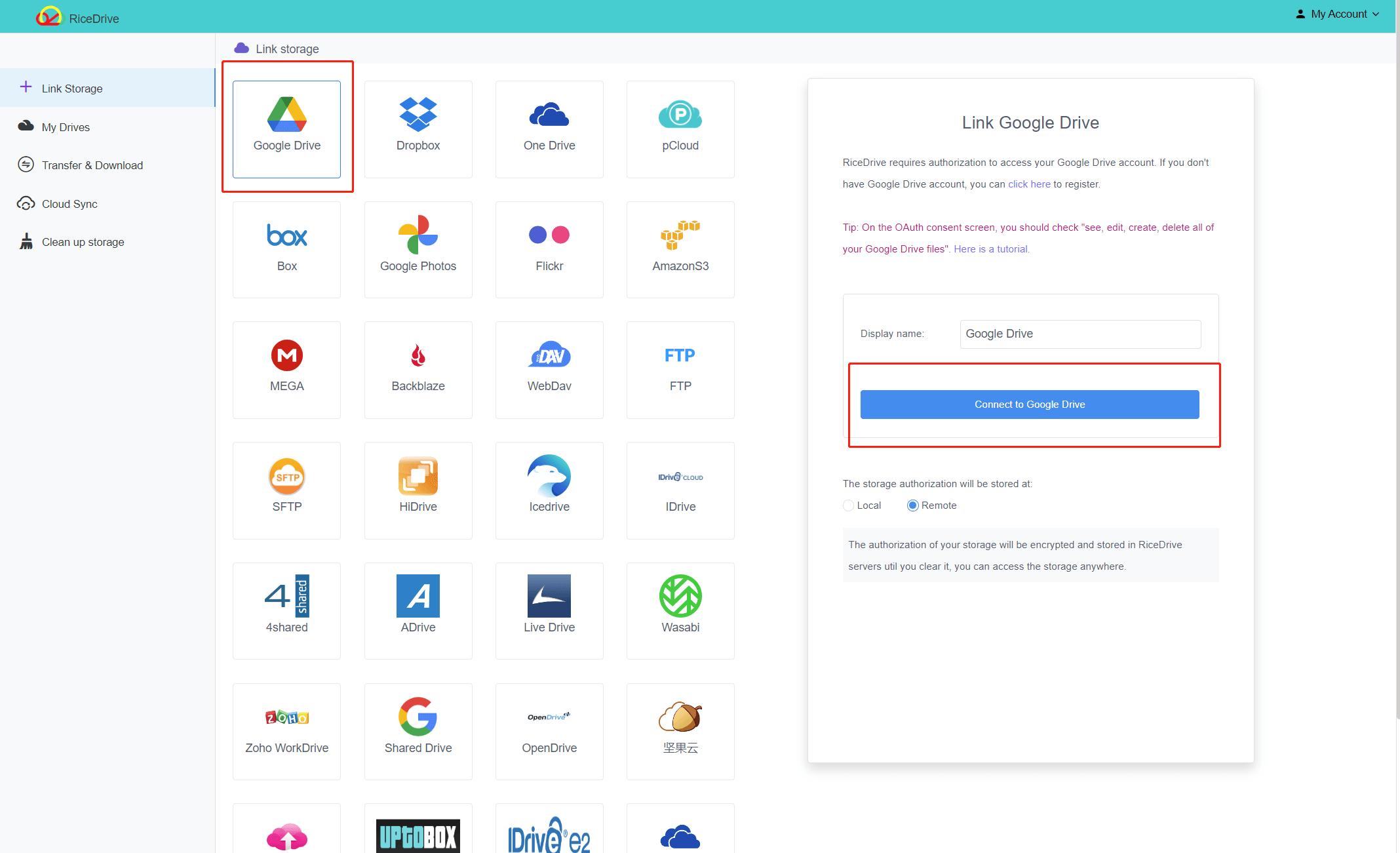
- In RiceDrive, navigate to Link Drive.
- Click Google Drive from the list of cloud providers.
- Authorize the connection via OAuth — RiceDrive never sees your password.
- Once connected, all your My Drive contents and Shared Drives appear in the file browser.
4. Connecting SharePoint Online
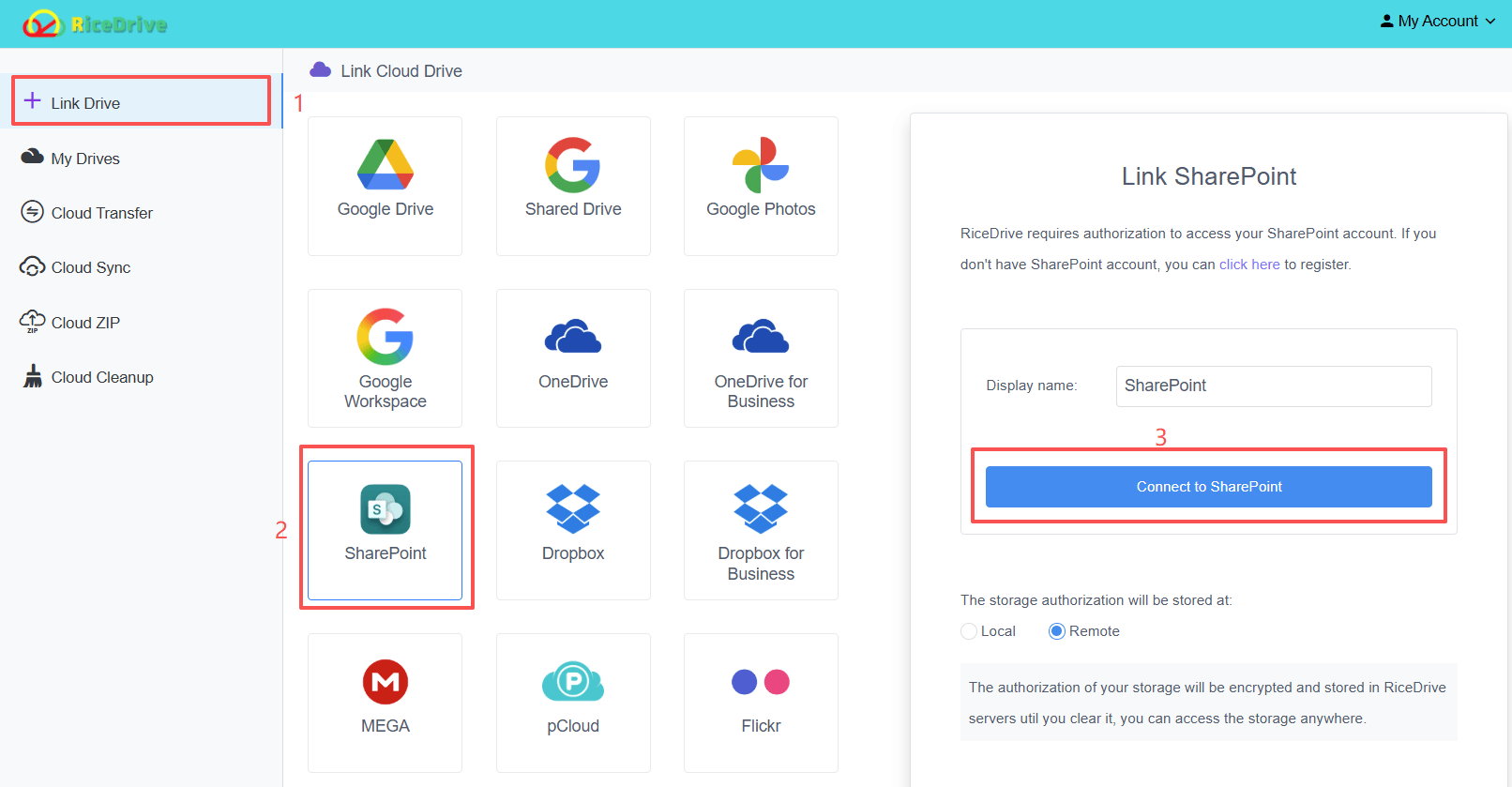
- Go to Link Drive.
- Select SharePoint Online from the list.
- You'll be redirected to the Microsoft 365 login page. Sign in with a SharePoint administrator account.
- Grant the necessary permissions for RiceDrive to access your SharePoint sites and document libraries.
- After authorization, select the target SharePoint Site and Document Library where files will be stored.
- Click Connect to complete the setup.
5. Launching a Google Drive to SharePoint Transfer
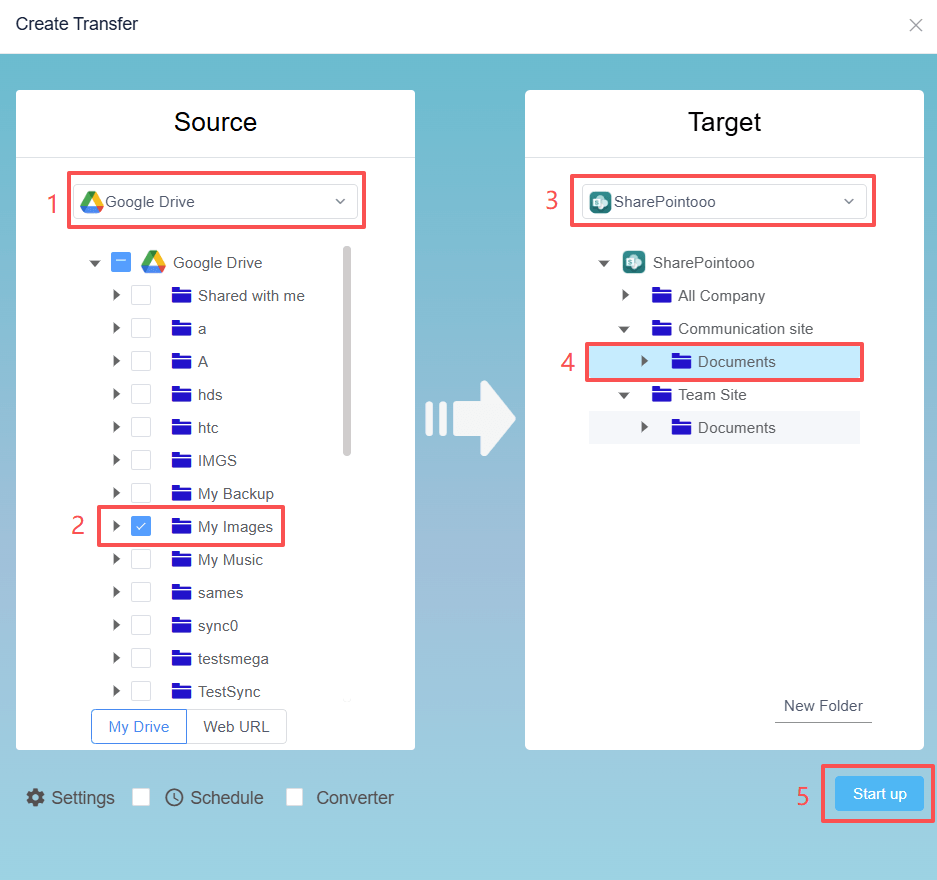
- Click Cloud Transfer → Create Transfer.
- Choose Google Drive as the source, then select specific folders or entire Shared Drives.
- Pick SharePoint Online as the destination, then select the target site and document library.
- Configure any advanced options (filters, scheduling, etc.).
- Hit Start Transfer — RiceDrive queues the job on its secure infrastructure.
The migration runs independently of your device. You can log out and check progress later via the dashboard.
6. Tracking & Managing Migrations
The Cloud Transfer dashboard provides live updates on transfer speed, files completed, and estimated time remaining. Each completed task generates a detailed log, so you can verify every file made it across. Email notifications are also available for job completion or errors.
7. Smart Features: Filters & Cloud Extract
🎯 Smart Filters
Define rules to include or exclude files by type, time, or name pattern. For example, transfer only documents (.docx, .pdf, .xlsx) or skip files over 5GB to avoid API limits.
📦 Cloud Archive Extraction
ZIP, RAR, and 7Z archives can be extracted directly in the cloud before transfer. This means you don't need to download, extract, and re-upload — RiceDrive handles it all server-side.
⏱️ Recurring Sync
Set up daily or weekly sync jobs to keep your SharePoint libraries in sync with Google Drive, ideal for hybrid teams during transition periods.
🔐 Permission Mapping
RiceDrive can map Google Drive sharing permissions to SharePoint equivalents, preserving access controls and minimizing post-migration cleanup.
8. Tips & FAQs
Q: Can I migrate Shared Drives (Team Drives) from Google to SharePoint?
A: Yes. RiceDrive fully supports Google Shared Drives and can transfer them to SharePoint document libraries with folder structure preserved.
Q: Does the transfer consume my internet bandwidth?
A: No. All data moves through RiceDrive's servers. Your local connection is only used for the dashboard and control panel.
Q: What's the free tier limit?
A: Free accounts include 10GB of transfer traffic, 10GB max file size, and 2 concurrent tasks. Paid plans unlock unlimited data and higher concurrency.
Q: Is my data encrypted during transfer?
A: Absolutely. RiceDrive uses TLS 1.3 for all data in transit and never stores your cloud credentials.
Q: How long does a typical migration take?
A: Transfer speed depends on API rate limits from both Google and Microsoft. On average, 100GB moves from Google Drive to SharePoint in about 2.5–3.5 hours.
Q: Does RiceDrive preserve file versions?
A: RiceDrive transfers the latest version of each file. Version history migration is available in our enterprise plans — contact support for details.