Need to transfer files from pCloud to MEGA quickly and safely?
Many users want to move files, copy data, or fully migrate cloud storage from pCloud to MEGA. However, the traditional download-and-upload method is slow, inefficient, and often fails with large files.
In this guide, you’ll learn how to transfer, move, or copy files from pCloud to MEGA step by step, including the fastest method that requires no downloading at all.
Why Transfer, Move, or Copy Files from pCloud to MEGA?
There are several common reasons to transfer files between cloud storage services:
- 🔐 MEGA provides strong end-to-end encryption
- 📦 You want to migrate data to a new cloud platform
- ☁️ You need a backup by copying files to another cloud
- 🔄 You manage multiple cloud accounts and want better organization
No matter your goal—move, copy, or transfer files—choosing the right method is critical.
Method 1: Download and Upload (Manual Way)
This is the traditional way to copy files from pCloud to MEGA, but it has clear limitations.
Steps to Transfer Files Manually:
- Log in to your pCloud account
- Select files you want to move or copy
- Download them to your computer
- Log in to your MEGA account
- Upload the files to MEGA
Pros:
- No third-party tools required
Cons:
- ❌ Slow for large files
- ❌ Requires local storage space
- ❌ High bandwidth usage
- ❌ Risk of interruption
👉 This method works for small transfers, but it’s not suitable if you want to migrate large amounts of data.
Method 2: Transfer Files from pCloud to MEGA Without Downloading (Best Method)
The most efficient way to move or copy files from pCloud to MEGA is by using a cloud-to-cloud transfer tool like RiceDrive.
Why This Method Is Better
- ⚡ Direct cloud to cloud transfer (no download needed)
- 📂 Supports bulk file migration, including millions of files
- 💾 Supports single large files up to 100GB
- 🔄 Allows you to move or copy files easily
- ⏱️ Faster and more stable than manual methods
- 🤖 Supports scheduled transfers
How to Move or Copy Files from pCloud to MEGA (Step-by-Step)
Follow these steps to transfer files from pCloud to MEGA without downloading:
Step 1: Create an Account
Log in to RiceDrive with your email – no registration needed

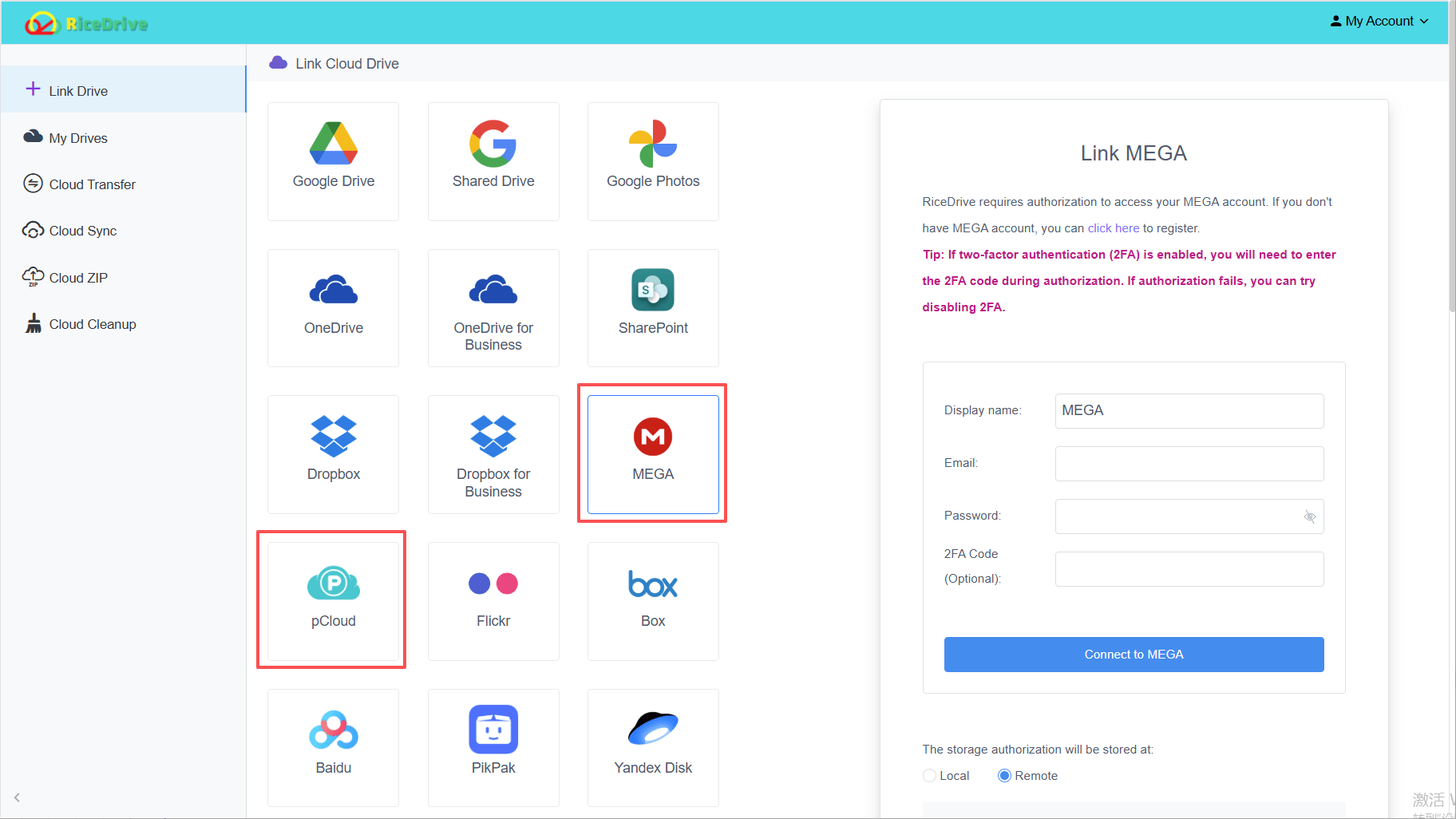
Step 2: Add Your Cloud Drives
Connect both:
- pCloud
- MEGA
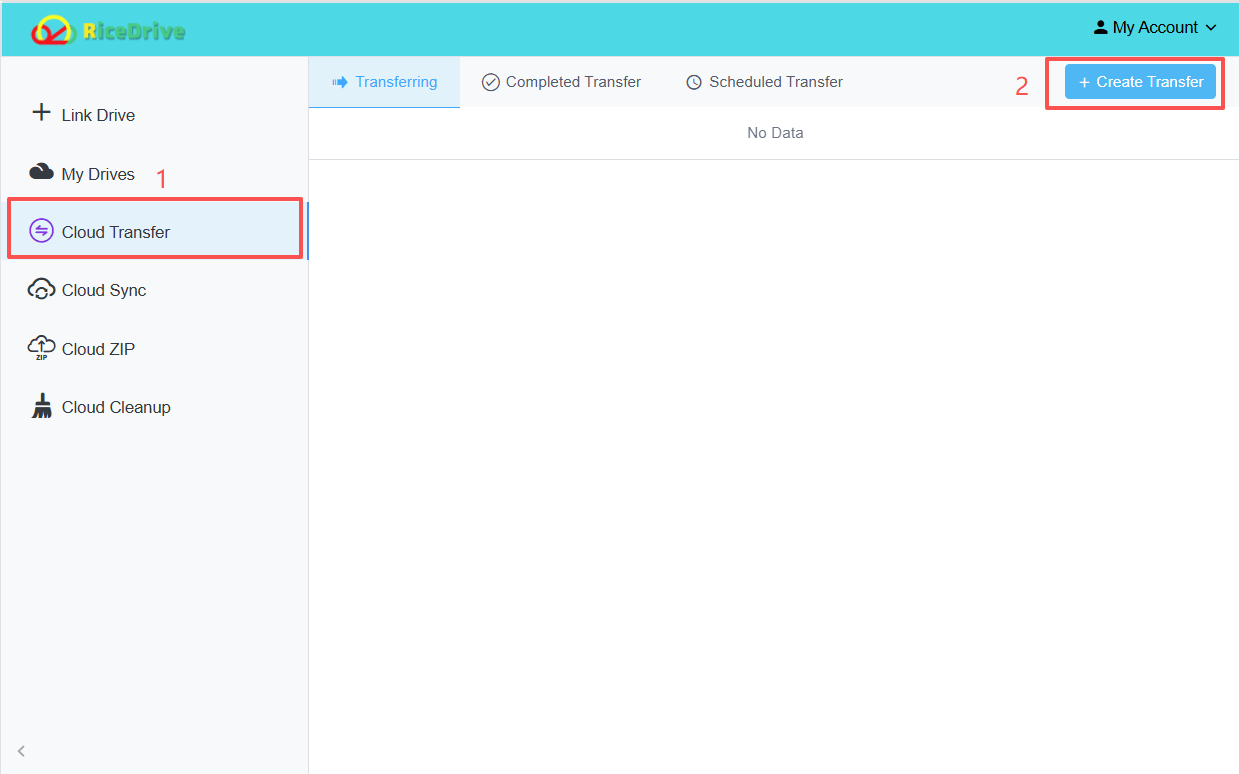
Step 3: Select Transfer Task
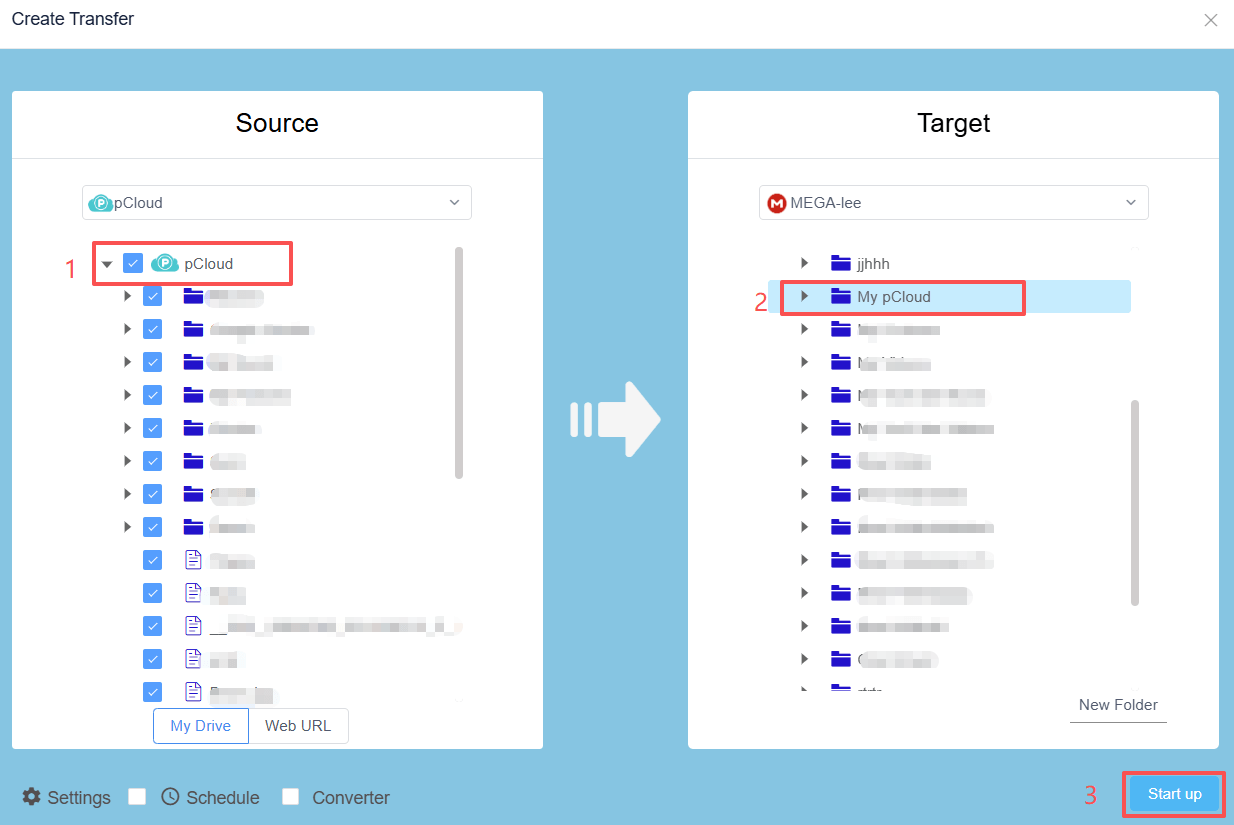
Go to Cloud Transfer → Create Transfer:
- Source: pCloud
- Target: MEGA
Step 4: Start Transfer
Click Start up and let the system handle everything automatically.
Transfer vs Sync: What’s the Difference?
Understanding the difference between transfer and sync helps you choose the best way to manage your files between cloud services:
Transfer Files
- Moves or copies files from one cloud to another (e.g., pCloud → MEGA)
- Transfers the files or folders you select from one cloud to another
- Files in the source can be kept or removed depending on your choice
- Best for migration or scheduled backups
Sync Files
- Keeps files in two or more cloud services always up-to-date
- Changes made in one cloud are automatically reflected in the other
- Keeps files within the selected folders automatically updated between two clouds
- Best for ongoing collaboration or multi-cloud management
👉 Tip:
Use transfer for one-time or scheduled file/folder migration. Use sync if you want selected folders and subfolders to stay automatically up-to-date between clouds.
Best Tips to Transfer Files Faster
- - Choose tools with parallel transfer support
- - Make sure the destination cloud has sufficient free space before transferring
- - Make sure the source files can be read by RiceDrive
- - Ensure the destination folder allows RiceDrive to upload or create files/folders
- - Avoid changing your cloud account password during transfer to prevent your authorization from being revoked

FAQ
How do I transfer files from pCloud to MEGA for free?
You can manually download and upload files, or use a free cloud transfer tool with limited features.
Is cloud-to-cloud transfer safe?
Yes, as long as you use secure tools with encrypted connections.
Can I transfer files without downloading?
Yes. Cloud transfer tools allow direct pCloud to MEGA transfer without downloading.
How many files can I transfer?
You can transfer any number of files, with no size restrictions.
- Free account: 10GB transfer quota
- Paid account: 1,200GB quota or unlimited
Conclusion
If you want to transfer files from pCloud to MEGA, the manual method works—but it’s slow and inefficient.
For the best experience, use a cloud-to-cloud transfer solution that allows you to move, copy, or migrate files seamlessly, without downloading anything.
👉 This is the fastest, safest, and most efficient way to manage multiple cloud storage accounts in 2026.
