Migrating from Dropbox to Amazon S3 is a strategic move for organizations that want to leverage AWS's scalable, durable, and cost-effective object storage. Whether you're consolidating cloud storage, building a data lake, or simply seeking better integration with AWS services, the migration process doesn't have to be painful. With RiceDrive, you can transfer entire Dropbox contents — including team folders, shared links, and large files — directly to S3 buckets without ever touching your local machine.
1. Why Migrate from Dropbox to Amazon S3?
Dropbox is excellent for team collaboration, but Amazon S3 offers a different set of advantages for enterprise-scale data management:
- Cost efficiency — S3 offers tiered storage classes (Standard, IA, Glacier) to optimize costs based on access patterns.
- Unlimited scalability — S3 can store virtually unlimited data, unlike Dropbox's storage caps.
- Native AWS integration — seamless with EC2, Athena, Lambda, Glue, and Redshift for analytics and processing.
- Granular access control — IAM policies, bucket policies, and presigned URLs for fine-grained security.
- Durability & availability — 99.999999999% (11 nines) durability, designed for 99.99% availability.
RiceDrive makes this transition smooth, preserving your folder hierarchy and metadata during the transfer.

2. Why RiceDrive for Dropbox → S3?
Traditional methods involve downloading from Dropbox and re-uploading to S3 — a process that consumes bandwidth, local storage, and time. RiceDrive eliminates these pain points:
- Server-side transfer — data moves directly between Dropbox and AWS S3.
- Asynchronous processing — close your browser; the transfer continues in the cloud.
- Team folder support — handles Dropbox Business team folders and shared links.
- No size limits — transfer terabytes of data with paid plans.
- Preserve metadata — keeps timestamps, custom properties, and folder structure.

3. Connecting Dropbox
- In RiceDrive, go to Link Drive.
- Click Dropbox from the cloud provider list.
- Authorize via OAuth — RiceDrive never stores your password.
- Once connected, all your Dropbox files, team folders, and shared links appear in the file browser.

4. Connecting Amazon S3
- Navigate to Link Drive.
- Select Amazon S3 from the list.
- Enter your AWS Access Key ID and Secret Access Key (IAM user with S3 read/write permissions).
- Choose the target S3 bucket and optional prefix (folder path).
- Select the AWS region where your bucket resides.
- Click Connect to finalize.

5. Running a Dropbox to S3 Transfer
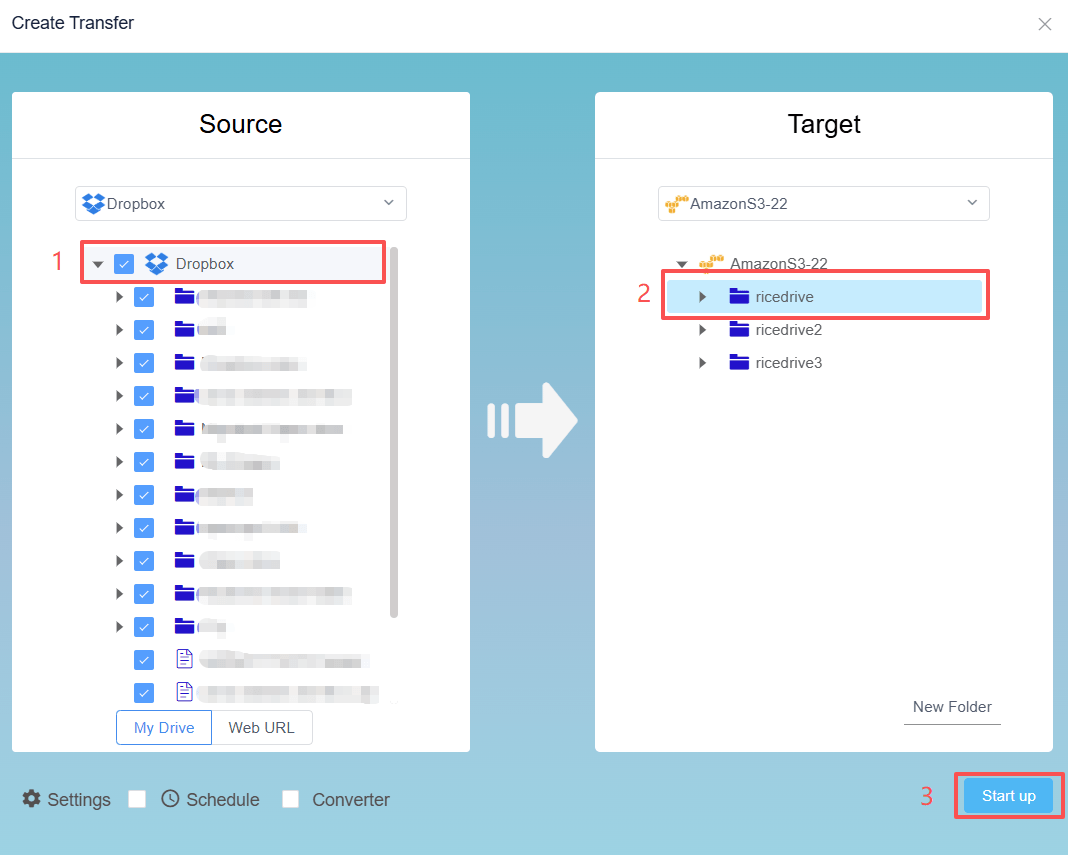
- Click Cloud Transfer → Create Transfer.
- Select Dropbox as the source, then choose specific folders or entire team folders.
- Pick Amazon S3 as the destination, select the bucket and prefix.
- Configure advanced options: filters, scheduling, and archive extraction.
- Click Start up — RiceDrive queues the job on its secure infrastructure.
The migration runs independently of your device. You can log out and track progress later via the dashboard.
6. Tracking & Managing Transfers
The Cloud Transfer dashboard provides real-time updates on transfer speed, files completed, and estimated time remaining. Each completed task generates a detailed log, so you can verify every file was successfully uploaded to S3. Email notifications are available for job completion or errors.
7. Advanced Features for Power Users
🎯 Smart Filters
Define include/exclude rules by file type, size, or name pattern. For example, transfer only images (.jpg, .png) or exclude files larger than 5GB.
📦 Archive Extraction
RiceDrive can extract ZIP, RAR, and 7Z archives in the cloud before transferring to S3 — no local download required.
⏱️ Scheduled Sync
Set up recurring transfers (daily, weekly) to keep your S3 bucket in sync with Dropbox — ideal for backup or hybrid workflows.
🔐 S3 Storage Class Selection
Choose the target S3 storage class per transfer: Standard, Intelligent-Tiering, Glacier, or Glacier Deep Archive to optimize costs.
8. FAQ & Best Practices
Q: Can I migrate Dropbox team folders to S3?
A: Yes. RiceDrive fully supports Dropbox Business team folders and shared links, preserving the folder hierarchy.
Q: Does the transfer consume my local bandwidth?
A: No. All data moves through RiceDrive's servers. Your local connection is only used for the web dashboard.
Q: What's the free tier limit?
A: Free accounts include 10GB of transfer traffic, 10GB max file size, and 2 concurrent tasks. Paid plans unlock unlimited data and higher concurrency.
Q: Is my data encrypted during transfer?
A: Yes. RiceDrive uses TLS 1.3 for all data in transit. At rest, data is encrypted using your cloud provider's native encryption.
Q: How long does a typical migration take?
A: Transfer speed depends on API rate limits from Dropbox and AWS. On average, 100GB moves in about 2–3 hours.
Q: Can I migrate shared links or file requests?
A: RiceDrive transfers the actual files. Shared link metadata can be preserved where applicable.