Migrating files from Google Drive to Filen can be challenging, especially when dealing with large amounts of data or complex folder structures. Fortunately, RiceDrive makes this process simple, secure, and fully automated—without the need to download or re-upload files manually.
In this guide, you’ll learn how to move Google Drive to Filen step by step using RiceDrive.
Why Use RiceDrive to Transfer Google Drive to Filen?
RiceDrive is a professional cloud-to-cloud transfer service that supports direct migration between multiple cloud storage providers.
With RiceDrive, you can:
- ✅ Transfer files directly in the cloud (no local download)
- ✅ Preserve original folder structures
- ✅ Migrate large files and entire drives
- ✅ Run transfers in the background
- ✅ Resume transfers automatically if interrupted

Before You Start
Make sure you have:
- A Google Drive account with the files you want to move
- A Filen account
- A RiceDrive account (free plan available)
Step 1: Log in to RiceDrive
- Go to the RiceDrive website
- Sign in or create a new account
- Access the main dashboard

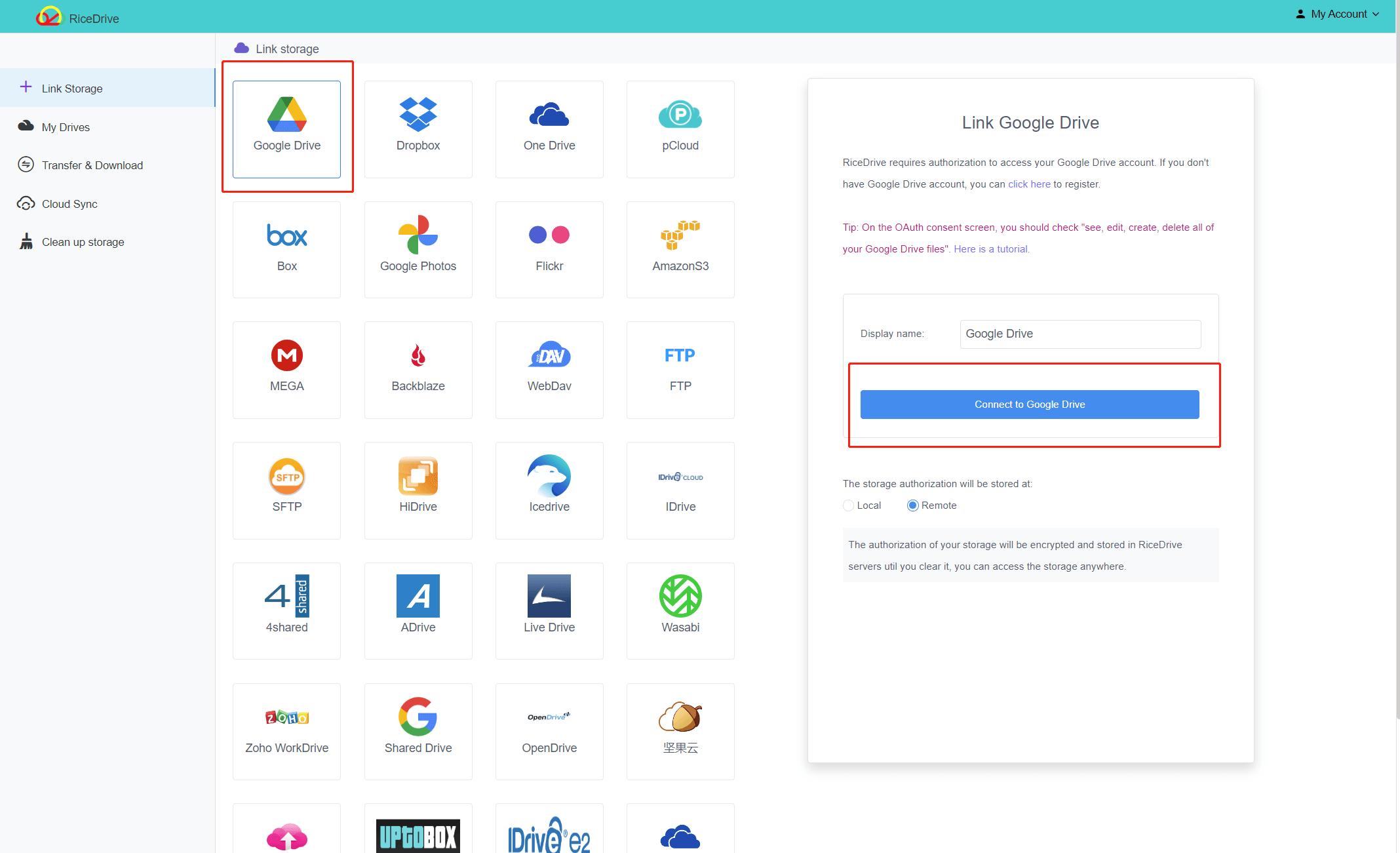
Step 2: Add Google Drive to RiceDrive
- Click Link Drive
- Select Google Drive
- Sign in with your Google account
-
On the Google authorization screen, make sure to allow:
- See, edit, create, and delete all of your Google Drive files
Once connected, your Google Drive files will appear in RiceDrive.
Step 3: Add Filen to RiceDrive
- Click Link Drive again
- Choose Filen
- Enter your Filen account email, password, and 2FA code
- Confirm the connection
Your Filen storage will now be available as a destination.

Step 4: Create a Google Drive to Filen Transfer Task
- Navigate to Cloud Transfer → Create Transfer
- Select Google Drive as the source
-
Choose the files or folders you want to move
- You can select individual folders or the entire drive
- Select Filen as the destination
- Choose a target folder in Filen (or use the root directory)

Step 5: Configure Transfer Options (Optional)
Before starting the task, you can customize settings such as:
- Overwrite rules (skip or replace existing files)
- Transfer filters(include or exclude file types)
- Email notifications when the task is completed
These options are useful when transferring large or sensitive datasets.

Step 6: Start the Transfer
- Click Start up
- RiceDrive will begin moving your files from Google Drive to Filen
- You can safely close your browser—the transfer continues in the background
You can monitor progress, speed, and remaining data directly from the dashboard.
Step 7: Verify Files in Filen
After the transfer finishes:
- Log in to your Filen account
- Check that all files and folders are present
- Confirm file sizes and structure
Once verified, you can safely clean up files in Google Drive if needed.
Tips for Large Google Drive Transfers
- 🔹 Transfer folders instead of many individual files
- 🔹 Avoid renaming or modifying files during the transfer
- 🔹 Start transfers during off-peak hours for faster speeds
Conclusion
If you’re looking for a reliable way to move Google Drive to Filen, RiceDrive is one of the easiest and most efficient solutions available. With no manual downloads, full folder support, and background transfers, RiceDrive saves time and eliminates complexity.
Start your Google Drive to Filen migration today and enjoy a seamless cloud-to-cloud transfer experience.
