Moving everything from one Google Drive to another sounds simple. until you actually try it.
Maybe:
You’re leaving a school or company account and want everything in your personal Google account.
You created a new Google account and want all your old files there.
You just want a full backup of your current Google Drive in another account.
Doing this by hand (download → upload) is slow, fragile, and frustrating. This guide will walk you through:
Why the usual methods are so painful.
A much easier way using RiceDrive.
Step-by-step instructions to copy your whole Google Drive into another account.
Extra tips to keep your files safe and organized.
Why Copy One Google Drive Into Another?
Common situations:
Graduation or job change – You’re losing access to a school or work Google account and need your files.
Account cleanup – You have multiple Google accounts and want everything in one place.
Backup – You want a second Google account to act as a full backup of your primary Google Drive.
In all these cases, what you want is basically:Take everything from Google Drive A and copy it into Google Drive B, with the same folder structure, and without babysitting the process.
The Usual Methods (And Why They Suck)
1. Download → Upload
How it works:
In Google Drive A, select all files/folders.
Click "Download".
Wait for Google to create ZIP files and download them.
Go to Google Drive B and "Upload" everything again.
Problems:
Very slow for large drives
Needs a lot of local disk space
Your computer must stay online the whole time
If the connection breaks, you repeat steps
Easy to make mistakes and miss folders
2. Share and “Make a Copy”
How it works:
Share big folders from Drive A → Drive B.
In Drive B, go to "Shared with me".
Use "Add shortcut to Drive" or "Make a copy".
Problems:
Still heavily manual
Folder structure can get messy
Hard to do for an entire drive with many nested folders
3. Google Takeout
Google Takeout lets you export your entire Google Drive as archives.
But:
You still have to "download" the archives.
Then you still have to "upload" them to Drive B.
Same issues: time, disk space, fragile process.
A Better Way: Use RiceDrive for Direct Cloud-to-Cloud Copy
Instead of moving files through your computer, you can let a cloud transfer tool handle it. RiceDrive connects to multiple cloud services (including multiple Google Drive accounts) and copies files directly between them, No local downloads. No uploads. No full disk. No staying online.
What RiceDrive Does for You
Connects to multiple Google Drives
Copies files directly between clouds
Keeps the folder structure
Handles large amounts of data
Can retry automatically if something fails
Can run in the background even if your browser is closed
Step-by-Step: Copy a Whole Google Drive Into Another With RiceDrive
Step 1: Create a RiceDrive Account
Open the RiceDrive website.

Sign up and log in.
You’ll see a dashboard where you can add cloud accounts and create transfer tasks.
Tip: You can start with the free quota to test things first.
Step 2: Connect Both Google Drive Accounts
You need to connect:
Google Drive A – the current drive (source)
Google Drive B – the drive you want to copy into (destination)
In RiceDrive:
Find "Link Drive".
Select "Google Drive".
Click "Connect" and sign in to "Google Drive A".
Allow access (this uses Google’s official OAuth page; RiceDrive never sees your password).
Repeat the same for "Google Drive B".
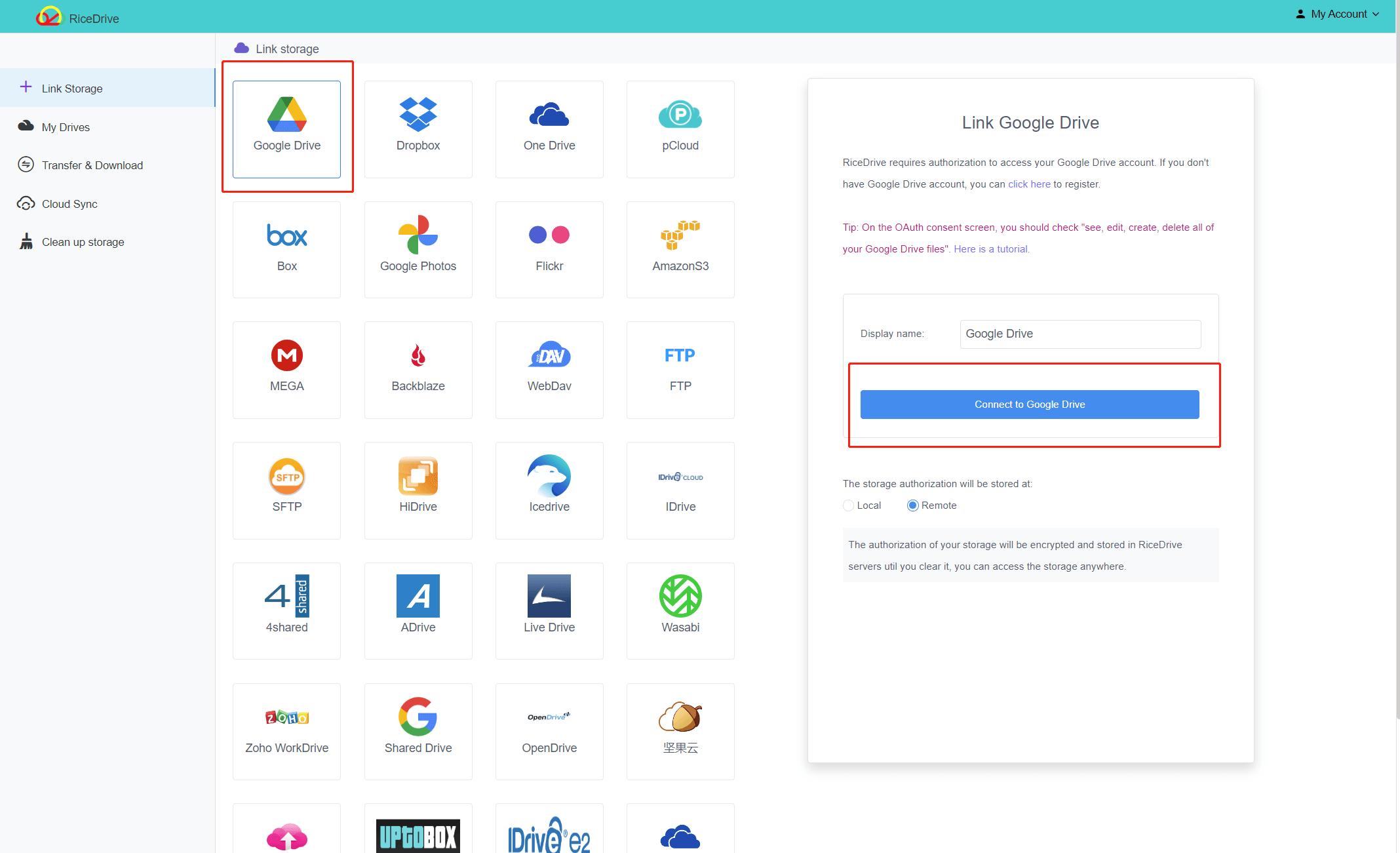
After this, you’ll see two separate Google Drive entries in RiceDrive.
Step 3: Choose What to Copy From Google Drive A
Go to the "Cloud Transfer" section in RiceDrive.
Click the "Create Transfer" button.
Select "Google Drive A" as the "source".
Check the Google Drive A root directory.
RiceDrive will keep the internal folder structure when copying.

Step 4: Choose Where It Goes in Google Drive B
Choose Google Drive B as the destination.
Pick or create a folder where you want all the copied data to live — for example: /Old_Account_Backup
/From_Company_Account
This keeps things tidy and avoids mixing old and new files.
Step 5: (Optional) Adjust Transfer Settings
RiceDrive usually lets you fine-tune how the transfer behaves. Useful options include:
Handling existing files: options for skipping, overwriting, renaming, etc., when a file already exists.
Filters : Exclude certain file types (e.g. `.tmp`, `.bak`)
Schedule: Run once immediately Or schedule regular syncs (daily/weekly) if you want two accounts to stay in sync
Notification: Send e-mail to notify the task result.
Step 6: Start the Transfer
Click "Start Up" to launch the task.
RiceDrive starts copying files from Google Drive A to Google Drive B directly in the cloud.
You can:
Close your browser
Turn off your computer
The transfer continues on RiceDrive’s side. You can come back later and check the progress and logs.
Step 7: Check Your Files in Google Drive B
When the task is finished:
Check the RiceDrive transfer logs to ensure there are no failed files.
Open Google Drive B.
Go to the folder you chose as the destination.
Check:
Are the folders and subfolders there?
Can you open documents, spreadsheets, and presentations normally?
Do filenames and organization look correct?
If you’re moving important or sensitive data, open a few random files from different folders just to be sure everything works.
What Happens to Ownership and Permissions?
When you copy files from Google Drive A to Google Drive B through RiceDrive:
The files in Drive B are new copies, owned by the account B
Original sharing in Drive A doesn’t automatically carry over; you can set new sharing in Drive B if needed
This is ideal when:
You’re leaving a company or school
You want a clean, independent copy of your data
Why This Is Easier Than Doing It Manually
1. No Downloads, No Uploads
Your internet connection is no longer the bottleneck. You don’t need:
Local disk space for temporary ZIPs
A constantly running browser tab
To babysit long uploads
Everything happens in the cloud.
2. Handles Large Drives Better
A human doing download/upload will get stuck with:
Timeouts
Interrupted downloads
Failed uploads
RiceDrive is built to:
Transfer many files in parallel
Retry failures automatically
Run for a long time without you watching it
3. Easy to Repeat or Keep in Sync
Once you set up a transfer task:You can re-run it if needed
Or turn it into a regular sync job if you want two Google Drives to stay close to identical
This is handy if you use one account as a backup of another.
Frequently Asked Questions
Do I have to keep my computer on during the whole transfer?
No. Once the task is created and started in RiceDrive, the transfer runs on their side. You can close your browser and even shut down your computer.
How long will it take?
It depends on:
Total size of your drive
Number of files (many small files take longer than a few big ones)
Google’s API speed and limits
But in general, a direct cloud-to-cloud transfer is more stable and less annoying than manual download/upload.
Will my folder structure stay the same?
Yes. If you select the folders correctly at the source, RiceDrive will recreate the same structure in the destination folder.
Can I move again later if I add more files to the old drive?
Yes. You can:
Re-run the task to copy newly added files, or
Set up a scheduled sync so that new files added to Google Drive A are regularly copied to Google Drive B
Summary
Copying a whole Google Drive into another account doesn’t have to be slow or complicated. Instead of spending days downloading and re-uploading files, you can let RiceDrive handle everything in the cloud: connect both Google Drive accounts, choose what you want to copy, and start the task. Your folders and files are moved safely in the background, while you stay focused on your real work—not on migration.
