Are you looking for a free method to migrate your Dropbox files to Google Drive? Here, I'll introduce various methods to help you swiftly transfer files from Dropbox to Google Drive without the need for downloading and uploading, whether you're on mobile or PC. Without further ado, let's dive in, and I'll provide detailed explanations of these migration methods. I believe there's one that suits your needs.
Transfer Dropbox to Google Drive free (Manual Migration)
Suitable for users with a small data migration requirement, simply manually download your Dropbox data and then upload the downloaded files to Google Drive.
-
Log in to Dropbox through the browser.
-
Select the files or folders you want to migrate, then click the download button.
-
Log in to Google Drive through the browser.
-
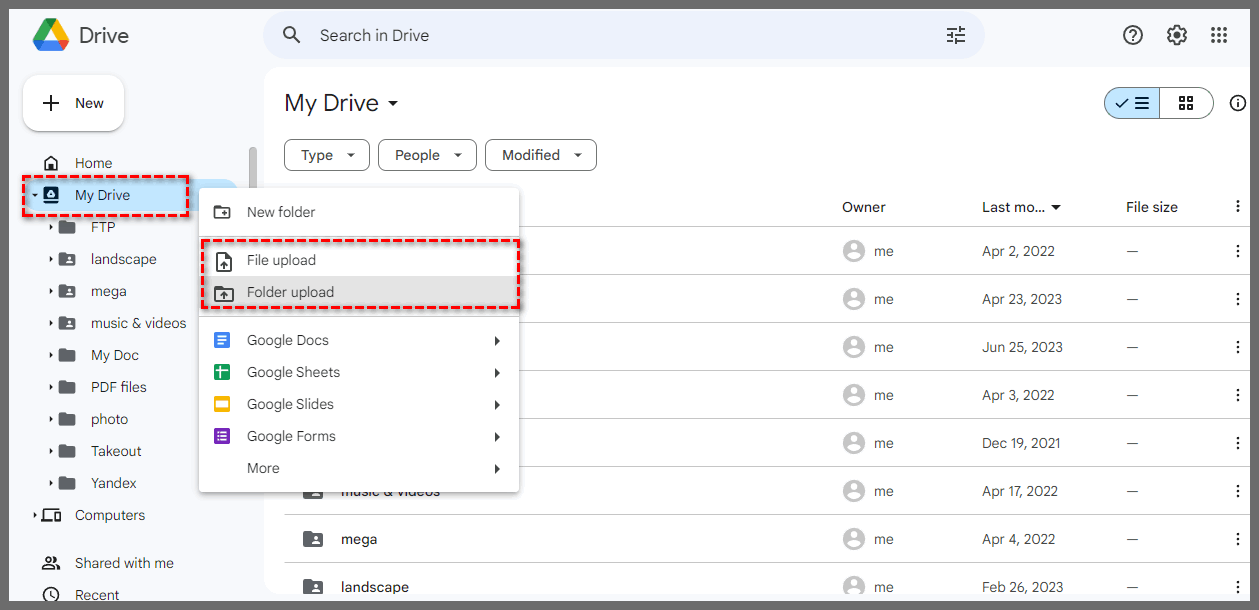
Expand the left-hand menu to access "My Drive" select a folder, and right-click to click on the file upload button.
-
Select the downloaded files and upload them to Google Drive.
Migrate Files From Dropbox To Google Drive With Windows Explorer
This method requires installing the cloud drive client on a Windows system and then migrating data through that client.
-
Install the Dropbox and Google Drive desktop applications, and log in to the accounts.
-
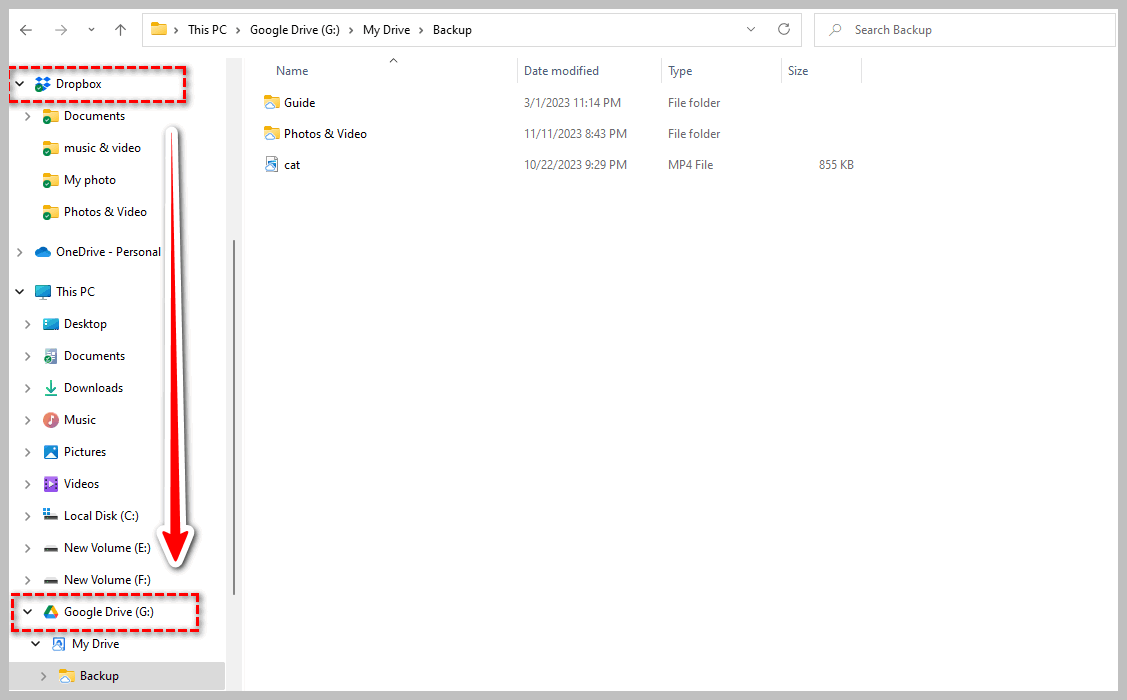
In Windows Explorer, open the Dropbox and Google Drive folders side by side.
-
In Dropbox, locate the files or folders you want to copy or move.
-
Navigate to the Google Drive folder, Drag and drop your files from Dropbox folders to Google Drive.
Dropbox to Google Drive migration tool - RiceDrive
RiceDrive is a cross-cloud transfer tool designed for large-scale data migration. Operated on the server side, it enables direct file transfer from Dropbox to Google Drive without downloading, thus avoiding local bandwidth and disk resource consumption. Choosing RiceDrive is a wise decision for enhancing migration efficiency.
-
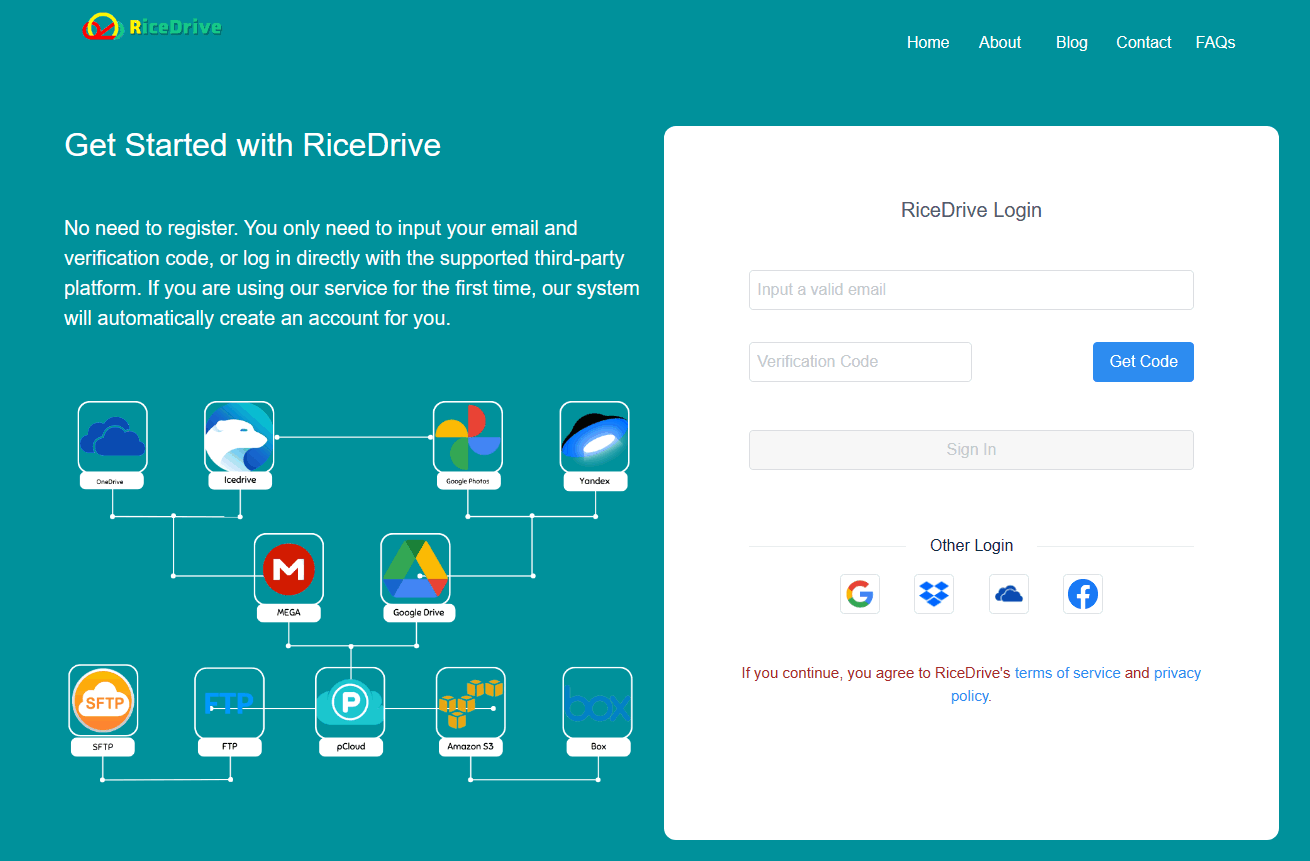
Visit the RiceDrive website (https://www.ricedrive.com/) without the need for registration. Simply provide an email, and proceed to log in after accepting the verification code.
-
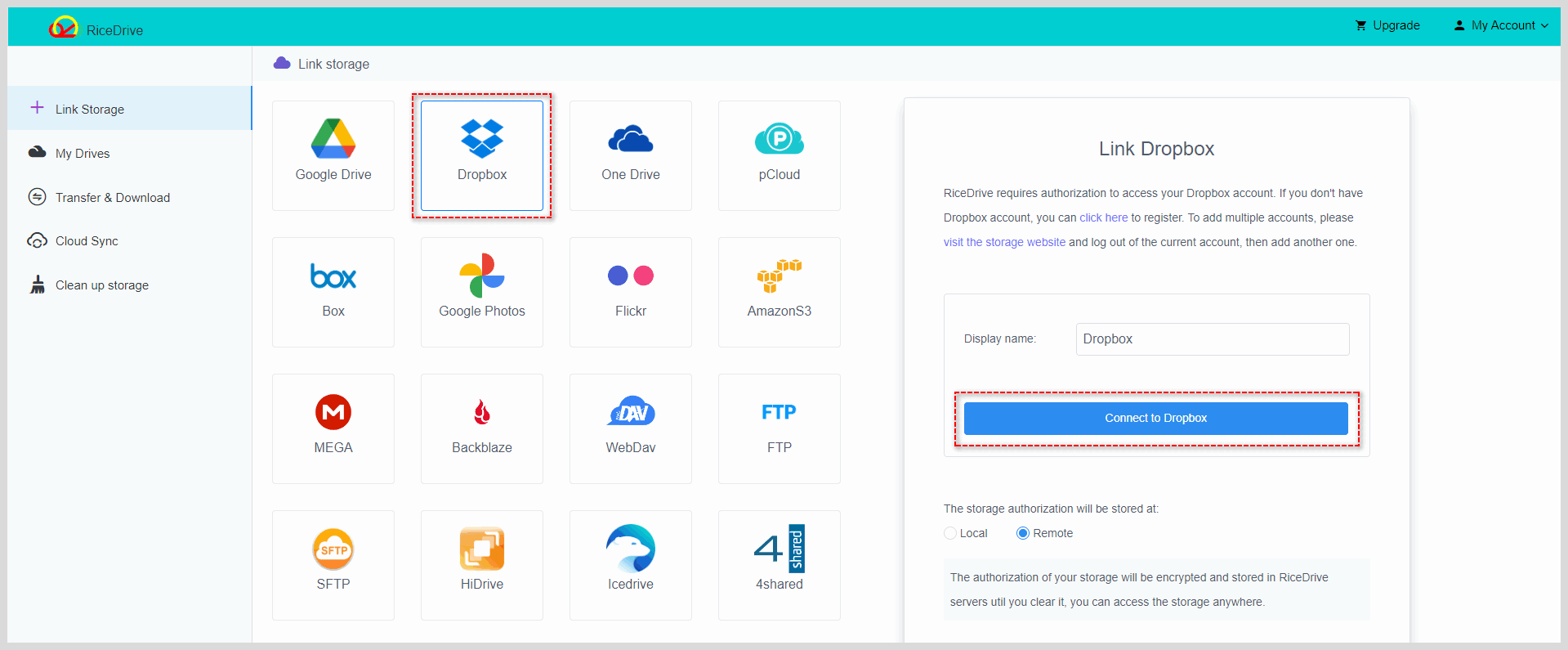
In the RiceDrive dashboard, Click the "Link Storage" button on the left, then select Dropbox cloud storage. Click the "Connect" button on the right, and follow the prompts to connect Dropbox to RiceDrive.
-
Connect Google Drive to RiceDrive using the same method as connecting Dropbox.
-
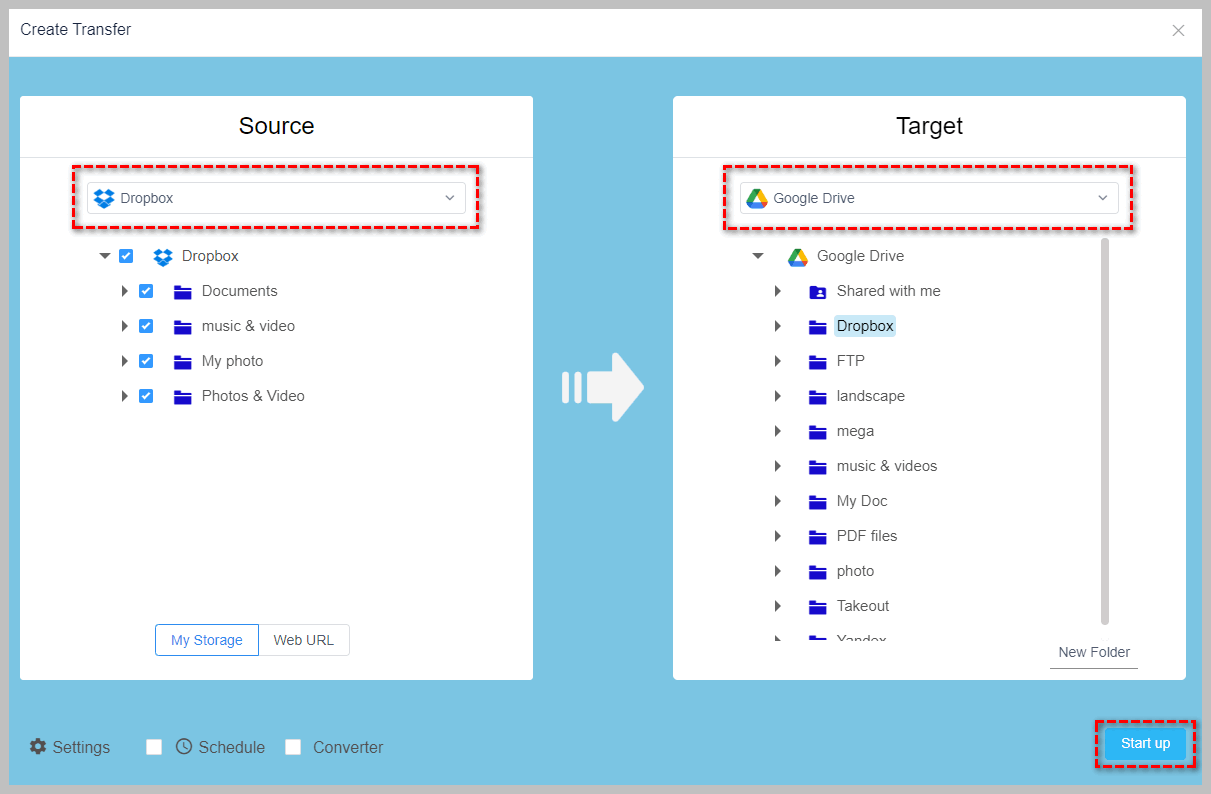
Access the transfer page, create a transfer task, choose Dropbox as the source, check the files or folders you want to transfer, and select Google Drive as the target cloud storage (i.e., the cloud storage service you want to transfer to).
-
Once all settings are configured, click the "Start up" button to initiate the transfer task. Throughout the task execution, you can track the migration progress in RiceDrive's task list. You may also close RiceDrive to attend to other important matters, as it will automatically continue the task in the background.
-
After the task is completed, you can review the transfer log to ensure the successful transfer of all files.
How to transfer files from Dropbox to Google Drive on iPhone
Here, I will demonstrate how to use RiceDrive on an iPhone to migrate files from Dropbox to Google Drive. No need to download an app—simply log in through the web interface and follow a few simple steps to complete the migration.
-
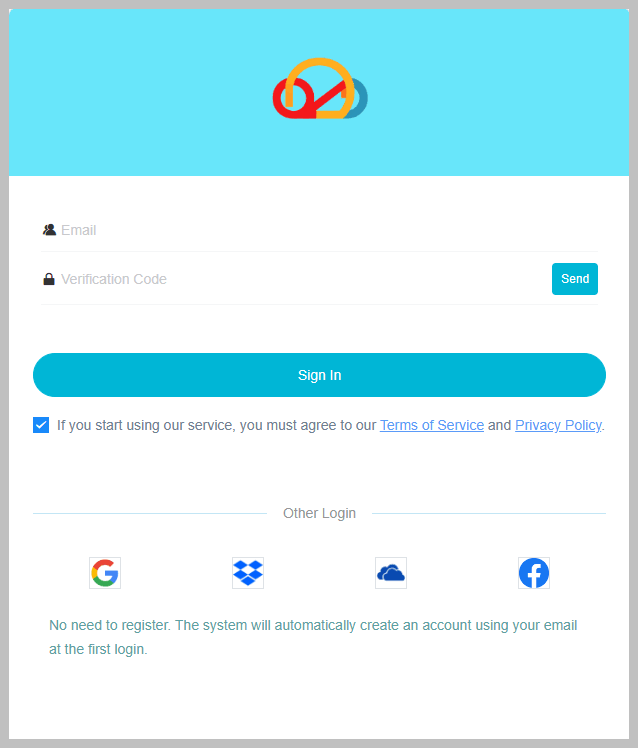
Access RiceDrive's mobile version through the browser and have an email ready to receive the verification code for login.
-
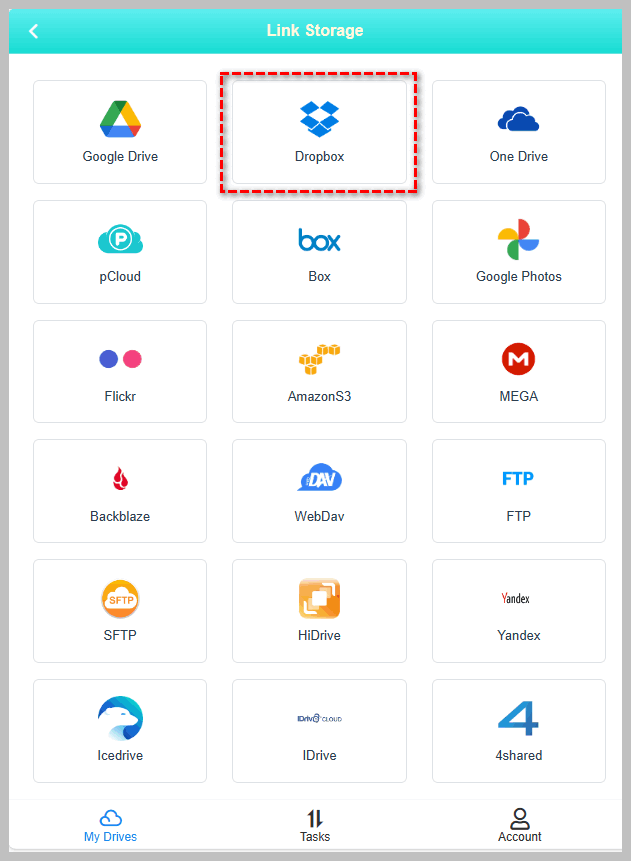
Navigate to the "My Drive" page and click the "Link Drive" button at the top of the page.
-
Select Dropbox cloud storage and add it to RiceDrive.
-
After successfully adding Dropbox, proceed to add Google Drive to RiceDrive in the same manner.
-
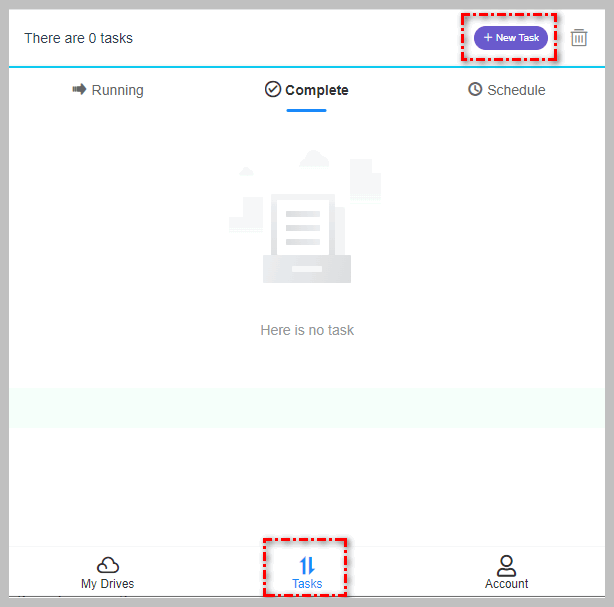
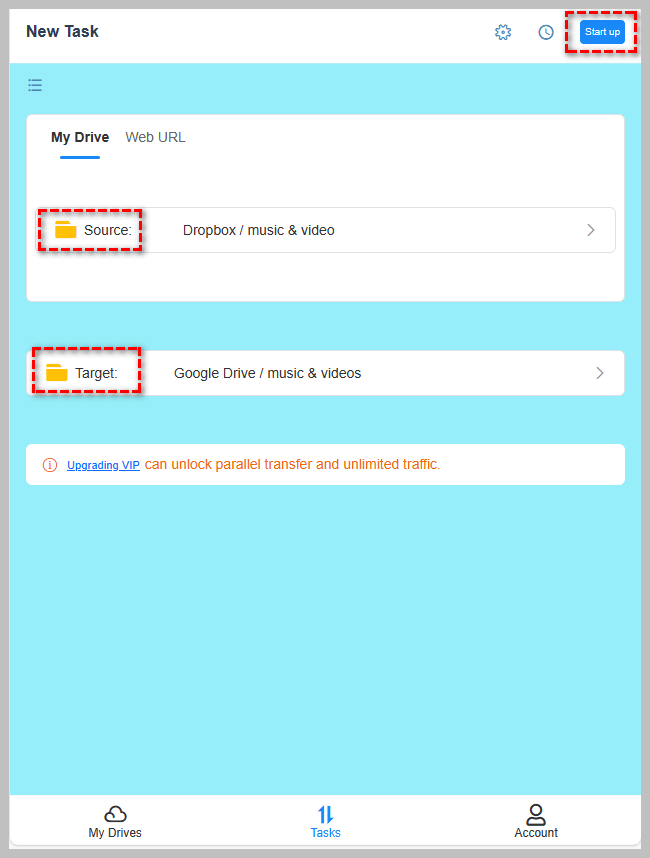
Access the "Tasks" page and click the "New Task" button at the top of the page.
-
In the source input box, choose the files or folders you want to transfer (select the files from Dropbox here).
-
In the target input box, select the Google Drive folder (i.e., the cloud storage service you want to migrate to).
-
Click the "Start up" button to create and execute the transfer task from Dropbox to Google Drive.
-
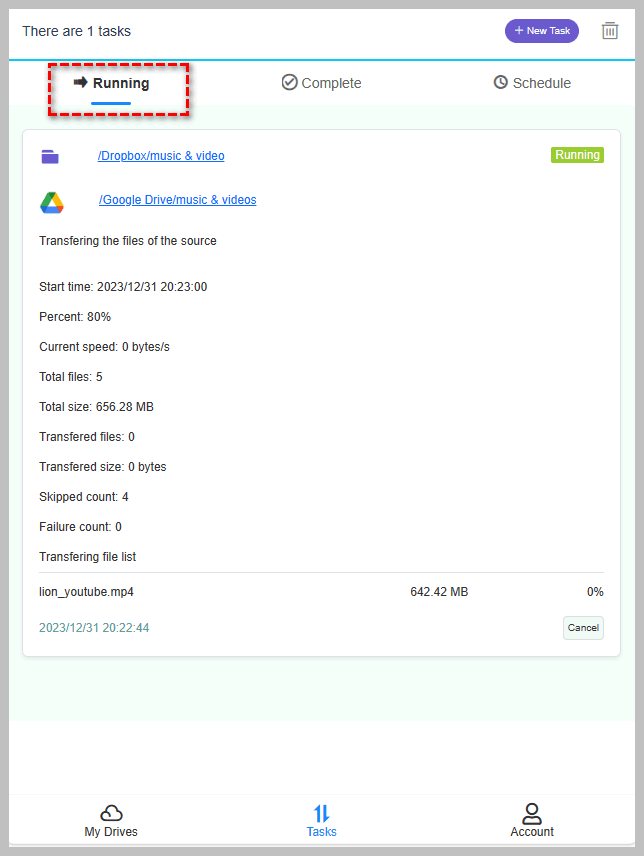
No need to overly focus on the progress of task execution; all tasks will be automatically completed in the background. After completion, you can review the logs to ensure successful file transfers.
Conclusion
Among the various methods available, utilizing RiceDrive service stands out as the quickest way to migrate Dropbox files to Google Drive. This method is not only simple but also highly effective, significantly boosting your efficiency. RiceDrive is a free online service, eliminating the need for a computer client download. Managing multiple cloud storages becomes seamless through a browser, with support for unified management of over 30 cloud storages. RiceDrive excels in efficiently migrating and moving files between any Cloud services. Additionally, it aids in optimizing your cloud storage space by assisting in tasks such as cleaning the recycle bin, identifying large files, eliminating duplicates, and managing empty folders.