RiceDrive is a free and secure cloud transfer tool that allows you to connect multiple cloud storage accounts and move files between them easily. It supports major services including Icedrive, Google Drive, Dropbox, OneDrive, and many others. No installation is required — everything runs from your web browser.
Step 1: Create a RiceDrive account
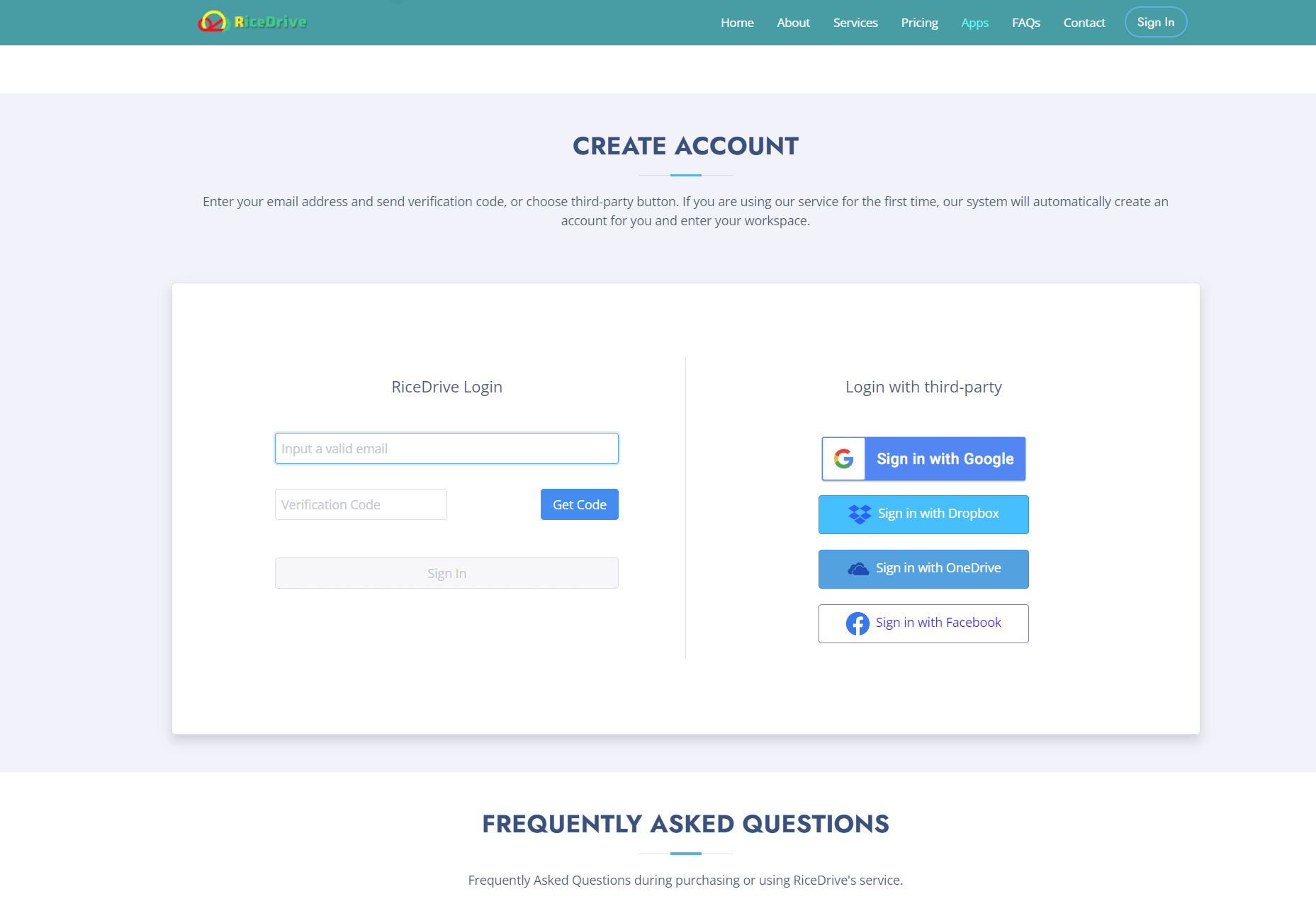
- Open RiceDrive's official website (https://www.ricedrive.com) in your browser.
- Click the sign in button to login an account.
- Fill in the required personal email and create a new account.
Step 2: Add Icedrive and Google Drive accounts
After logging in to RiceDrive, click the "Link Drive" on the left menu. Select "Icedrive" and "Google Drive" as the cloud storage services you want to add. Then follow the prompts to log in and authorize, associating these two cloud storage services with RiceDrive.
Notes:-
Adding Google Drive - you need to check see, edit, create, delete all of your Google Drive files the box on the authorization page.
-
Adding Icedrive - If your Icedrive account is not VIP, you’ll need to upgrade it to enable WebDAV. Follow these steps to retrieve your WebDAV credentials:
- Log in to icedrive.net.
- Click your Icedrive username and go to 2FA & Access.
- Click WebDAV and enable it.
- Click Show Key.
- enter your Icedrive account email and the key you obtained above as the password in RiceDrive.

Step 3: Create a file transfer task
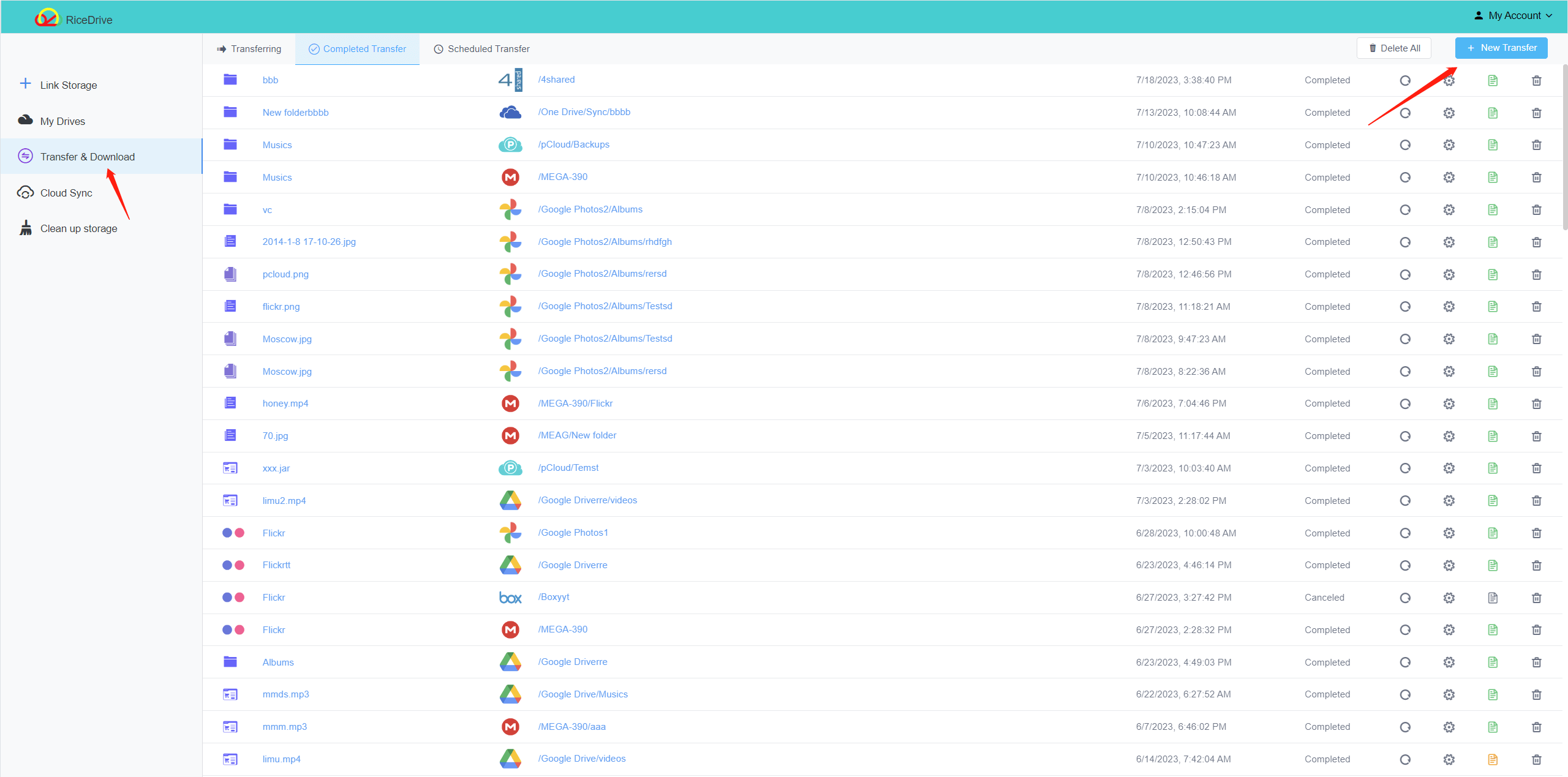
- On RiceDrive's left panel, find the Transfer & Download option.
- Click Create transfer button to open the transfer creation pop-up.
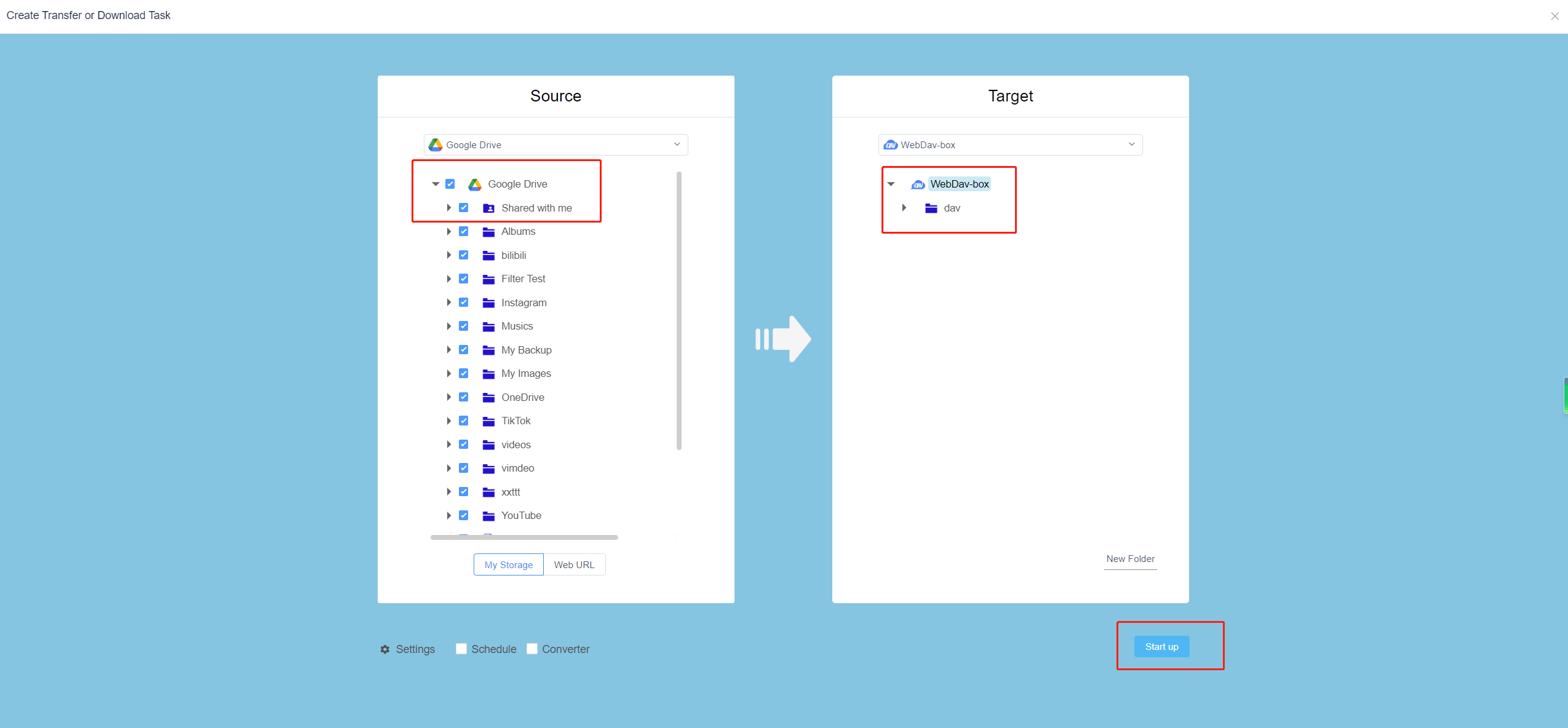
- Select the Icedrive, Check the file or even the entire Icedrive you want to transfer as source.
Step 4: Select destination location and start transfer
Select the Google Drive, select a folder as the target. This will create a new folder in your Google Drive and copy the files from Icedrive into that folder.
Step 5: Wait for transfer to complete
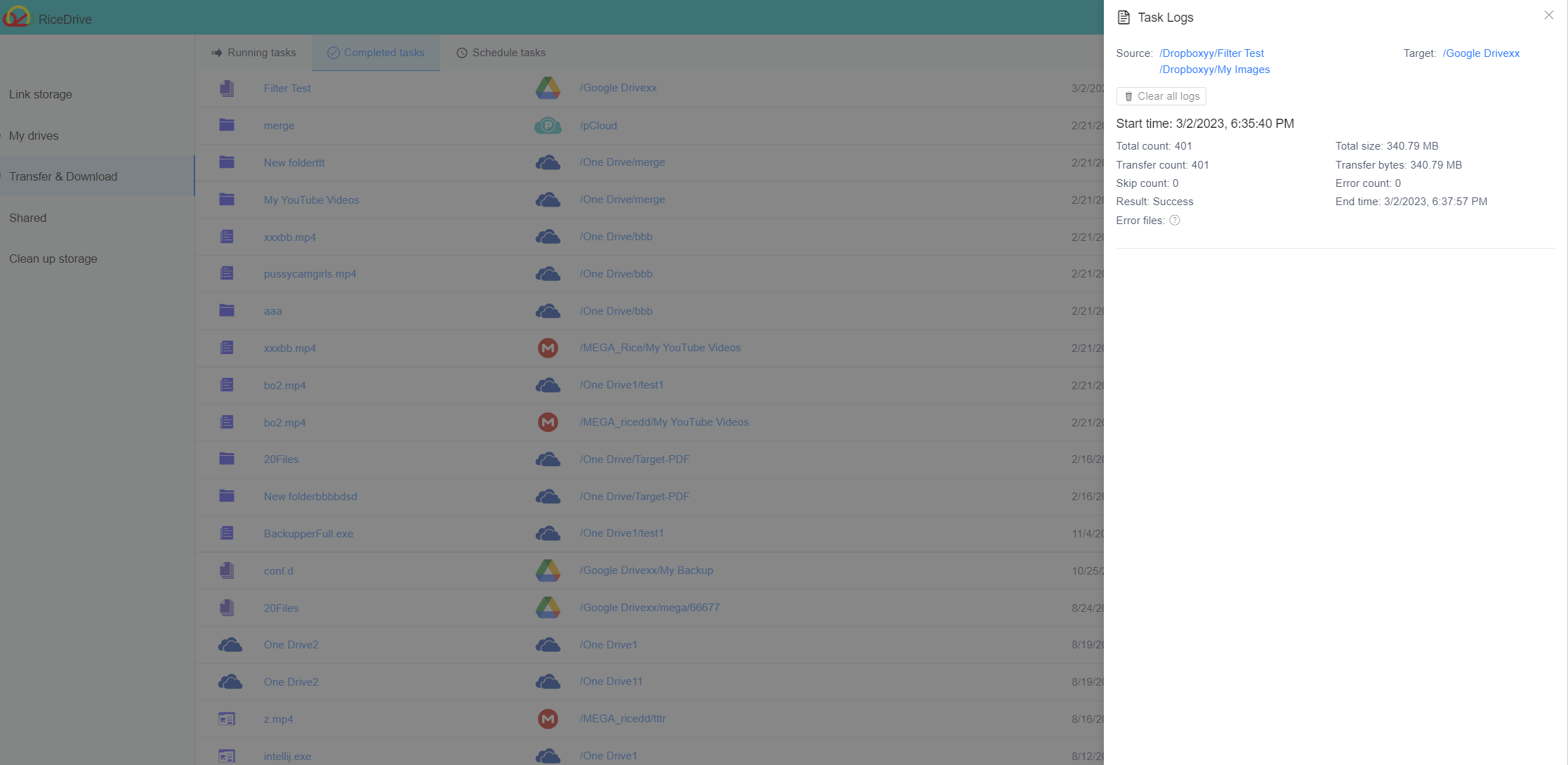
RiceDrive will start automatically transferring files. You can view the transfer progress and status in the transfer window at the bottom right corner. Please be patient and wait until the transfer is completed.
Note that the transfer speed depends on your network connection quality and file size. For larger files or folders, it may take more time to complete the transfer. Also, make sure there is enough storage space in both your Icedrive and Google Drive accounts to accommodate all files.
